Your Settings Tour
Start your journey on the stage
Your Settings Tour
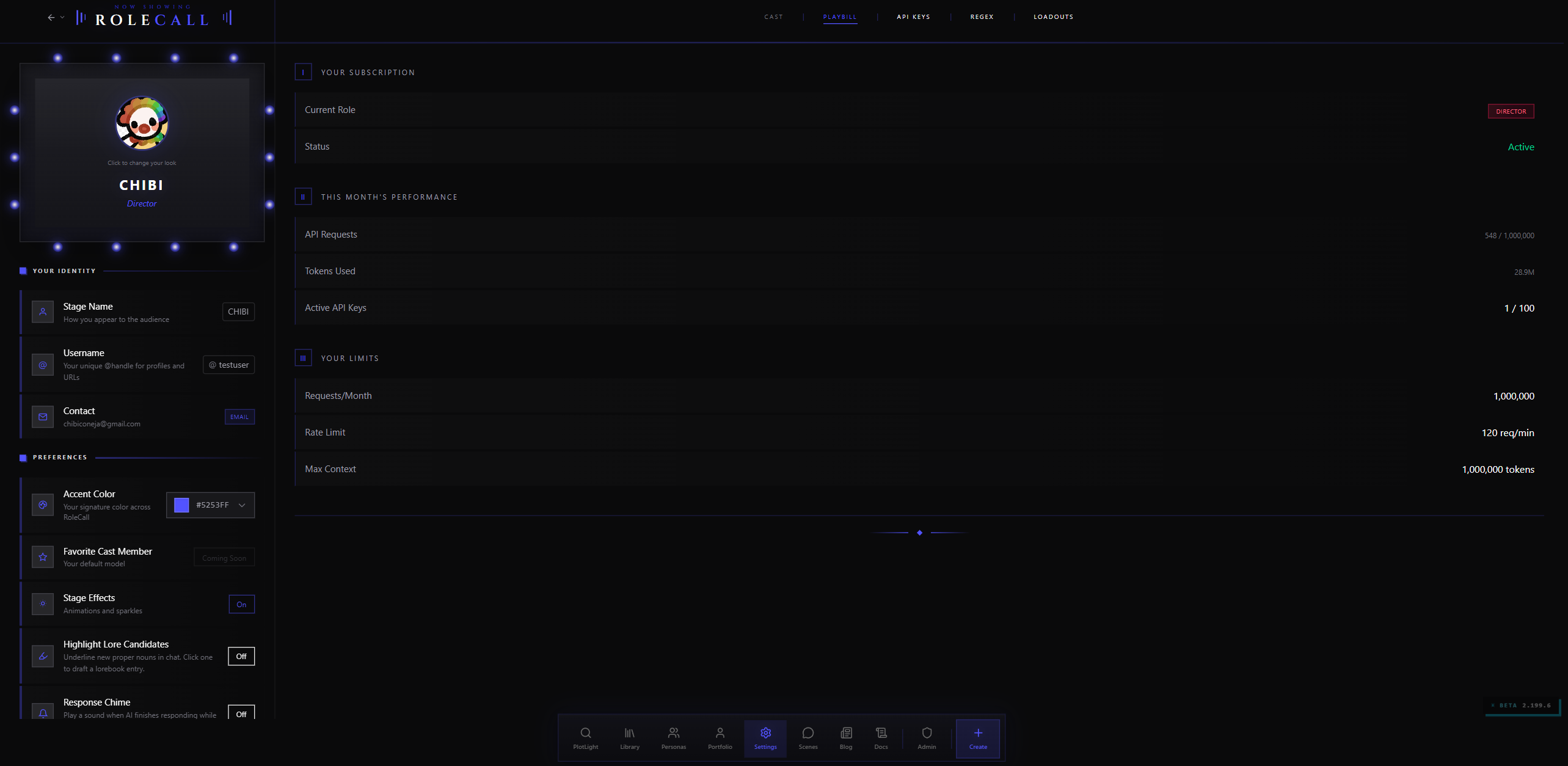
The Settings page has four tabs — Loadouts, Playbill, Connections & Keys, and Profile — and lands on the Loadouts tab by default. This guide walks the Playbill tab, your account's identity surface, top to bottom.
Note: "Playbill" in Settings is the account identity tab. The character-facing Playbill is a separate feature — the public showcase canvas attached to each character. Same word, two surfaces.
This guide walks you through every section top to bottom. By the end you'll know what each card shows, where the important controls are, and what autosaves versus what you have to confirm explicitly.
Two things called Playbill. RoleCall uses the word in two places: this Settings tab, and the freeform visual canvas attached to each character that visitors see on Discovery. This guide covers the Settings tab only. The character showcase editor lives in Playbill.
1. Getting There
Open Settings from any page — it's in the main navigation. The page loads directly on the Loadouts tab by default; click the Playbill tab to reach the identity surface this guide covers.
The URL for the Playbill tab is /settings?tab=playbill. If you see a different suffix in the address bar, click the Playbill tab in the sub-navigation to return here.
On desktop you'll see four tabs running across the top of the page: Loadouts, Playbill, Connections & Keys, and Profile. On mobile they sit in a horizontal scroll — swipe or tap to switch.
2. The Hero Strip
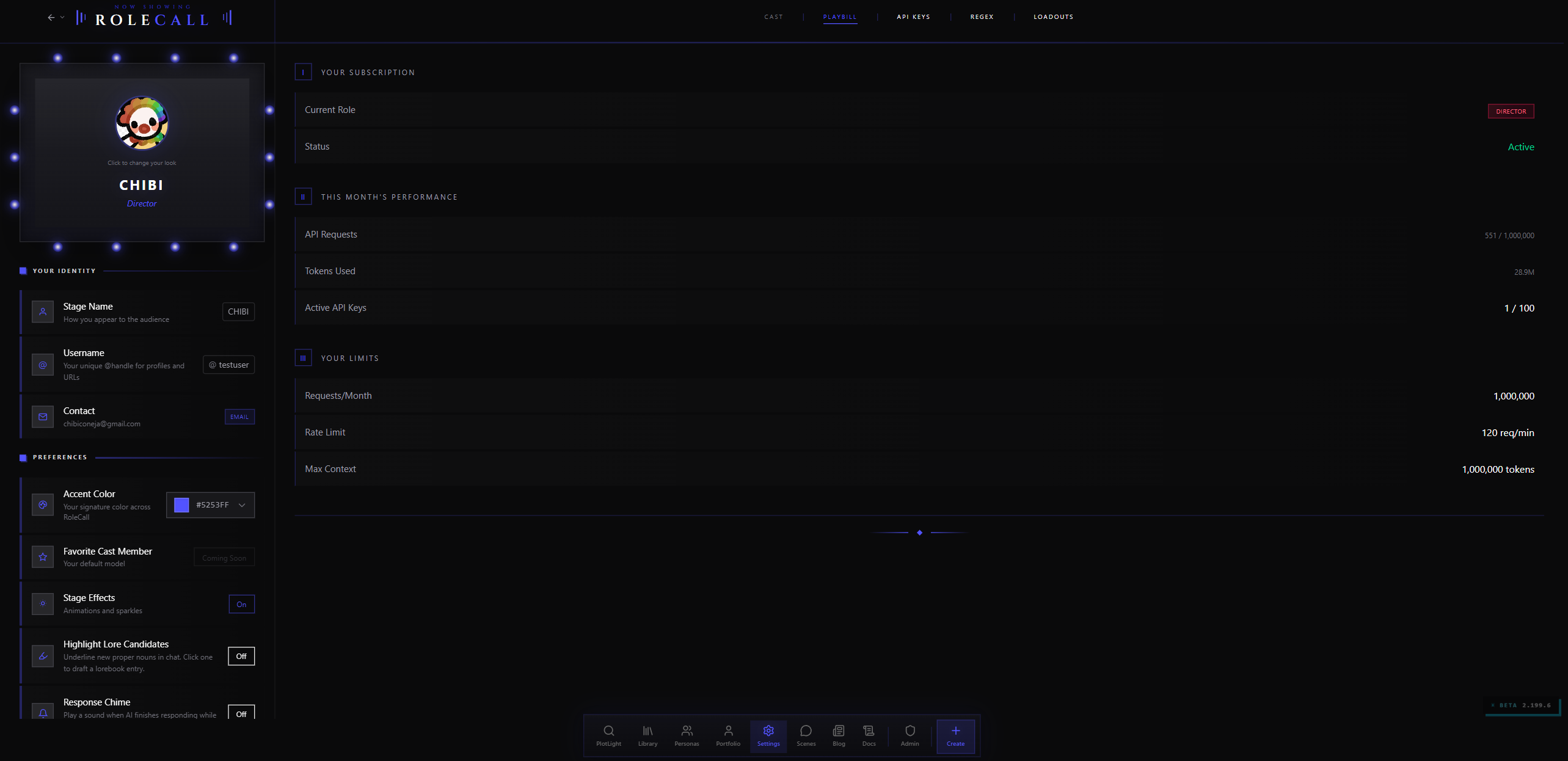
The top of the page shows a large heading with the word ROLECALL as an eyebrow and your display name — or username, if you haven't set a display name yet — as the main line.
This strip is purely decorational; it just confirms you're looking at your own account. Your actual display name and avatar sit inside the Dressing Room section directly below it, where you can edit everything.
3. The Dressing Room — Your Account Identity
The Dressing Room is the first major section on the Playbill tab. It holds everything tied to who you are on RoleCall — your avatar, display name, username, contact info, and account-wide preferences.
Setting Your Avatar
Click your avatar image to upload a new one. Accepted formats are PNG, JPG, and WebP, with a 5 MB limit. While the file uploads, the avatar shows a spinner. If you try to upload an invalid type or an oversized file, a toast explains exactly which limit you hit.
Your avatar appears everywhere your account shows up — creator credits on published characters, ratings and reviews you've left, your profile page.
Display Name and Username
Your Stage Name is the display name shown publicly across the platform. Click "Set name" to edit it, then press Enter or click Save to commit. Click Cancel to bail without saving.
Your Username is your @handle. It's used in profile URLs and @-mentions. Lowercase letters and digits only — non-matching characters are stripped as you type, so typing "Hello-World!" lands as helloworld. If the handle is taken, you get an error and your old handle stays in place.
Both fields are separate saves. Changing your Stage Name doesn't change your username, and vice versa.
Contact Information
Your email address and the OAuth provider you used at sign-up (Google, GitHub, or Discord) appear as read-only information. You can't change your email from this section.
Preferences
Below your identity fields is a Preferences section with account-wide toggles. These apply everywhere across RoleCall, not just in a single scene.
| Preference | What it does |
|---|---|
| Accent Color | Your signature color across the whole platform. Drives borders, glows, button tints, slide indicators, and the chat accent (unless a scene overrides it with the character's own color). Open the swatch picker — the page updates optimistically as you pick so you can preview before confirming. |
| Stage Effects | Sparkle animations and ambient flourishes across the app. Off by default. Turn this on if you want a little extra theatrical flair; turn it off if you prefer a cleaner interface. |
| Highlight Lore Candidates | Underlines new proper nouns in chat. Click any underlined word to draft a lorebook entry on the spot. Great for players who want to build up world info as they chat. |
| AI Verify Candidates | Only visible when Highlight Lore Candidates is on. Has an AI helper classify candidate words and prune false positives before they're underlined. Uses tokens per chat. |
| Response Chime | Plays a sound when an AI response finishes generating while you're in another browser tab. The chime stays silent if RoleCall is the active tab. |
| Stage Fright | Hides your own engagement stats from your view — ratings, favorites, and chat counts stop showing on your published content. Other people still see the numbers. Use this if you'd rather not watch the scoreboard. |
The Experience Pass is also here. It controls which features are visible throughout the entire app. A more streamlined level hides advanced options — the lorebook editor, preset editor, regex rules, macros, branching, group chat — and shows only the essentials. A full level surfaces everything: all sampler settings, version history, branches, and the full editor suite. Changes take effect immediately, no refresh needed.
Behind the Scenes
At the bottom of the Dressing Room you'll find the export button, the account deletion button, and the sign-out link.
4. The At-a-Glance Cards
Immediately below the Dressing Room, three summary cards give you a fast read on your account's health and usage. These are information only — no controls.
Your Subscription
Shows your current account status. A green Active badge confirms your account is in good standing. The card notes the current role and any relevant state. If something needs attention — a pending action, a suspended account — it appears here rather than buried somewhere else.
This Month's Performance
A 30-day rolling summary of what your account has done:
| What you see | What it means |
|---|---|
| API Requests | Total inference calls made under your account this period. Shows as a count or as used / limit if a cap applies. Shows "Unlimited" if there's no cap. |
| Tokens Used | Formatted for readability — 1.4M, 42.0K, etc. |
| Active API Keys | How many of your RoleCall API keys are currently enabled, shown as active / total. |
Your Limits
The counterpart to This Month's Performance — shows the ceilings rather than the current numbers:
- Requests per month (or Unlimited if there's no cap)
- Rate limit in requests per minute
- Maximum context length in tokens
Check this card when you're hitting errors that look like capacity constraints. It tells you what the cap actually is, so you know whether to pace yourself or whether something else is going wrong.
5. End-to-End Encryption
The END-TO-END ENCRYPTION section is the most important security surface in your account. This is where you verify your recovery phrase setup, unlock a new device, or wipe and restart your encryption from scratch.
Your 12-word phrase is the only key to your encrypted chats, memory chunks, and provider API keys. RoleCall does not have a copy. Losing the phrase means losing access to everything it protects — there is no support-desk recovery path.
Reading the Status Cards
Three cards — Database, This Device, and Overall — show where your encryption currently stands.
| Status | What it means |
|---|---|
| Encryption Configured | A recovery phrase has been confirmed on your account. The card also notes when encryption was set up. |
| Key Stored Locally | This specific browser has the unlocked key ready to go. Subtitle: "Ready to encrypt/decrypt." |
| Active | Both sides agree — you're fully set up on this device. |
| Recovery Required | A phrase exists for the account, but this device hasn't been unlocked yet. |
| Setup Required | No phrase has been generated for this account at all. |
The Action Buttons
Below the status cards, up to three buttons appear depending on your current state:
Enter Recovery Phrase — always visible. Opens the recovery modal where you paste your 12-word phrase to unlock this device. If you're already unlocked on this device, the modal tells you that. Nothing destructive happens from opening it.
Manage Encryption — appears once you're fully set up. Opens the same modal in management mode. Use this when you want to pair a new device or need to run the wipe-and-restart flow.
Set Up Encryption — appears only when no phrase has been generated yet. Opens the initial setup flow and generates your phrase.
What NOT to Do
Never paste your 12-word phrase into a chat message, a support ticket, or any form that isn't the official RoleCall encryption modal. Legitimate RoleCall flows only ask for the phrase on the encryption setup modal and the new-device pairing screen — nowhere else. If something else is asking for it, that is not RoleCall.
For the full mechanics of phrase generation, type-back verification, device pairing, and the wipe-and-restart flow, see Providers & Keys.
6. Balance and Usage
Below the encryption section, two separate sections give you a deeper read on your token economy.
Balance
Shows your current token balance per pool. Pools include credits from RoleCall's hosted infrastructure (your tier's monthly allowance or any credits you've topped up) and status for any BYOK providers you've connected. If you have a monthly allowance, you can see exactly where you stand without digging through receipts.
Usage
Headline stats for the last 30 days: Total Requests, Total Tokens, Success Rate, and Average Response Time. Below those, a per-source breakdown shows you where your tokens went — by provider type and by the feature that triggered each call.
The Usage section on the Playbill tab is a high-level summary. For the full per-source breakdown with caller detail and a 24-hour slice, switch to the Connections & Keys tab where the complete usage report lives.
7. Text Processing — Global Rules
The TEXT PROCESSING section contains a Global Rules subsection. This is one of the most useful — and least discovered — features on this tab.
Global Rules let you inject text into every AI generation across your entire account, regardless of which character, preset, or scene you're in. Think of it as a standing instruction that follows you everywhere.
Common uses:
- A global persona wrapper: "Always address the user as [name] and refer to them with [pronouns]."
- A universal writing-style directive: "Write in present tense. Keep descriptions to one paragraph."
- A standing prohibition: "Never break the fourth wall."
- A context injection: "The user is a narrator, not a character. Do not write dialogue for them."
How to Add a Global Rule
- Scroll to the TEXT PROCESSING section on the Playbill tab.
- Find the Global Rules subsection.
- Click to add a new rule. Enter the text you want injected into every prompt.
- Set the insertion point — where in the assembled prompt the rule appears. Options typically include start, end, or a specific injection depth.
- Save. The rule goes live immediately and applies to all subsequent generations in any scene.
Rules here stack on top of preset-level and scene-level instructions. They're additive, not overriding — the preset's own prompts stay in place.
If you want to test a scene without a rule, disable the rule here rather than deleting it. Disabled rules stay in the list and can be re-enabled at any time.
8. Visibility — the Playbill Tab Is Private
Everything on this Settings tab is private to you. No one browsing Discovery or your creator profile can see your subscription cards, token usage, encryption status, Global Rules, or anything else in Settings.
Your public-facing creative presence lives on PlotLight, not here. Your PlotLight Portfolio is the surface that visitors see — your showcase characters, published content, and public bio. Head to plotlightstudios.com and click your avatar to find your public profile.
9. Default Configuration, AI Helper Character, and Saved Loadouts
Toward the bottom of the Playbill tab scroll, the Loadouts section surfaces three subsections that are worth knowing about.
Default Configuration
The preset snapshot that gets applied when you start a new scene without explicitly picking a loadout. This is your fallback starting point — the character, preset, model, and any other scene defaults you want applied automatically when you hit "New Scene" and don't choose anything else.
AI Helper Character
The persona used by RoleCall's in-app /btw assistant — the AI helper that can answer questions, consult on your scene, and perform actions while you're in a chat. If you want the assistant to have a specific persona or voice, configure it here.
Saved Loadouts
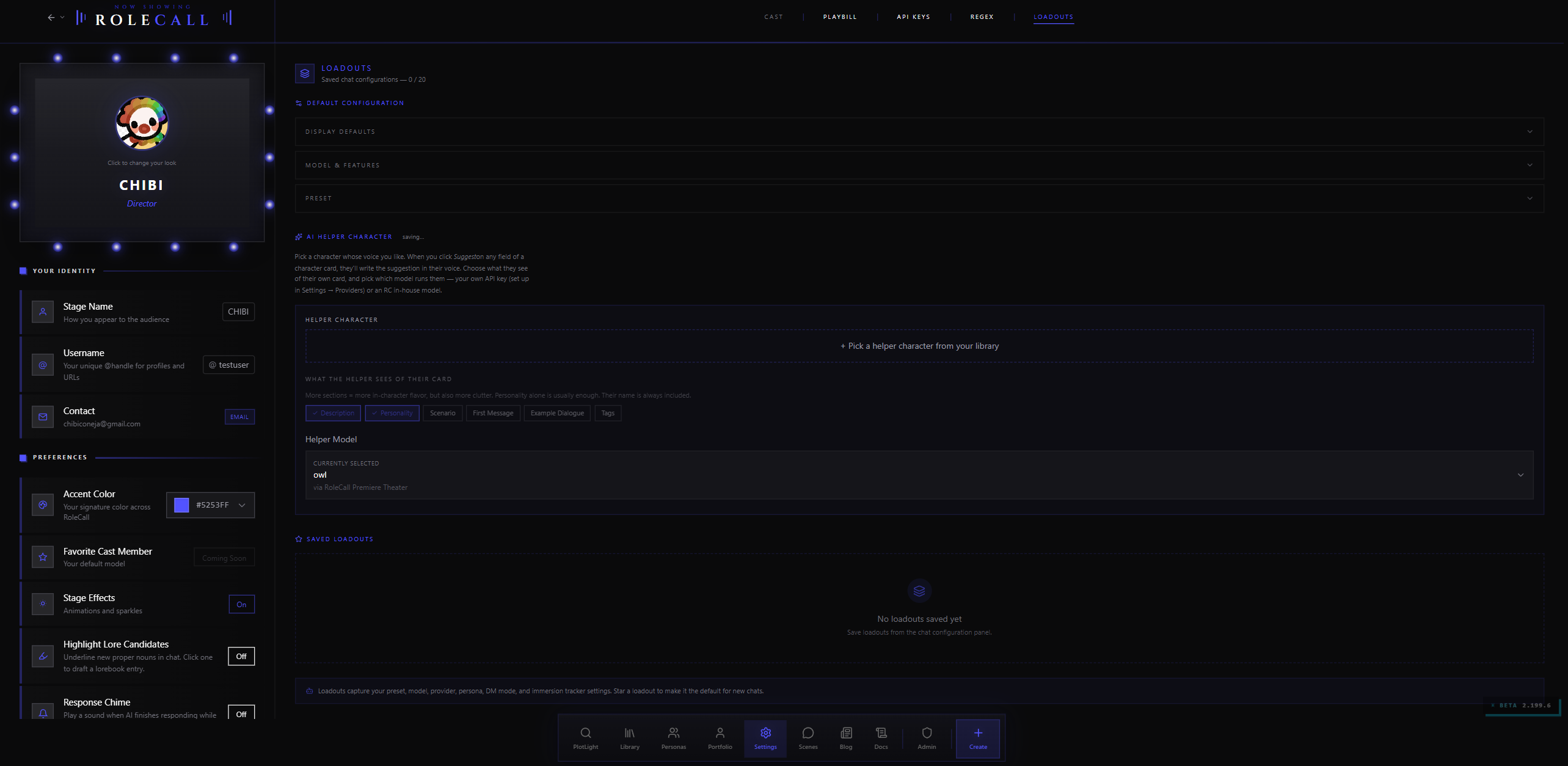
A loadout is a reusable bundle of scene defaults — preset, model, samplers, lorebooks, stage settings, Story Director config, post-production setup, and more — that you can apply with one click when starting any scene.
Build a loadout once for each "type" of session you run. A "slow burn romance" loadout and a "high fantasy action" loadout can have completely different presets, models, and immersion modules attached — switching between them on a new scene is one click.
The full loadout editor and the ability to capture loadouts from a live scene lives in the Loadouts tab. You can reach it directly at /settings?tab=loadouts.
For a full reference on what loadouts can capture and how applying one works, see Account & Settings.
10. Saving — What Autosaves and What Doesn't
Changes on the Playbill tab are handled in a few different ways. A small "Saved!" toast appears in the top-right corner each time a preference commits.
| Change | How it saves |
|---|---|
| Display name (Stage Name) | Click "Save" or press Enter on the field |
| Username | Click "Save" or press Enter on the field |
| Avatar | Saves automatically on successful upload |
| Accent color | Optimistic preview while you pick; saves when you confirm the selection |
| Preferences (Stage Effects, Highlight Lore Candidates, Response Chime, Stage Fright) | Toggle commits immediately — no separate save button |
| Experience Pass | Change commits immediately |
| Global Rules (Text Processing) | Save button on the rule form |
| Encryption actions (Enter Recovery Phrase, Manage Encryption) | Their own modal flow — each step is confirmed explicitly |
Nothing on this tab silently auto-saves mid-edit. If you type a new display name and navigate away without pressing Save, the change is lost.
11. First-Visit Checklist
If you've never spent time on the Playbill tab, a quick pass through these four things is worth doing before your next session:
1. Verify your encryption status. Look at the three status cards in the END-TO-END ENCRYPTION section. You want to see Active and Key Stored Locally on this device. If you see "Recovery Required," click Enter Recovery Phrase and paste your 12 words to unlock this device.
2. Check This Month's Performance. The token and request counts give you a useful baseline for how much your account is doing. If you're closer to a limit than you expected, the Your Limits card will tell you what the cap actually is.
3. Set your accent color. It propagates everywhere — borders, glows, button tints, chat accents. Pick a color that's yours and let it flow through your whole experience.
4. Add a Global Rule if you have a standing preference. If there's a persona wrapper, a style directive, or a standing prohibition you always want active, put it in Global Rules once and stop adding it to every preset you build.
12. Common Questions
"I changed my username but it still shows the old one in chat." Display name and username are two separate fields. Chat shows your persona's name, not your RoleCall username. If you want a different name to appear in chats, update your active persona (from the Cast wing inside any scene), not your username here.
"I can't find the BYOK Providers section — where is it?"
BYOK Providers lives on the Connections & Keys tab, not the Playbill tab. From Settings, click the Connections & Keys tab (or go to /settings?tab=api-keys). Scroll down past the encryption cards and token balance to the Provider Configurations section.
"My accent color changed back." Accent color changes are optimistic — they preview immediately but need an explicit confirmation. If you navigated away before the confirmation saved, the picker reverted. Return to Playbill → Dressing Room → Preferences and reselect your color.
"The encryption section says 'Recovery Required' on my new device." That's expected. Your encryption key lives in your browser, not in the cloud. On any new device, you need to enter your 12-word phrase to unlock it. Click Enter Recovery Phrase, paste your phrase, and your encrypted content will become accessible.
"I turned on Highlight Lore Candidates but nothing is underlined." The feature underlines new proper nouns as they appear in AI messages. It won't retroactively underline anything already in the chat — it only triggers on new incoming messages after you enable it.
"Where do I configure what the Orison assistant looks like?"
That's the AI Helper Character slot in the Loadouts section near the bottom of the Playbill tab. Set the persona there and the /btw assistant will use it.
"I want to sign out — where is the button?" Sign Out is at the bottom of the Dressing Room section in the Playbill tab, in the row labeled "Behind the Scenes." It signs you out immediately and clears your encryption key from the device. You'll need your 12-word phrase to unlock your encrypted content next time you sign in on this device.
"What's the difference between the Playbill tab and the Loadouts tab?"
The Playbill tab covers identity, subscription summary, encryption, and global preferences. The Loadouts tab (at /settings?tab=loadouts) is where you build and manage your reusable scene-setup bundles, and it is the tab Settings lands on by default. The Loadouts section at the bottom of the Playbill tab shows a quick summary, but the full editor is on the dedicated Loadouts tab.
Quick Reference
| Want to… | Where it is |
|---|---|
| Change avatar, display name, or username | Playbill tab → Dressing Room |
| Change accent color | Playbill tab → Dressing Room → Preferences |
| Turn on lore-candidate highlighting | Playbill tab → Dressing Room → Highlight Lore Candidates |
| Pick which features show up everywhere | Playbill tab → Dressing Room → Experience Pass |
| Hide your own engagement stats | Playbill tab → Dressing Room → Stage Fright |
| Check subscription status | Playbill tab → Your Subscription card |
| See monthly token usage | Playbill tab → This Month's Performance |
| Verify or unlock encryption on this device | Playbill tab → END-TO-END ENCRYPTION section |
| Set a global text injection for all generations | Playbill tab → TEXT PROCESSING → Global Rules |
| Configure your default scene loadout | Playbill tab → Loadouts section (or Loadouts tab) |
| See your public creator profile | plotlightstudios.com → your avatar |
| Connect a BYOK provider | Settings → Connections & Keys tab |
| Export all your content | Playbill tab → Dressing Room → Behind the Scenes → Export Script |
| Delete your account | Playbill tab → Dressing Room → Behind the Scenes → Final Curtain |