Rabbit Response Team
Deep dives into every tool on stage
Rabbit Response Team
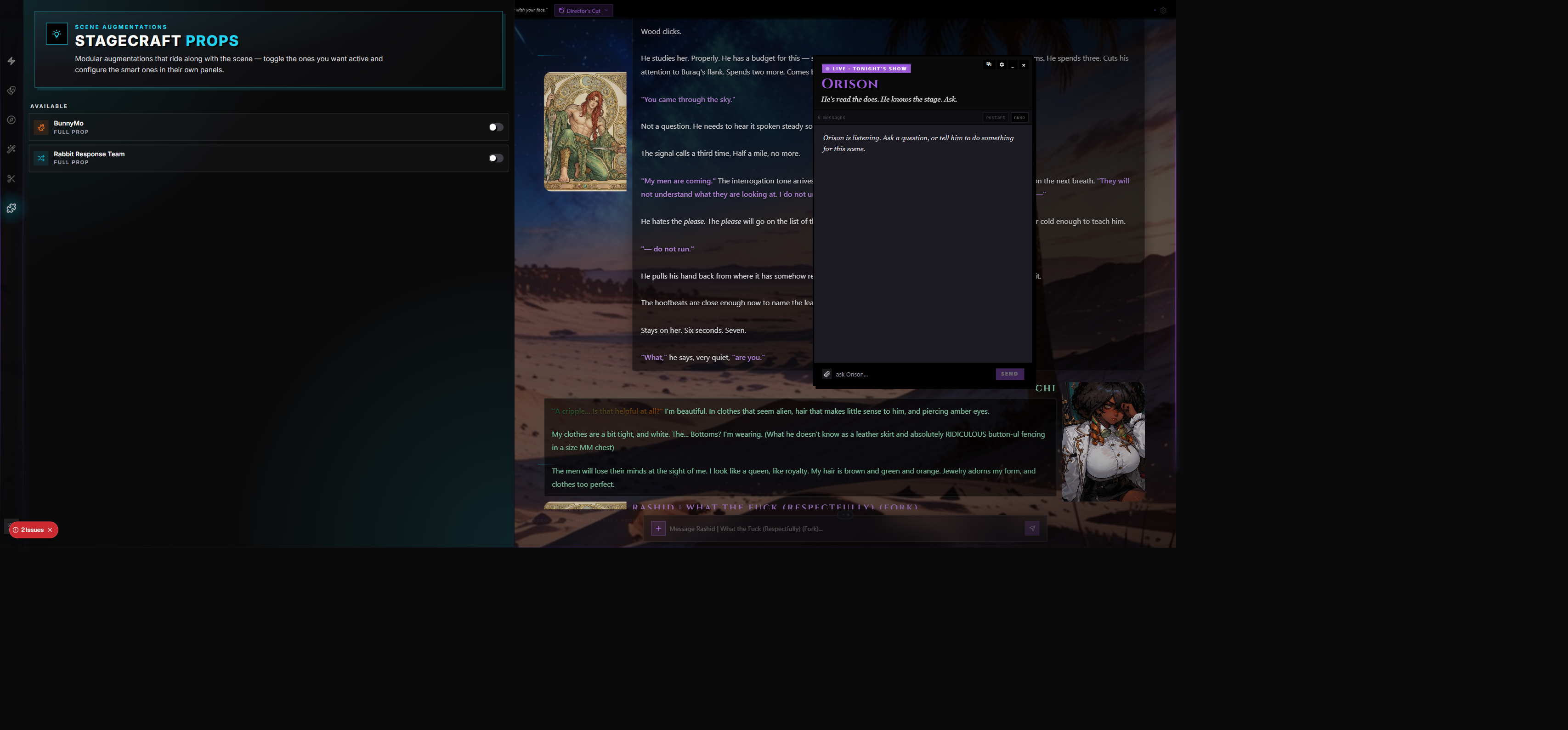
Rabbit Response Team — RRT for short — is one of the two Stage Props that ship with RoleCall out of the box. It's a Tier 3 Full Prop made by BunnyMo, and it does one thing in three different ways: nudge the AI's prose away from sameness.
RRT bundles three independent helpers — Random Words, Synonyms, and Translation Drift — into a single tabbed panel. Each helper rides along with the scene, slipping a small instruction into the prompt right before the model writes, so the next response comes back with fresher vocabulary, less repetition, or a faint accent of another language. You can run any combination of the three, or just one, or none.
Unlike features that change what the AI knows, RRT changes how the AI writes. It's a stylist that lives in the prompt pipeline.
Is This the Same as BunnymoTags?
Short answer: no, but they share a creator.
If you have CarrotKernel installed and you peek at the Prompt Inspector, you'll see entries labelled BunnymoTags — those are pack entries from CarrotKernel, not from Rabbit Response Team. Both props were built by BunnyMo and both are native RoleCall Stage Props, but they're different systems doing different jobs:
| Name in UI | What it is | What it injects |
|---|---|---|
| CarrotKernel | A Stage Prop that detects characters in your scene and injects their structured tag-sheet packs | <BunnymoTags:Character_Name>...</BunnymoTags> blocks |
| Rabbit Response Team | A Stage Prop that injects style-nudge prompts based on words, synonyms, and translation chains | [OOC NARRATIVE OVERDRIVE: ...], [OOC WORD FRESHNESS: ...], [OOC WORD AVOIDANCE: ...] |
The amber BunnymoTags rows you see in the Prompt Inspector come from CarrotKernel. Rabbit Response Team's injections appear under the standard system-role rows alongside the rest of your prompt, not as a dedicated colored category.
Turning RRT On
Rabbit Response Team is shipped, but it isn't on by default. You enable it from the Stagecraft Props wing.
- Open the chat sidebar and click the Stagecraft wing (lightbulb icon).
- In the Available section, find Rabbit Response Team — its row has a rabbit icon and a violet accent.
- Click the toggle on the right of the row. RRT jumps into the Active section.
- A gear icon appears next to the toggle. Click it to open the RRT panel.
When you toggle RRT off later, the gear button disappears and the prop slides back to Available. Toggling it back on restores your last-known settings and any state it built up — see Cross-Device Persistence below.
The Tier System
Every Stage Prop has a tier that determines how much of its own custom interface it gets.
| Tier | Label in manager | What you get |
|---|---|---|
| 1 | Prompt Pack | Toggle-only. The prop injects its prompts; there's no panel. |
| 2 | Smart Prop | A generic settings panel built from the prop's schema. |
| 3 | Full Prop | A bespoke panel — looks and feels like a first-class wing. |
Rabbit Response Team is a Tier 3 Full Prop. That's why the panel has its own tab bar, its own color-coded modules, drift-path visualizers, test buttons, and a roster of language pickers — it's all custom UI built specifically for RRT.
The Three Modules
When you open the RRT panel, a tab bar runs along the top with three modules. Each one is independent — you can run all three, none, or any combination. A small n/3 badge in the panel header shows how many are currently enabled.
| Tab | Color | What it does |
|---|---|---|
| Words | Bright purple | Injects random words for the AI to weave into its next response |
| Synonyms | Sky blue | Scans your recent chat for overused words and either suggests fresh alternatives or bans them outright |
| Drift | Violet | Pushes the AI's prose through a chain of language translations to give it an unfamiliar texture |
Each module has its own enable toggle at the top. The rest of that module's settings only appear once it's enabled — turning the module off collapses everything below the toggle so the panel doesn't drown you in options you aren't using.
Words (Random Words)
The Words tab injects a handful of vocabulary seeds into every AI response. The AI is instructed to weave each word naturally into the prose — no bold, no italics, no special formatting. Just words that have to make it into the next reply somehow.
This is the most playful of the three modules. Set it to three random nouns and watch the AI suddenly find a way to mention them. Set it to a contextual mode and the words it pulls in will be related to the last thing you wrote.
Core Knobs
| Setting | What it controls |
|---|---|
| Enable Random Words | Master toggle for this module |
| Word Count | How many words to inject per response (1–10) |
| API Provider | Where the words come from — RoleCall's in-house word bank, or Datamuse |
| Language | The language pool the in-house provider draws from — 34 languages supported |
| Part of Speech | Tick boxes for Noun, Verb, Adjective, Adverb — at least one must be on |
| Min Word Length | Skip words shorter than N characters (0 = any length) |
| First Letter Filter | Restrict picks to words starting with a specific letter |
| Word Commonness | A slider from Rare to Common — only meaningful for English |
| Include Definitions | Append a short definition to each injected word so the AI knows what it means |
| Include Multi-Word Phrases | Allow entries with spaces, like "ice cream" |
| Vary Starting Letters | Force each pick to start with a different letter |
| Contextual Mode | Instead of random words, pull words related to your last message |
Contextual Mode and Relationship Types
Once Contextual Mode is on, you can pick how the words should relate to your message. The in-house provider offers seventeen relationship flavors:
| Relationship | Effect |
|---|---|
| Related To | General associations (the default — most relaxed) |
| Synonym | Words with similar meaning |
| Is A | Categories — cat finds animal |
| Part Of | Components — wheel finds car |
| Has A | Possessions — car finds wheels |
| Causes | Cause-and-effect — fire finds smoke |
| Used For | Purpose — hammer finds nailing |
| At Location | Setting — desk finds office |
| Capable Of | Abilities — bird finds fly |
| Has Property | Attributes — ice finds cold |
| Antonym | Opposites |
| Similar To | Near-synonyms |
| Made Of | Materials |
| Manner Of | Variations on a verb — sprint finds run |
| Form Of | Grammatical forms — running finds run |
| Desires | What a thing wants |
| Motivated By Goal, Has Sub-event | Higher-order narrative relations |
The Datamuse provider supports a shorter list (Triggers, Synonyms, Adjectives for, Nouns for, Antonyms) and adds two extras of its own: a Theme Words text box you fill with comma-separated topics, and a Double Pass toggle that picks one word first and then themes the rest around it.
Advanced Settings (Words)
Click the Advanced Settings header to expand:
| Setting | What it controls |
|---|---|
| Custom Prompt Template | Override the wrapper text used for injection. Supports the {{words}} placeholder. |
| Injection Depth | How many messages back from the end to insert the prompt (0 = latest) |
| Injection Role | Whether the injection appears as System, User, or Assistant in the prompt |
| Word Blacklist | Comma-separated words that should never be picked |
| History Size | How many of your recent picks to remember and avoid repeating (0–100) |
| Min Message Length | Skip the injection entirely if your message is shorter than N characters |
| Show Last Injected Words | Display the last batch of picks in a little chip row inside the panel |
| Fallback to Word Bank | If the chosen API fails, fall back to a built-in word list so you never lose the injection |
Live Feedback
When the module is enabled and Show Last Injected Words is on, a row of chips shows the last batch the AI was asked to weave in, with a counter underneath like 12/20 words in history so you can see how full your no-repeat buffer is.
There's also a Test Random Words button at the bottom of the tab. It runs a single pick with your current settings and shows you the results — hover any chip for its definition if Include Definitions is on.
Languages Supported
The in-house provider has frequency data and stop-word lists for 34 languages, grouped as:
- Major European — English, Spanish, French, German, Italian, Portuguese, Dutch, Swedish, Danish, Finnish, Polish, Romanian, Greek, Hungarian, Czech, Slovak, Bulgarian, Ukrainian, Russian
- Celtic & Classical — Irish, Welsh, Latin
- Middle Eastern — Arabic, Hebrew, Persian, Turkish
- Asian — Chinese, Japanese, Korean, Hindi, Thai, Vietnamese, Indonesian
- Other — Armenian
Commonness filtering is only reliable for English; for any other language the panel grays the slider out and reminds you with a small amber note.
Synonyms
The Synonyms tab is reactive — it looks back at the conversation you've already had. Specifically, it scans the most recent batch of messages for words that keep showing up too often, and then it does one of two things about it:
| Mode | Behavior |
|---|---|
| Suggest Synonyms | Picks fresh alternatives for each overused word and asks the AI to use those instead next time |
| Auto-Ban Words | Drops the overused words straight into a banlist that gets injected as "do not use these" |
You switch between modes with a pill selector at the top of the tab.
Core Knobs
| Setting | What it controls |
|---|---|
| Enable Synonym Suggestions | Master toggle for this module |
| Mode | Suggest Synonyms vs. Auto-Ban Words |
| Synonym Provider | In-House (multilingual) or Datamuse (English/Spanish only) — synonyms mode only |
| Language | Which language the in-house provider should look up synonyms in |
| Cross-Language Synonyms | Allow alternatives from other languages — useful for bilingual characters |
| Allowed Languages | A chip grid of every supported language; pick which ones may appear in cross-language results |
| Scan Depth | How many recent messages to scan (1–20) |
| Min Occurrences | The minimum times a word must appear to be flagged (2–10) |
| Scan Source | Whose words to scan — AI Only, User Only, or Both |
| Synonym Count | How many alternatives to suggest per flagged word (1–10) |
Auto-Ban Mode
Switching to Auto-Ban replaces the synonym controls with a banlist editor:
| Setting | What it controls |
|---|---|
| Auto-Ban Threshold | How many times a word must appear before it gets auto-banned (2–15) |
| Banned Words | The active banlist — chips you can click to remove |
| Type-to-Ban | A text field; type a word, press Enter, it joins the list |
| Clear All | Wipe the entire banlist |
When auto-ban is active, every flagged word is added to the banlist and a "do not use these" instruction goes into the prompt on the next turn. The banlist is sticky — words you've banned stay banned across messages until you remove them.
Exclude Words
In synonyms mode there's a separate Exclude Words card. These are words RRT should ignore when scanning for overuse — useful for proper nouns, character names, or words that need to repeat for narrative reasons.
Advanced Settings (Synonyms)
| Setting | What it controls |
|---|---|
| Custom Prompt Template | Synonyms mode. Supports {{originalWord}} and {{synonyms}}. |
| Ban Prompt Template | Auto-ban mode. Supports {{bannedWords}}. |
| Injection Depth | Position of the injection in the prompt |
| Injection Role | System, User, or Assistant |
Running a Scan
The Scan for Overused Words button at the bottom of the tab triggers a scan immediately. If you haven't sent any messages yet, the button is disabled with a hint that it needs chat history. After a scan, the results are stored so the next response can act on them. In synonyms mode you'll see the flagged words and their suggested replacements; in auto-ban mode anything over the threshold quietly joins the banlist.
Scan results persist across reloads — see Cross-Device Persistence.
Drift (Translation Drift)
Translation Drift is the most experimental of the three modules. It takes prose — either yours, the AI's, or both — and runs it through a chain of language translations before delivering the final text. Think of it as a stylistic filter applied via a small army of bilingual editors.
The output is still in your main language, but it's passed through, say, English → Japanese → French → English, and along the way it picks up turns of phrase, sentence rhythms, and word choices it never would have produced if you'd asked for English directly.
Core Knobs
| Setting | What it controls |
|---|---|
| Enable Translation Drift | Master toggle for this module |
| Drift Model | Which AI model handles the translation steps — separate from your main scene model |
| Drift Method | Chain of Thought (one call reasons through all hops) or Sequential Hop (one call per language pair) |
| Main Language | The language your scene is in — the start and (optionally) end of the chain |
| Drift Mode | Sentence, Word %, or Every Nth — controls what gets drifted |
| Intensity | Number of language hops in the chain (1–5) |
| Language Pool | A chip grid of languages allowed to appear as intermediate hops |
| Return to Source | After the last hop, translate back to your main language — usually yes |
Drift Modes Explained
| Mode | What it drifts |
|---|---|
| Sentence | A percentage of sentences in the text — picks them at random and only drifts those |
| Word % | A percentage of individual words — gives a sprinkled, mottled feel |
| Every Nth | Drifts every Nth word at a fixed cadence — more rhythmic, less random |
Each mode has its own slider that appears underneath the pill selector — Sentence Percentage (10–100%), Word Percentage (5–100%), or Nth Value (every 2nd to every 10th word).
Path Visualizer
Underneath the intensity slider sits a drift path visualizer — a row of language chips showing the route your text will take. You can either let RRT pick a random path from the pool every time (leave the hops empty) or pin specific hops by clicking the chips. The visualizer makes the chain easy to read at a glance and shows the start chip and end chip in bolder colors.
What to Drift
A separate What to Drift block lets you decide which side of the conversation the filter applies to:
| Toggle | What it does |
|---|---|
| Drift LLM Response | Apply the filter to the AI's outgoing text |
| Drift User Message | Apply the filter to your message before the AI sees it |
When user-message drift is enabled, a nested block appears with its own intensity slider and path visualizer — your messages can use a different chain than the AI's responses.
Advanced Settings (Drift)
| Setting | What it controls |
|---|---|
| Temperature | How creative the drift translations are (0.1 = faithful, 1.5 = loose) |
| Retry Attempts | How many times to retry a failed translation step |
| Cache Translations | Reuse translations for the same text instead of paying for them twice |
| Clear Cache | A button that empties the translation cache and shows the current entry count |
Test Drift
A test area at the bottom lets you paste prose, run a drift with your current settings, and see the result side-by-side with the language path. Useful for tuning intensity before letting it loose on real scene text.
Cost Awareness
Translation Drift makes extra AI calls — it's the only RRT module that does. Each hop in the chain is a real model call against the drift model you picked. Five-hop chains on long messages get expensive fast. Caching helps if you tend to revisit the same prose, but for fresh scenes every turn is fresh translation work.
How RRT Lands in the Prompt
RRT participates in the same prompt pipeline as the rest of your scene. Its job is to add a small instruction block — usually labelled [OOC ...] to read as an out-of-character directive — and slip it in at the position you chose for Injection Depth and Injection Role.
Where to See It
Open the Inspector wing and switch to the Prompt Viewer to see the exact prompt that was just sent to the model. RRT's injections appear as system messages (or user/assistant, depending on your role setting) sitting near the bottom of the prompt, just before the AI's turn. They look something like:
[OOC NARRATIVE OVERDRIVE: You must naturally incorporate the following words into your response: whisper, ember, silver. Use each word at least once, weaving them seamlessly into the narrative flow...]
or in auto-ban mode:
[OOC WORD AVOIDANCE: The following words have been overused recently. Please avoid using them and find fresh alternatives or move on from these concepts entirely: glance, sigh, somehow...]
RRT's blocks don't have their own color category in the Inspector — they ride along with the other system rows and are easy to spot because of the bracketed [OOC ...] prefix and the recognizable phrasing.
The Color-Coded Sources
For reference, here's what does get its own color in the Prompt Inspector:
| Color | Source |
|---|---|
| Violet | Standard system messages and system guides |
| Cyan | User messages and user-side guides |
| Pink | Assistant messages and prefill guides |
| Orange | CarrotKernel context blocks and CK Reminders |
| Amber | BunnymoTags pack entries (from CarrotKernel) |
| Emerald | Immersion Tracker context |
RRT contributes to the violet/cyan/pink rows depending on your Injection Role setting. If you want to verify what RRT is actually injecting, look for [OOC NARRATIVE OVERDRIVE:, [OOC WORD FRESHNESS:, or [OOC WORD AVOIDANCE: near the end of the prompt.
Active vs. Available, Per-Prop Config, Cross-Device
These behaviors are shared with every other Stage Prop, but they're worth restating in the context of RRT specifically.
Active vs. Available
The Stagecraft Props splits props into two groups:
- Active — props enabled for the current scene (RRT shows up here once you toggle it on, with a violet accent)
- Available — every other prop, waiting
The split is per-scene. A scene where you've enabled RRT remembers RRT is on; a different scene where you've never touched it still shows RRT under Available.
Per-Prop User Config Preserved on Toggle
Toggling RRT off doesn't wipe its settings. Your word count, your language picks, your banlist, your drift path, your custom prompts — all of it stays attached to the scene's prop entry. The next time you toggle RRT on in the same scene, those settings come back exactly as you left them.
If you want a clean slate, toggle RRT off, delete the prop entry from the Active list explicitly, then re-add it from Available. That gives you defaults.
Cross-Device Persistence
RRT's settings and its accumulated state (word history, last injected words, last scan results) are saved with the chat. When you reopen the same scene on a different device, RRT comes up with:
- The same modules enabled
- The same per-module settings
- The same word history (so you don't get duplicate picks on the new device)
- The same banlist (in auto-ban mode)
- The same last-scan results (so the next response still gets the synonym injection)
This isn't automatic for every prop tier — Tier 1 and Tier 2 props don't carry runtime state by design. RRT is Tier 3, so all three of its modules ship their working memory along with the scene.
Generated Post-Actions
RRT doesn't register any post-actions of its own. It works entirely as a pre-generation injector — adding to the prompt before the AI writes. The Synonyms tab's scan is technically a post-action in spirit (it looks at the most recent messages and updates state for the next turn), but it's gated behind the Scan button or runs implicitly when the next prompt is built.
When to Use Rabbit Response Team
RRT is most useful when:
- You're getting same-feel responses turn after turn. Random Words shakes the AI loose with three or four unfamiliar prompts to incorporate.
- The AI keeps reaching for the same handful of verbs. Run a Synonyms scan over the last ten messages and either suggest replacements or ban the offenders outright.
- Your prose feels too transparent or too on-the-nose. Translation Drift adds an unfamiliar rhythm — sentences land differently after a Japanese or Hungarian detour.
- You're writing in a language other than English. The in-house word and synonym engines support 34 languages, so RRT works as a freshness tool in non-English scenes too.
- You want stylistic variety without rewriting your preset. RRT layers on top of whatever preset you're running — you don't have to change your character or your system prompt.
Combining the Three Modules
The three modules compose well, but with diminishing returns:
| Combo | Effect |
|---|---|
| Words only | The lightest touch — vocabulary nudges, no extra cost |
| Synonyms only | Reactive freshness — only fires when the AI starts looping |
| Drift only | Pure stylistic filter — every line feels translated |
| Words + Synonyms | A solid one-two punch: forward-looking variety and backward-looking pruning |
| All three | Maximum stylistic chaos, watch your token budget |
A common configuration: Words at 3 per turn with contextual mode, Synonyms in auto-ban mode at threshold 4, scan depth 10. That keeps vocabulary moving forward and prunes repeats without ever leaving English.
When NOT to Use RRT
Some scenarios call for less freshness, not more. RRT is the wrong tool when:
- You're writing in a specific voice that depends on repetition. A character who says "indeed" every other sentence — that's a feature, not overuse. RRT will fight you on it. Either disable the prop or push "indeed" into the Synonyms exclude list.
- You're working with proper nouns. Character names, place names, fictional terminology — Synonyms can flag these as overused. Always add critical proper nouns to the exclude list before scanning.
- You need precise prose. Translation Drift is genuinely lossy. Plot-critical descriptions, technical instructions, or anything where exact wording matters should not be drifted.
- You're on a tight token or cost budget. Drift makes extra AI calls per turn. Random Words and Synonyms only add a small prompt block (cheap), but Drift is real inference work.
- You want a true global writing rule. RRT is scene-bound. If you want a stylistic rule that applies to every chat with every character, put it in a Preset prompt or an Author's Note instead.
- You need to debug a preset or a character card. RRT layers more text onto the prompt, which makes A/B comparisons noisier. Disable it temporarily when you're isolating cause-and-effect.
- You're using a small or weak model. The OOC instructions assume the model can follow nuanced prompt directives. A 7B model may ignore the words list, fight the synonyms, or mangle the drift translations. Stick to capable models when RRT is on.
- You want a deterministic scene. RRT introduces variability by design. If you're trying to recreate an exact run for testing or comparison, disable all three modules.
Interaction with the Rest of the Pipeline
RRT plays well with other systems, with a few things worth knowing:
- Presets. RRT's injections sit alongside your preset's prompts — they don't replace them. If your preset already includes a "use varied vocabulary" instruction, you may not need Words on top.
- Author's Notes. Both Author's Notes and RRT inject text at configurable depths. If you put them at the same depth with the same role, expect them to land in the same neighborhood — that's usually fine, but worth checking in the Inspector.
- Lorebooks. RRT operates on style, lorebooks operate on content. They don't compete.
- CarrotKernel. The other BunnyMo prop. CarrotKernel injects structured character data (BunnymoTags blocks); RRT injects style nudges. They run side by side without interference.
- Story Director, Compendium, Immersion Tracker. All independent. RRT's instruction shows up in the prompt regardless of what these other systems are doing.
- Group Chats. RRT's injection is per-turn, so in a group chat every character's response goes through the same RRT settings. There's no per-character tuning today.
- Visual Novel mode. RRT works the same way — the prompt gets the same OOC instruction whether the scene renders as chat or VN.
Drift and Job Cost
The one thing to keep an eye on is Drift's separate AI calls. Each language hop is real inference against the model you selected in Drift Model. If your scene model is expensive and your drift model is also expensive, a 5-hop chain costs you six AI calls per turn (one for the actual response + five for the drift chain, or one combined Chain-of-Thought call depending on method). Caching helps revisits but not first-time hits. Pick a cheaper model for the drift role if cost matters.
Tips & Best Practices
Start with one module. Don't enable all three at once on day one. Get a feel for Words, then layer Synonyms in if you spot repetition, then add Drift only if you actively want a stylistic shift.
Run a Synonyms scan after long sessions. Even if you don't enable the synonym injection, scanning shows you which words you and the AI have been leaning on. It's a useful diagnostic by itself.
Keep proper nouns in the Synonyms exclude list. Character names, place names, signature objects — anything that should repeat. Add them once and forget about them.
Pin drift hops for predictable feels. A random pool gives you variety; pinned hops (e.g. English → Japanese → English) give you a consistent texture you can rely on.
Use Contextual mode in Words for tighter scenes. Random words can derail a tense moment. Contextual words pull from the actual conversation, so the injections feel motivated rather than thrown in.
Adjust Min Message Length to skip filler turns. If you write a lot of short reactions like "Yes." or "Go on." you don't need RRT firing on those. Set the minimum to 50 or 100 characters and the prop will only inject when there's something substantial to influence.
Check the Inspector after big setting changes. Open the Prompt Viewer, send one message, and read the prompt the model actually saw. It's the fastest way to confirm RRT is doing what you think it is.
Tune word commonness for tone. Rare words feel literary or surreal; common words feel grounded. Word Commonness all the way to Common is great for casual scenes; pushing it toward Rare gives you texture for purple-prose or fantasy.
Auto-ban is sticky — clear it. The banlist accumulates over time. If a scene shifts in tone and a previously banned word is suddenly fine, remove it manually or hit Clear All to reset.