Account & Settings
Your account, settings, and helpers
Account & Settings
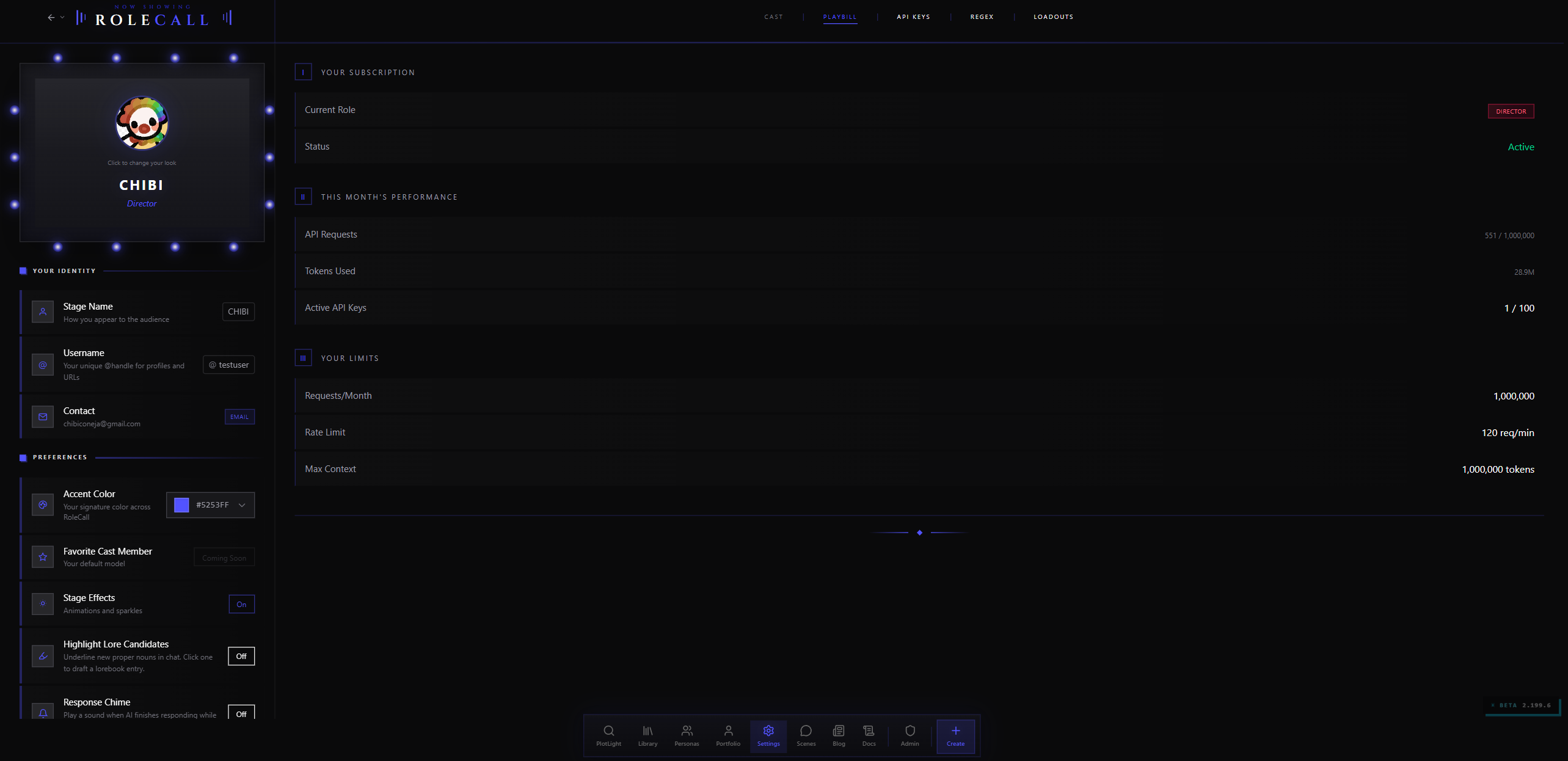
Your Settings page is where you manage who you are on RoleCall, control how the platform looks and behaves outside of any individual scene, watch your usage, and run the destructive operations — exporting your data and scheduling account deletion.
Everything in this doc lives at /settings. Nothing here is scene-specific; for in-chat controls see Stage & Utilities and the various rail wings.
Naming note. RoleCall uses the word Playbill in two unrelated places:
- The Playbill tab of Settings — the default tab, covering your profile (Dressing Room), subscription, monthly usage, and global preferences. That's what this doc covers.
- The Playbill editor — the visual showcase page attached to each character. That's covered in Playbill.
Same theatrical word, different feature. The tab and the editor never share any state.
Signing Up
RoleCall is currently invite-only. To create an account you need an invite link — those come from the waitlist or from another member sharing a generic invite.
When you land on the sign-up page without an invite, you see a "By invitation only" screen with two community CTAs (Discord, Reddit) and a button to join the waitlist. Invitation emails frequently go to spam, so checking your spam folder is a real step in the flow.
Once you arrive with a valid invite token in the URL, the sign-up form opens. Right now there are two ways to create an account:
| Method | How |
|---|---|
| OAuth | Continue with Google, GitHub, or Discord. |
| Email + password | Enter an email and password and submit the form. A confirmation link is emailed to you before the account is usable. |
The three OAuth providers that ship today are:
| Provider | Notes |
|---|---|
| Continue with your Google account. Easiest for most users. | |
| GitHub | Continue with your GitHub account. Common with technical users. |
| Discord | Continue with your Discord account — useful if you're already in the RoleCall community server. |
Before you can finish OAuth signup you must accept the Terms of Service and Privacy Policy via the legal-acceptance modal. The page captures which versions you accepted and the timestamp. The modal shows you the current ToS and Privacy Policy versions; clicking "Accept" stamps both into your record, and after that the OAuth handoff continues automatically — you don't have to click your chosen provider a second time.
Generic invite tokens have a per-link use cap and an expiry date. If your link is expired or its cap has been hit, you'll see a clear "This invite link is invalid or has expired" / "reached its usage limit" message instead of the form.
The Recovery Phrase Moment
Immediately after your first successful sign-in, RoleCall generates a 12-word recovery phrase for end-to-end encryption. This phrase is what lets you decrypt your chats, your saved memories, and your provider API keys on any device.
A few things to know about this moment:
- The phrase appears once, in a setup flow you can't dismiss without confirming you've stored it.
- The 12 words are drawn from the standard BIP39 wordlist — short, distinct English words that are easy to write down and hard to confuse.
- You'll be asked to confirm a few of the words back before the setup finishes, so a glance-and-close doesn't accidentally leave you locked out later.
- The same flow runs whether you signed up with Google, GitHub, or Discord — the phrase is RoleCall's, not your provider's.
Write the phrase down. RoleCall has no copy of it. If you lose it, the only path back is to wipe your encrypted data and start fresh. The mechanics — what gets encrypted, what device pairing looks like, recovery flow — are covered in Providers & Keys. This section just flags the moment so you don't miss it.
Signing In
Sign-in supports the same three OAuth providers as sign-up — Google, GitHub, or Discord — plus email and password. Whichever method you used at sign-up is the one to use again — switching providers will land you on a new account, not the same one. A "Send magic link" option is also available if you'd rather sign in with a one-time emailed link than a password, and a "Forgot password?" link sends a reset email.
When you arrive at /sign-in with a session cookie already set, RoleCall silently probes for it (with a five-second cap so you never stare at a spinner forever) and skips the form entirely — you go straight back into the app. If the probe was triggered by an actual sign-out or a callback error, that probe is skipped so you can sign in cleanly.
If you sign in on a new device that you've never used before, your account works immediately but your encrypted content stays locked until you enter your 12-word recovery phrase. The Settings page surfaces this as a clear "Enter Recovery Phrase" action under the Connections & Keys tab.
The Settings Page Layout
Settings has four tabs on desktop, swipeable on mobile:
| Tab | What lives here |
|---|---|
| Loadouts | Reusable bundles of scene defaults you can apply with one click when starting a new scene |
| Playbill | Your account summary, current month's usage, and your limits |
| Connections & Keys | End-to-end encryption status, token balance, usage breakdowns, your RoleCall API keys, and connected BYOK providers |
| Profile | Your identity (stage name, username, contact email), connected accounts, preferences (accent color, default model, stage effects, Experience Pass), and account actions like exporting your data or scheduling deletion |
On desktop the active tab fills the main area. On mobile the same four sections live side-by-side as horizontal swipeable cards — flick to switch, or tap the tab bar. The URL updates as you scroll so you can deep-link to any tab (/settings?tab=api-keys, etc.).
The default tab when you land on /settings with no query string is Loadouts.
Your Profile (Dressing Room)
The Dressing Room lives under the Profile tab and collects everything tied to who you are on RoleCall — distinct from any scene-level identity (those are Personas).
The Vanity Mirror
Your avatar and display name appear inside a theatrical "vanity mirror" card at the top. The mirror is ringed with little flickering bulbs in your current accent color — purely decorative, but it's how you know you're in the right place. Click the avatar to upload a new one.
| Field | Notes |
|---|---|
| Avatar | PNG, JPG, or WebP. Max 5 MB. Used everywhere your name appears — comments, ratings, creator profile. While the file uploads, the avatar shows a spinner; if you upload an invalid type or an oversized file, the toast tells you which limit you hit. |
| Stage Name | Your display name. Shown publicly. Click "Set name" to edit; press Enter or click "Save" to commit, or "Cancel" to bail without saving. |
| Username | Your @handle. Lowercase letters and digits only; non-matching characters are stripped as you type (so typing "Hello-World!" lands as helloworld). Used in profile URLs and @-mentions. If the handle is taken, you get a clear error and your old handle stays in place. |
| Contact | The email tied to your account, plus the OAuth provider you used (Google / GitHub / Discord / Email). Read-only here — you can't change your email from the Dressing Room. The provider shows up as a small chip in your accent color next to the email. |
The "On the bill since" footer at the bottom shows the month and year you joined.
Preferences
These toggles all live under the "Preferences" divider in the Dressing Room. Default values are listed where they're not obvious.
| Preference | What it does | Default |
|---|---|---|
| Accent Color | Your signature color across RoleCall. Drives borders, glows, button tints, slide indicators, and the chat accent (unless overridden by the scene's accent source). Open the swatch picker and pick — the rest of the page updates optimistically so you can preview before saving. | A neutral grey |
| Favorite Cast Member | Your pick for the community Favorite Cast contest — a creator/character poll, not a model setting. Voting opens in seasonal cycles; the slot stays disabled outside contest windows. | — |
| Stage Effects | Sparkle animations and ambient flourishes across the app. | Off |
| Highlight Lore Candidates | Underlines new proper nouns in chat. Click an underlined word to draft a lorebook entry on the spot. | Off |
| AI Verify Candidates | Only visible when Highlight Lore Candidates is on. Has an AI helper classify candidates and prune false positives. Costs tokens per chat — the AI runs against {{char}}'s current scene and rules out obvious non-entities. | Off |
| Response Chime | Plays a sound when an AI response finishes generating while you're in another tab. If RoleCall is the focused tab, the chime stays silent. | Off |
| Experience Pass | Controls which features are visible everywhere in the app. Three options — see "Experience Pass" below. | Not set |
| Stage Fright | Hides your own stats. With this on, ratings, favorites, and chat counts stop appearing on your own published content. The numbers are still there for everyone else — just not in your own view. The footer line reads "Your work speaks for itself — numbers don't define your story." | Off |
Accent-color changes apply optimistically while you pick (so the rest of the page updates live), then get saved when you confirm. A small toast appears in the top-right ("Saved!") every time a preference commits.
The Experience Pass
The Experience Pass is RoleCall's "how much do you want to see" knob. Pick from the available experience levels in the Backstage Pass modal, and the rest of the app trims itself down to match — wings, advanced sampler controls, version history, regex rules, and many other deep features can be hidden or shown in groups.
A streamlined experience hides advanced options (lorebook editor, preset editor, regex rules, macros, branching, group chat) and shows only the essentials. A full experience surfaces everything: all sampler settings, full lorebook entry editor, preset states, loadouts, regex rules, macro editor, behavior settings, template formats, version history, branches, character fork, and group chat. You can also set a custom level and toggle each feature group individually.
A handful of features are always on regardless of your experience level: model picker, basic samplers (temperature + top_k), the streaming toggle, the system prompt editor, and chat backgrounds. Everyone needs those.
Changes take effect immediately — no refresh required.
Behind the Scenes
The bottom of the Dressing Room is reserved for export, account deletion, and the sign-out button. We cover those below. Staff-only tools may appear here for accounts that have platform moderation or operations access.
Playbill — Subscription & Usage
Not to be confused with the Playbill editor (your character's visual showcase page). This is the default Settings tab — it holds your profile (Dressing Room), account summary, and global preferences. Same name, totally different feature.
The Playbill tab is broken into three numbered sections.
I. Your Account Status
Shows your current account role and status.
A green "Active" badge sits next to Status when the account is in good standing. Other states appear inline when they apply.
II. This Month's Performance
A 30-day rolling summary:
- API Requests — total inference calls made under your account. Shows "Unlimited" if there's no cap; otherwise shown as
123 / 5,000. - Tokens Used — formatted as K / M for readability (
1.4M,42.0K, etc.). - Active API Keys — how many of your RoleCall API keys are turned on (e.g.
3 / 10).
III. Your Limits
Account limits vary; see your Settings page for current quotas:
- Requests per month (or "Unlimited")
- Rate limit (requests per minute)
- Max context length (in tokens)
If a Spotify integration is enabled on the platform, a separate Spotify Integration section appears below Playbill for connecting / disconnecting your Spotify account for in-scene music. This is feature-flagged off in most builds — see "Spotify Integration" below.
Spotify Integration (feature-flagged)
This section only appears when the platform-wide Spotify flag is enabled — in most builds it's off, and you won't see it at all.
When the flag is on, the section sits under the Playbill tab and offers:
| State | What's shown |
|---|---|
| Not Connected | A "Connect with Spotify" button. Clicking it kicks off the standard Spotify authorization flow. |
| Connected | Your Spotify display name, your plan (Premium / Free / Open) as a chip, a green "Connected" indicator, and a small "Disconnect" link. |
Disconnecting prompts a confirmation before it severs the link, because disconnecting stops music features in every scene.
API Keys, Encryption & Usage
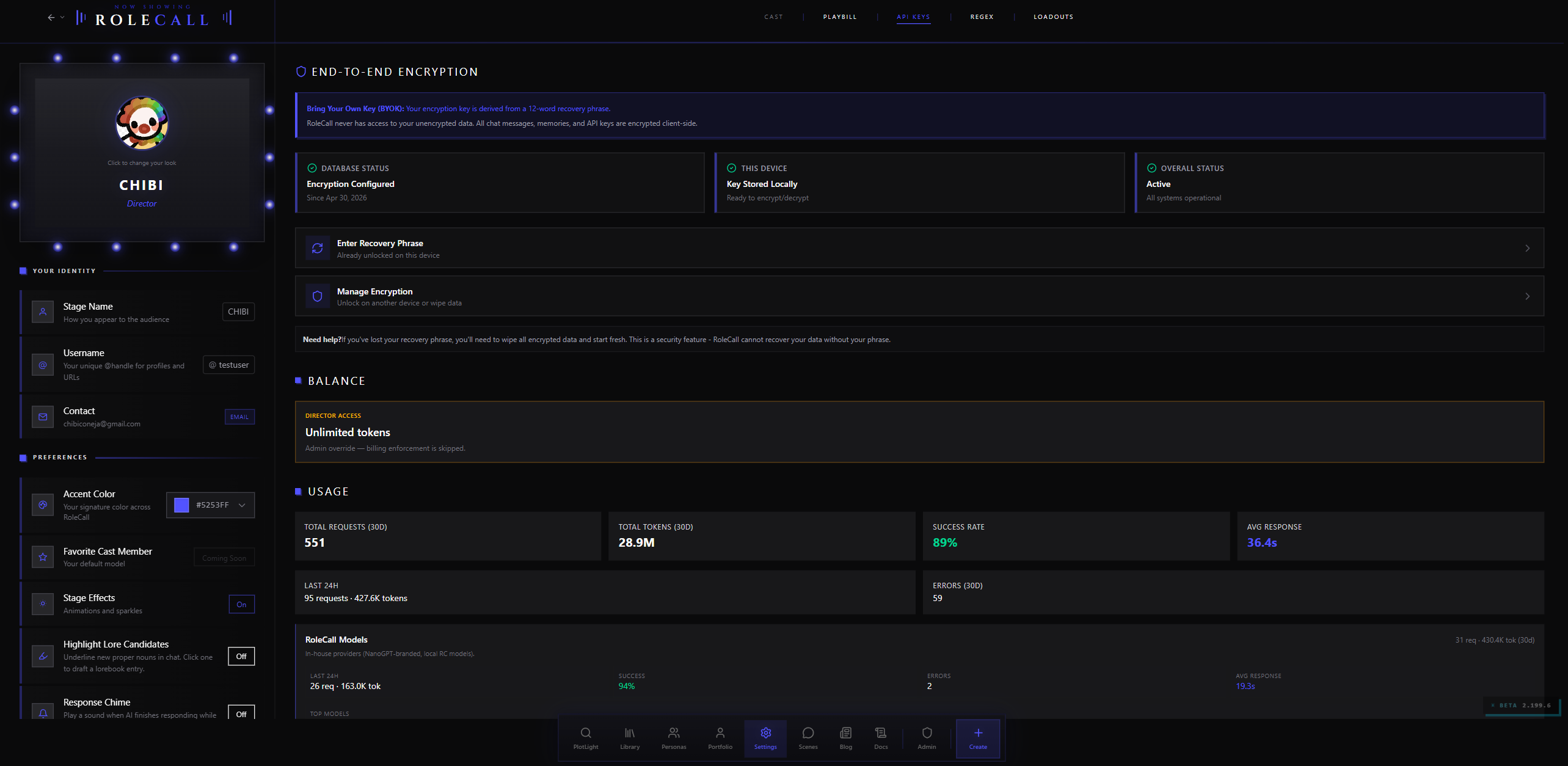
The Connections & Keys tab is the deepest tab. It bundles four things you might expect to live separately:
- End-to-End Encryption status and controls
- Token Balance (per-pool)
- Usage — current period plus a 30-day breakdown by source
- Your RoleCall API keys (for SillyTavern, scripts, etc.) and your BYOK provider configurations
End-to-End Encryption Section
The BYOK banner explains that your encryption key is derived from a 12-word recovery phrase. Quick Start keeps an encrypted recovery backup on the server; Full Privacy requires you to retain the phrase yourself. Both modes encrypt stored chats and provider keys. Below that, three status cards — Database, This Device, Overall — plus action buttons.
| Status | What it means |
|---|---|
| Encryption Configured | A recovery phrase has been generated and confirmed on this account. The card also notes when ("Since Mar 2026"). |
| Quick Start Configured | Encryption is already configured with a server recovery backup. You do not need to generate another phrase to add a provider or voice key. |
| Not Set Up | Account and device checks confirm that first-time setup is needed. |
| Status Unavailable | The account status could not be established. Reload Settings before attempting setup. |
| Key Stored Locally | The encryption key is unlocked on the device you're using right now. Subtitle: "Ready to encrypt/decrypt." |
| Key Not Available | The key is missing on this device. Subtitle: "Recovery phrase needed." |
| Active | Both sides agree — encryption is working end to end. |
| Setup Required | Generate a recovery phrase to turn encryption on. |
| Recovery Required | A phrase exists for the account, but this device hasn't been unlocked. Click "Enter Recovery Phrase." |
The action buttons below adapt to the state:
| Button | When it shows | What it does |
|---|---|---|
| Set Up Encryption | Only after account and device checks confirm first-time setup | Opens the setup choices. It never replaces an existing key. |
| Save Existing Recovery Phrase | Quick Start is configured | Uses the existing identity-verification flow to retrieve your original phrase. Type it back to confirm your saved copy. Your key and server backup remain unchanged. |
| Enter Recovery Phrase | Always visible (disabled when no setup yet) | Opens the recovery modal — paste your phrase and unlock this device. Already unlocked? The button explains that and stays harmless. |
| Manage Encryption | Only when already set up | Quick Start opens existing-phrase recovery, with a manual saved-phrase fallback. Full Privacy opens manual recovery. |
The mechanics — how the phrase derives the key, what's encrypted, what device pairing actually does — are in Providers & Keys. This tab is the place you go to manage it.
Quick Start users can recover their existing phrase after verifying their identity. If server recovery is temporarily unavailable and you already saved the phrase, choose Use a phrase I already saved. Full Privacy has no server recovery backup. Saving a copy of a Quick Start phrase does not switch the account to Full Privacy.
Token Balance
Each pool shows its current balance in a card. Pools include:
- RoleCall-hosted models — credits granted by your tier or topped up directly
- BYOK providers — your own external keys (these don't draw from a balance; the card just confirms they're set up)
- Any other pool RoleCall is currently exposing
If you've topped up credits or your tier grants monthly token allowances, you can see where you stand.
Usage — Per-Source Breakdown
Headline cards across the top: Total Requests, Total Tokens, Success Rate, and Average Response Time — all over the last 30 days. Below that, two more cards showing Last 24h (requests + tokens) and Errors (30d).
Then a card per source bucket:
| Source | Description |
|---|---|
| RoleCall Models | In-house providers (RoleCall-branded, RC-hosted models including the NanoGPT-branded server). |
| BYOK (Your Providers) | Your own API keys — OpenAI, Anthropic, Google, OpenRouter, NanoGPT, Gemini, etc. |
| External API Access | Requests made through your RoleCall API keys (e.g. SillyTavern pointed at RoleCall). |
| Other | Legacy or unknown source values. |
Empty buckets are hidden — if you've never used BYOK, the BYOK card just doesn't appear.
Each source card shows the requests / tokens for that source over 30 days, the last-24h slice, success rate, error count, average response time, your top models in that bucket, and a per-caller breakdown.
The caller breakdown answers "which part of RoleCall actually initiated this call":
| Caller | What it is |
|---|---|
| Main narrator | Standard scene generation |
| Story Director (DM) | Story Director AI passes |
| TV / Compendium | Compendium pre-gen retrieval and standardization |
| Writing guides | Spellcheck, Guided Swipe, Correct |
| Immersion trackers | Per-module tracker initialization and updates |
| Group scenes | Group Chats orchestration |
| External API | Calls through your API keys |
| Other / legacy | Unlabeled / older log rows |
Each caller row shows requests, tokens, and what percentage of the source bucket's tokens went there. This is the place to figure out where your tokens actually go — e.g. "40% of my in-house tokens went to TV overhead."
Your RoleCall API Keys
These keys let outside tools (SillyTavern, scripts, custom front-ends) call RoleCall on your behalf — RoleCall plays the role of the model provider, the outside tool plays the role of the client, and the key is what authenticates the connection. Anything you can do in RoleCall's chat surface, you can do over the API with one of these keys.
To create one, click + Create Key, give it a name (or accept the default "API Key"), and pick an expiration:
| Expiration option | Notes |
|---|---|
| Never expires | Default. The key stays valid until you disable or delete it. |
| 7 days | Short-lived. Good for one-off scripts. |
| 30 days | Common for rotating personal keys. |
| 90 days | A quarter — common for production-style use. |
| 1 year | Annual rotation. |
The full key appears once in a green confirmation panel — copy it then. After dismissal, you only ever see the prefix and last four characters (rc_live_a1b2…7xyz).
| Action | What it does |
|---|---|
| View Stats | Expand the row to see total requests, total tokens, success rate, and the per-key rate limit (in requests per minute). |
| Enable / Disable | Toggles whether the key is accepted. The key isn't deleted — disabled keys can be re-enabled later. |
| Delete | Hard-deletes the key. Cannot be undone — you get a confirm prompt before it goes. |
Each key row shows when it was created, when it was last used, and (if set) when it expires.
Keys marked Internal were issued by RoleCall (e.g. for built-in integrations) and cannot be disabled or deleted from this UI — their Enable/Disable and Delete buttons are hidden so you can't accidentally break a built-in flow. View Stats still works.
Each tier has a cap on simultaneous keys (the footer shows N/10 for most accounts). Creating a key while at cap returns a clear error rather than silently succeeding.
BYOK Provider Configurations
Below the keys list, the Provider Configurations section is where you connect external AI providers using your own API keys (OpenAI, Anthropic, Google, OpenRouter, NanoGPT, and more). Adding a provider, testing it, and selecting models is covered in Providers & Keys.
A guard sits in front of BYOK: if you haven't set up end-to-end encryption yet, the section will prompt you to do that first — provider keys are encrypted with your recovery-phrase-derived key and can't be saved without it.
Regex Rules (In Your Library)
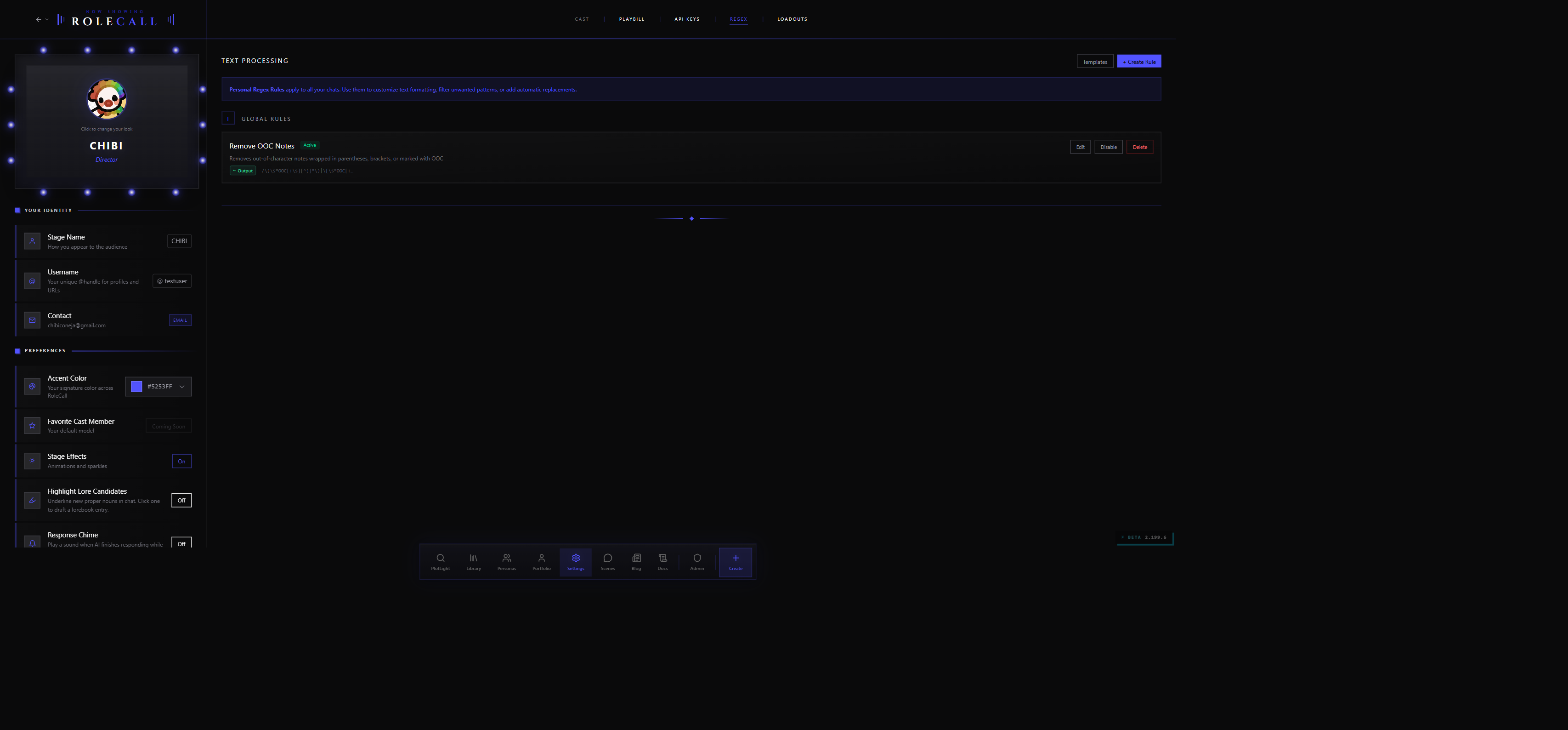
Regex rules are not a Settings tab. They live in your Library as regex scripts, which you create at /library/regex/new and edit at /library/regex/{id}. A regex script is a named bundle of find/replace rules that run on AI output; you select which scripts apply through your Loadouts and scene setup rather than having them apply account-wide automatically.
You can add rules from a library of pre-built templates (organized by category) or write your own. Each rule has:
- A name and optional description
- A find pattern and a replace string
- Flags (case-insensitive, global, multiline, etc.)
- A placement (which stages of the AI output it applies to)
- An enabled toggle
- A substitution mode (none / raw / escaped)
- A timeout (so a pathological regex can't hang the app)
- Optional min/max depth so the rule only fires on certain message positions
- A "run on edit" flag for whether the rule re-runs when you edit a message
Rules can be reordered, individually toggled on/off, or scoped to a specific preset (so they only fire when that preset is active in a scene). Disabled rules stick around in the list so you can flip them back on without re-creating them.
Once a script is selected for a scene, its enabled rules run without further input from you. For scene-level regex behavior see Stage & Utilities.
Loadouts
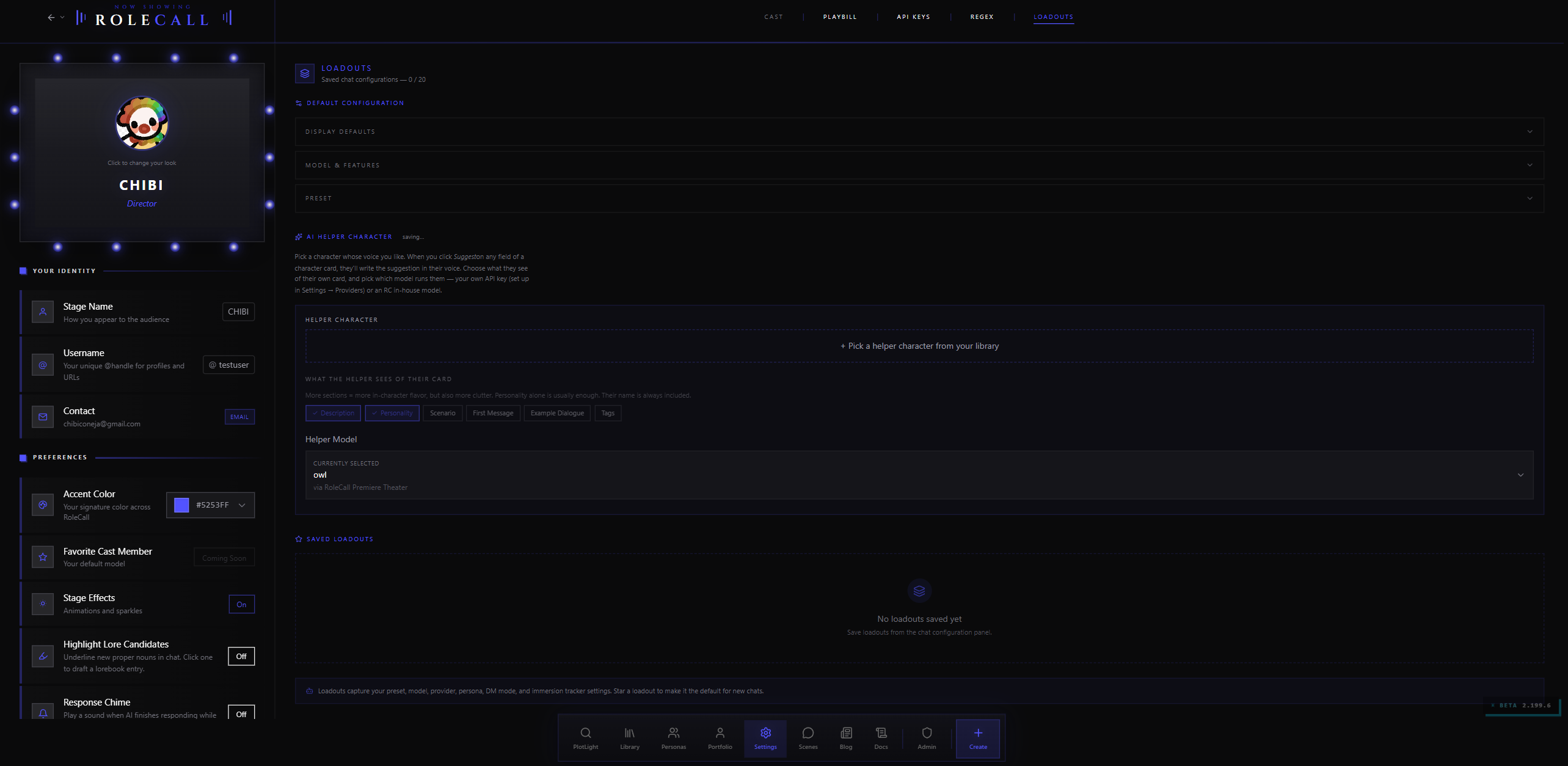
A Loadout is a captured snapshot of scene-level settings that you can apply to a new scene in one click. Each loadout can include any combination of:
| Slot | What it captures |
|---|---|
| Preset | Active preset |
| Model | Active model |
| Samplers | Sampler overrides |
| Lorebooks | Selected lorebooks |
| Stage settings | Theme, ambient effects, etc. |
| DM | Story Director config |
| Compendium | Compendium config |
| Modules | Immersion tracker modules |
| Props | Stagecraft props |
| Author Note | Author's note text + insertion depth |
| Guides | Writing guide picks |
| Regex | Regex rule picks |
| Post-prod | Post-production setup |
| Images | Inline image automation |
This tab is where you create, rename, edit, delete, and configure loadouts. There are two helper sub-sections too:
- Defaults Configurator — pick which panels participate when you capture from a scene. If you never use stagecraft props, exclude them and they won't bloat your loadouts.
- AI Helper — uses an AI pass to suggest sensible defaults given your past scenes.
Each loadout shows when it was last used in human-friendly terms ("3 days ago", "2 weeks ago") so you can spot the ones you actually reach for. You can rename, edit, or delete any loadout you created. When you apply one to a new scene, every captured slot replaces whatever was there — applying a loadout is a one-shot overwrite, not a merge.
Use loadouts when you find yourself setting up the same combination repeatedly — e.g. a "slow burn romance" bundle vs a "high fantasy action" bundle. The full mechanics of capturing and applying loadouts live in Scenes.
Exporting Your Data
The Export Script button under "Behind the Scenes" downloads a single JSON file containing every piece of content you own. Click it once; the file appears as a browser download a moment later. While the export is in flight, the button reads "Exporting…" and is disabled so a double-click doesn't fire two requests.
| Included | Not included |
|---|---|
| Profile and creator profile | Encrypted chat messages |
| User preferences | Encrypted memory chunks |
| Characters you created | Other creators' content |
| Lorebooks you created | Forks of your work that others have made |
| Presets you created | Ratings/reviews you've written on others' content |
| Personas you created | |
| Saved prompts you created | |
| Regex scripts you created | |
| Your repertoire (saved library entries) |
The file is delivered as a browser download named rolecall-export-<short-id>-<date>.json.
Chats are end-to-end encrypted. The server can't decrypt them, so they aren't in this export. The export file includes a
noticefield at the top making this explicit. Use the in-app chat export for individual chats — that runs in the browser and uses your unlocked encryption key.
The export is read-only and idempotent — running it multiple times just produces fresh downloads. It does not delete anything, and it doesn't affect what other users can see.
Deleting Your Account (Final Curtain)
Account deletion is the bright-red button labeled Final Curtain at the bottom of the Dressing Room.
How It Works
- Click Delete. The Final Curtain modal opens.
- The modal explains exactly when the wipe will run (24 hours from now, with the timestamp displayed in your local time — e.g. "Monday, May 18, 3:42 PM") and what gets removed.
- To confirm, you must type your username into the field. If you have no username set, you must type the literal word
DELETE. Comparison is case-insensitive and trim-tolerant. The Confirm button stays disabled until the match is exact. - On confirm, RoleCall schedules deletion, signs you out, and returns you to the home page. The sign-out is intentional — it prevents a stolen session from immediately canceling the deletion you just scheduled.
Confirming deletion always applies a ban-after-delete: your email is added to a no-resignup list after the wipe completes, so the same email can't open another account. This isn't a toggle you can turn off — if you ever want that lifted, you'd have to reach support.
The Grace Period
You have 24 hours to change your mind. During that window:
- A red banner appears at the top of your Settings page showing exactly how many hours remain ("3.7 hours" or "less than 1 hour" near the end).
- A Cancel deletion button on that banner reverses everything in one click.
- You're still authenticated and the platform works normally — the grace period is about giving you time to reconsider, not locking you out early.
Cancellation is idempotent — clicking it after deletion was already canceled doesn't error. If you re-open the banner on a stale tab, refreshing simply hides it.
What Gets Removed
After the 24 hours elapse and the deletion runs:
- Your email, password, sign-in identities, sessions, and everything in your profile (name, avatar, bio, links, preferences). The account is replaced by an anonymous placeholder that can never sign in.
- Your chats and the encrypted snapshots that go with them
- Your repertoire (saved library entries), favorites, follows, notifications, API keys, and usage records
- Your email is added to a no-resignup list (ban-after-delete is always applied)
What Doesn't Get Removed
- Content you published that other people already have. Your characters, personas, presets, lorebooks, prompts, regex scripts, guides, and series leave Plotlight and can no longer be found, but anyone who already has one of them in their Repertoire or library, or has a chat with one of your characters, keeps it. It shows as coming from an anonymous "Deleted creator". This is the same rule as deleting a single card yourself.
- Public content others have forked from you. Per RoleCall's policy on derivative work, forks stay in their owners' libraries even after your originals are gone. Attribution lines no longer carry your handle.
- Public-facing engagement on other people's content (ratings you left, comments) is decoupled from your account and may persist in anonymized form.
When NOT to Use Final Curtain
- If you just want to take a break, sign out — your account stays put.
- If you want to clean up your library, use the per-content delete in your Library instead.
- If you've lost your recovery phrase, see Providers & Keys for the wipe-and-start-fresh flow — that's different from deleting the account.
- If you're worried about a security incident on your account, first rotate your RoleCall API keys (disable + delete) and re-check your BYOK providers. Deletion is the nuclear option.
Privacy Controls
The privacy surface inside Settings is intentionally narrow:
- Stage Fright hides your own engagement numbers (ratings, favorites, chat counts) from your own view. Others still see them.
- Status lifecycle for the content you create — Draft, Private, Published, Unlisted, Removed, plus the Pending Review safety queue — lives on each piece of content, not in account settings. See Discovery & Library.
- End-to-end encryption is the deepest privacy control RoleCall ships — without your recovery phrase, even the server can't read your chats. It's not optional; it's on for everyone, and the Connections & Keys tab is where you manage it.
- Sign-out is one click in the footer of the Dressing Room. It hard-signs you out and routes to the home page.
Public-content moderation (reporting other users' content, viewing the state of your reports, appealing actions on your own content) does not live on RoleCall — visiting /moderation automatically hands you off to the moderation surface on PlotLight (plotlightstudios.com/moderation). The two sites share authentication so the handoff is invisible if you're already signed in. If the silent handoff fails for any reason — third-party cookie blockers, an outage, a browser that's especially aggressive about cross-site state — the page shows a manual "Open Plot moderation" button you can click to land on the same destination.
The moderation experience over on PlotLight covers:
- Filing a report against a published character, lorebook, persona, preset, or comment
- Tracking the status of any reports you've already filed
- Receiving and responding to actions taken on your own content (e.g. a takedown notice or a re-rating request)
Nothing about reports is stored on RoleCall — the redirect is the entire surface area.
Mobile Differences
Settings is fully mobile-friendly:
- Tabs become horizontal swipeable sections. The active section's name highlights in your accent color in the top tab bar, with a small underline.
- Loadouts is the first section on mobile. Swipe left to reach Playbill / Connections & Keys / Profile.
- Tap a tab name to jump directly; swipe between sections for the gesture-driven feel. The URL updates either way so a back-button press behaves correctly.
- The Floating Dock at the bottom stays available for quick nav.
- Encryption setup and the Final Curtain modal both work the same as desktop — confirmation, recovery phrase entry, and the 24-hour banner all render full-width.
Logging Out
Two ways:
- Sign Out in the footer of the Playbill tab (Dressing Room section) — next to "On the bill since."
- The Final Curtain flow signs you out automatically after scheduling deletion.
Signing out clears your session everywhere and returns you to the marketing home page. Your encryption key is wiped from the device as part of the sign-out — when you sign back in you'll need to either be on a device that still has the key wrapped, or enter your recovery phrase again. (This is the security trade-off: nobody can hijack your signed-out machine and read your chats.)
Quick Reference
| Want to… | Go to |
|---|---|
| Change avatar, name, or username | Settings → Playbill (Dressing Room) |
| Change accent color | Settings → Playbill → Preferences |
| Pick which features show up everywhere | Settings → Playbill → Experience Pass |
| Hide your own engagement stats | Settings → Playbill → Stage Fright |
| Turn on lore-candidate highlighting | Settings → Playbill → Highlight Lore Candidates |
| Play a chime when AI finishes in another tab | Settings → Playbill → Response Chime |
| See your tier and monthly usage | Settings → Playbill |
| Connect Spotify (if enabled) | Settings → Playbill → Spotify Integration |
| Set up or unlock encryption | Settings → Connections & Keys → top of tab |
| See your token balance per pool | Settings → Connections & Keys → Balance |
| See where your tokens went | Settings → Connections & Keys → Usage |
| Create a RoleCall API key | Settings → Connections & Keys → + Create Key |
| Disable a RoleCall API key without deleting | Settings → Connections & Keys → Disable on the row |
| Connect an OpenAI / Anthropic / Gemini key | Settings → Connections & Keys → Provider Configurations |
| Create or edit regex rules | Library → Regex (/library/regex/new) |
| Save a scene-setup bundle | Settings → Loadouts |
| Export everything you own | Settings → Playbill → Export Script |
| Delete your account | Settings → Playbill → Final Curtain |
| Cancel a scheduled deletion | Settings → Playbill → red banner at top → Cancel deletion |
| Report another creator's content | /moderation (redirects to PlotLight) |
| Sign out | Settings → Playbill → footer |