Group Chats
Deep dives into every tool on stage
Group Chats
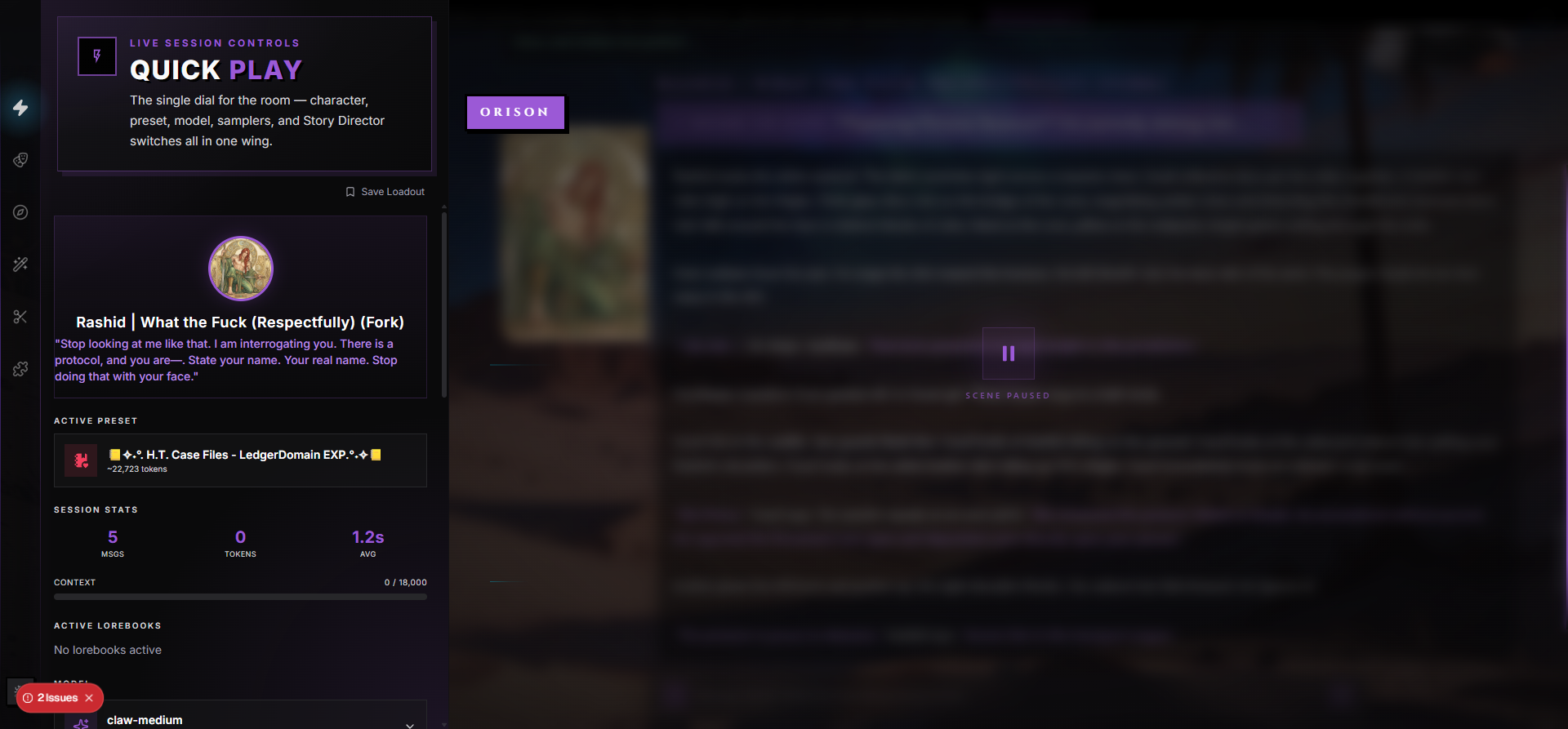
A Group Chat puts multiple Characters in the same scene. They take turns responding, you can cue exactly who speaks next, and every character carries their own preset, lorebooks, model, persona pin, and immersion state — like running an ensemble cast where each actor has their own script.
Think of a solo Scene as a duet between you and one AI character. A Group Chat is a stage with two to a dozen characters on it — each with a voice, opinions, and a relationship to everyone else in the room. The conversation can stay tightly choreographed (one specific character per turn) or run loose (an orchestrator AI picks who reacts to what you said).
What Makes a Group Chat Different
A solo Scene is one-to-one: one Character, one Preset, one Persona, one continuous thread. A Group Chat changes the shape of the conversation in five ways.
| Difference | What It Means |
|---|---|
| Multiple characters share the stage | Two or more Characters live in the same scene and can all respond to a single message. |
| Each character has its own loadout | Every character carries its own preset, lorebooks, model, sampler, talkativeness, persona pin, immersion settings, and Stagecraft props. Configure each one independently. |
| An orchestrator (optional) decides turn order | When the responder mode is Auto or Hybrid, a separate AI picks which characters should speak based on context. |
| Messages thread by reply | Replying to a specific character's message ties your response to that thread; without a reply, your message is a fresh root. |
| Other users can join | A group can host multiple human members, each with their own persona, custom title, and display preferences, and everyone sees the same scene live. |
Group Chats are useful for ensemble roleplay — a party of adventurers planning a heist, a cabinet of advisors debating a policy, a classroom full of students reacting to news. Anywhere a single AI personality would feel cramped.
Creating a Group
From the Scenes page, switch to the Group Performances tab and pick New Group. The create dialog asks three questions.
| Field | Purpose |
|---|---|
| Group Name | Display name, up to 100 characters. Editable later from Settings or directly from the chat header. |
| Responder Mode | How turn-taking works. Pick Auto, Manual, or Hybrid (described below). The dialog highlights Manual as the safest starting point. |
| Orchestrator Model | Required for Auto and Hybrid. Pick a provider and model that runs server-side — this is the AI that decides who speaks next. The provider must have a server-mode API key configured by the group owner. Manual mode skips this step entirely. |
The orchestrator only needs to be configured if you pick Auto or Hybrid. You can change the mode and orchestrator later from Settings. Characters are added after the group exists — a fresh group starts empty.
Why You Usually Start in Manual
Manual mode has no upfront requirement — no orchestrator model, no provider keys, no setup screen. You add characters, they respond when you @mention them, reply to them, or cue them, and you have full control over the rhythm. Auto and Hybrid get refused at creation time if you haven't picked an orchestrator model and provider yet (the dialog returns a clear "Orchestrator not configured" error).
Who Can Create a Group
Anyone with an account can create a group. The creator becomes the Owner automatically and is added as the first member.
The Cast — Adding, Removing, Reordering Characters
Every group has a roster of Characters that can speak. From the group's landing page (the "Curtain Call" view), the Production tab shows the cast under "Characters on Stage." Add or remove from there, or from the Characters wing inside the chat itself.
Adding a Character
Owners and Co-Directors click Add Character to open a picker. The picker has two tabs:
| Tab | What It Shows |
|---|---|
| Mine | Every character in your library, regardless of status — drafts, private, published, forks. |
| Plotlight | Public characters from Discovery, sorted by popularity. Add them by reference without forking first. |
Search filters both tabs by name and tagline. A newly added character arrives with no preset, model, or provider set — they show up on the stage but cannot speak until you configure them.
Configuring a Character in the Group
Each character in the cast has its own settings panel. Open it by tapping the character's mask in the cast row or by clicking through the Characters wing. The fields are:
| Field | What It Does |
|---|---|
| Provider & Model | The AI provider and model this specific character runs on. Required before they can respond. For external providers, the configurator must have a server-mode API key — E2E-encrypted keys cannot be used because the server has to call the API on the character's behalf. |
| Talkativeness | A 0–100 dial (in 5-point steps; default 50) that controls how often this character speaks unprompted. Detailed below. |
| Preset | The preset (prompts + sampler settings + behavior) used for this character's turns. Optional — falls back to defaults if unset. |
| Lorebooks | Lorebooks active for this character's turns. Each character can have its own set. |
| Regex Scripts | Text processing scripts active for this character. |
| Sampler Overrides | Temperature, top-p, top-k, max tokens, frequency/presence/repetition penalty, min-p, top-a — any subset can be customized per character. |
| Pinned Persona | The user-side persona shown when this character speaks to a specific viewer (covered in the Personas section below). |
| Author's Note | A character-specific author's note with its own position, depth, and frequency settings. |
| Immersion Modules | Per-character immersion tracker config (battles, resources, relationships, etc.). |
| Compendium | Per-character Compendium config — each character builds their own entries. |
| Stagecraft Props | Per-character visual props loaded into the scene. |
| Featured | Marks this character as the group's featured lead. Surfaces them in the cast hero. |
Until a character has both a provider and a model, they cannot speak. The compose bar warns you if no character is configured, and individual unconfigured characters are skipped in turn picking.
Removing a Character
Only the group owner can remove characters. Removing a character from the cast leaves their past messages intact — the scene history is preserved. They simply stop participating in new turns.
Display Order vs. Turn Order
The visual order of characters in the cast row is controlled by a display-order field set by the owner. Turn order is independent of display order — it's determined by trigger reasons (reply > mention > orchestrator suggestion > talkativeness roll).
Per-Character Settings — Persona, Preset, Lorebooks, Immersion
The most important thing to understand about a Group Chat: each character has its own loadout. Two characters in the same group can run on different models, different presets, different lorebooks, different sampler settings, different immersion trackers, and even different personas — without affecting each other.
This is what makes group chats more than just "shove multiple characters into one prompt." When the wizard speaks, the wizard's preset, lorebooks, model, and immersion state are used. When the bard speaks on the next turn, the bard's are used. The world info that triggers for the wizard's lore might be completely silent on the bard's turn.
The Cast Picker (Editing-as-Character)
At the top of the chat is a small dropdown that reads either "Editing as <CharacterName>" or "Playing as <PersonaName>". This is the Cast Picker. It controls which character's loadout the side panels are reading and writing — flipping it to a different character makes the Preset wing, Lorebook wing, Sampler wing, Stagecraft wing, and so on all switch to that character's settings.
The picker also has a Playing as You entry (labeled with your active persona, or "You" if no persona is set). Selecting it tells the panels "I'm not editing any specific character right now, I'm just here as my persona" — useful when you're tweaking your own persona, the group-level Story Director, or the shared Compendium rather than a particular character.
The Cast Picker only changes the editing focus. It does not change who responds to your next message — that's controlled by responder mode, mentions, and replies.
Per-Character Persona Pin
A character can have a specific Persona linked to them. When that character speaks to you, the pinned persona is used as {{user}} resolution context. This lets one character "know you as Captain Ren" while another character "knows you as just Ren" — useful for scenes where different characters know you under different identities.
See the Personas doc for what a Persona is and how it works.
Per-Character Story Director and Compendium
The group-level Story Director narrates the whole scene as a single DM voice (one DM for the entire ensemble), and the group-level Compendium is a shared knowledge base every character can draw from. Individual characters can also carry their own immersion tracker state — battles, resources, relationships, party members — so the wizard's view of the party doesn't have to match the bard's.
See Story Director and Compendium for what these systems do.
Responder Modes — Auto, Manual, Hybrid
The responder mode is the single biggest decision about how a group feels. It controls who responds to each of your messages when you don't explicitly call someone out.
Manual Mode
Manual is the strictest mode. A character responds only if:
- You @mention them by name in your message, or
- You reply directly to one of their previous messages, or
- You cue them explicitly via the Cue Character button
No orchestrator runs, no talkativeness rolls happen, no one speaks unbidden. You drive every turn. This is the right mode when you want precise control — running a structured negotiation scene, a courtroom, a series of one-on-one asides.
Manual mode never asks for an orchestrator model, even when you submit a turn.
Auto Mode
Auto puts the orchestrator AI in charge. After every message you send, the orchestrator reads the recent conversation and the character roster, then returns a JSON list of which character IDs should respond plus a reasoning sentence. Mentions and replies still take priority over the orchestrator's picks.
Auto mode requires an orchestrator model configured on the group. Without one, the group is blocked from running turns and shows a setup banner that links straight to settings.
Hybrid Mode
Hybrid is the in-between. It runs the orchestrator like Auto, but with a safety net:
- If you @mention or reply to specific characters, only those respond (same as Manual).
- If you don't, the orchestrator is consulted to suggest who should react.
- If the orchestrator returns nobody (or fails to parse, or hallucinates non-existent character IDs), and at least one character has talkativeness above zero, a talkativeness roll picks fillers anyway — silence is treated as a bug, not a feature.
Hybrid is the most forgiving mode. The orchestrator's suggestions get used, but you can always override with a mention or reply, and the conversation never goes silent.
Talkativeness
Every character in the cast has a talkativeness value from 0 to 100, set in their settings panel (default 50, adjustable in 5-point steps).
| Setting | Behavior |
|---|---|
| 0 | Only responds when @mentioned, replied to, or cued. Never speaks unbidden. |
| 20–40 (Reserved) | Speaks occasionally on general messages. Background characters. |
| 50 (Balanced, default) | Coin-flip on most messages without a clear target. |
| 60–80 (Talkative) | Jumps in on most messages, even without a direct cue. |
| 100 (Always) | Always joins in. Speaks on every message unless explicitly silenced by mode. |
Talkativeness is the safety net for Auto and Hybrid — if the orchestrator can't decide, declines to pick anyone, returns invalid character IDs, or fails to parse, the system rolls each character's talkativeness percentage to pick fillers. In Manual mode, talkativeness is ignored entirely; characters speak only when explicitly invoked.
If every character in a group has talkativeness set to 0 and you send a message without @mentioning or replying to anyone, the conversation will go quiet — the compose bar warns you in this case.
What Happens When the Orchestrator Misbehaves
The orchestrator is an LLM, and LLMs sometimes return junk. The system classifies failures so the client can recover gracefully:
| Failure | What It Means | What Happens |
|---|---|---|
| Parse failure | The orchestrator returned non-JSON or malformed JSON. | Falls back to talkativeness rolls in Hybrid mode; turn is dropped in Auto. |
| Hallucinated IDs | The orchestrator picked character IDs that don't exist in the cast. | Falls back to talkativeness rolls in Hybrid mode. |
| Declined | The orchestrator returned an empty list deliberately. | Falls back to talkativeness rolls in Hybrid mode. |
You shouldn't normally see these — they're surfaced only if you've turned on diagnostic toasts.
Cueing a Character
Above the compose bar is the Stage Director — a small button with a megaphone icon (also called Cue Character). Tap it to open a popover listing every character in the cast. Clicking one immediately asks that character to respond to your most recent message, regardless of responder mode.
Cue is the universal escape hatch. It works in any mode. It bypasses the orchestrator, the talkativeness rolls, and any mention/reply rules. Use it when:
- You sent a message and the wrong character (or no one) responded.
- You want the bard to react to what the wizard just said.
- A specific character has been quiet and you want to draw them out.
If a character is already mid-generation, they can't be cued — wait for their current reply to finish.
Sending a Message
Type into the compose bar and press Enter (Shift+Enter for newline). The flow on send is:
- Your message is encrypted with the shared group key and saved.
- The system collects who should respond, based on:
- Characters you @mentioned in the message (always honored).
- The character whose message you replied to (always honored).
- The orchestrator's suggestions (in Auto or Hybrid).
- Talkativeness rolls (as a fallback in Auto or Hybrid).
- A single group turn job is queued. Each chosen character generates their reply in sequence — the next character's prompt sees the previous character's reply, so they can react to what just got said.
- As each character finishes, their message streams into the scene.
You don't need to wait for one character to finish before sending another message — the system queues turns and processes them in order. Group turns are rate-limited to 10 per minute per user; sending faster than that returns a 429 and the new message holds in the queue.
Mentions
Typing @ in the compose bar opens an autocomplete menu listing both Characters in the cast and human Members of the group. Select one to insert a mention.
| Mention Target | Effect |
|---|---|
| Character | That character is guaranteed to respond to your message. |
| Member (user) | Notification to that user (if their notification prefs allow it). Doesn't trigger any AI response. |
Replying to a Message
Hovering over any message shows a Reply action. Replying threads your new message under that message and, if you're replying to a character, guarantees that character responds. Threads can be collapsed and expanded from each message's root.
Pre-Send Checks
Before a turn fires, the system also verifies:
- The character has a model and provider set. Unconfigured characters are skipped silently from turn picks; mentioned/cued characters surface a clear "Character not configured" error.
- The configurator (the user who added or set up the character) has a working server-mode API key for the provider. E2E-encrypted user keys cannot be used because the server needs to make the call.
- The group hasn't exceeded the 10-turns-per-minute rate limit.
- The user hasn't run out of free in-house balance, when running on RoleCall-internal providers.
If any of these fail, the offending character is dropped from the turn and the client shows an actionable toast (specific enough to fix — "Add a server-mode API key for <provider> in Settings → Providers" rather than just "Failed").
Message Actions in a Group
Every message in a Group Chat supports a familiar set of actions — Continue, Swipe, Guided Swipe, Correct, Impersonate, Edit, Delete, Reply, Stop — but with group-aware behavior. The buttons live on each message and on the compose bar's action dock.
Continue
Continue extends the most recent AI message — the AI picks up where the message left off and writes 1–3 more paragraphs. In a group, only the character who wrote the message can continue it. If the bard wrote the last reply, Continue makes the bard write more. You can't make the wizard continue the bard's sentence. Attempting that returns a clear error.
The continuation is folded into the existing message in place (no new swipe is created), preserving the message's swipe history and ID.
Swipe / Retry
Swipe regenerates the last AI response from a character, producing an alternative. The original is preserved — left and right arrows on the message cycle through alternatives. Generating a new swipe at the end of the stack runs a fresh regeneration on that character with the same prompt.
Guided Swipe
Guided Swipe regenerates a character's last response with your direction. Tap the action, type guidance into the modal (something like "make her tone colder, lean into the threat"), and the character produces a new swipe shaped by that hint. The replacement model receives the exact rejected response as an assistant draft followed by your one-shot direction, so it can inspect what needs changing without promoting generated prose to system authority. The original swipe is preserved, and you can swipe back to it at any time. Neither the guidance nor the rejected-response reference is added to chat history.
Correct
Correct rewrites a character's existing message according to your guidance — useful when the AI got most of it right but slipped on a detail. Tap Correct, type what to fix ("change 'her' to 'their', drop the smile, keep everything else"), and the message is edited in place. Unlike Guided Swipe, this REPLACES the existing message rather than adding an alternative.
Impersonate
Impersonate has the AI write your next message based on a brief you provide. Useful when you know what should happen but don't want to type it out longhand. Open the modal, type a short brief, and the AI expands it into prose loaded into the compose bar. Edit before sending if you want.
In a group, the impersonate flow uses the active character's model and provider (whichever is currently selected in the Cast Picker) as the AI doing the writing. If "Playing as you" is selected, it falls back to a default.
Prompt Inspector
Next Prompt can forecast the selected character's Narrator prompt without running inference. It is useful for checking the cast list, character instructions, lorebook injections, conversation history, and guidance before starting.
When Prompt Inspector is enabled, Review Model Call opens for the first immutable wave of fully assembled calls before dispatch. Orchestrator, character, continuation, and helper calls are all recorded separately in Outbound Calls. Later calls in the same resumable job are captured rather than opening a second blocking wave until durable phase-output resume is complete.
Edit
Editing a character's message rewrites that message's content in place. Editing your own message works the same. Other users' messages cannot be edited.
Delete
Delete removes a message. Two modes:
- Single — deletes just that one message.
- From here — deletes that message and every message that came after it. Use this to back up to an earlier point and try again.
Reply
Reply threads your next message under the message you're replying to. Replying to a character also guarantees that character responds. Replies are how you keep a side-conversation legible when three or four characters are talking at once.
Stop
If a character is mid-generation, the chat shows a generating indicator with a Stop control. Tap it to cancel that character's turn. Whatever's already streamed is preserved as a partial message; you can Continue from there or Swipe to retry.
When NOT to Use Continue
Continue is for extending a message in the same character's voice. If the bard wrote a short, complete-feeling reply and you want the wizard to chime in next, don't use Continue — that would just give you more bard. Instead, send a new message or @mention/cue the wizard.
Sharing a Group via Invite Link
Groups can host multiple human users. The owner generates an invite code that other people can use to join.
Generating an Invite
From inside the chat, open Invite Code from the group's header or Members panel. The dialog shows:
- An 8-character invite code (something like
ABCD1234). - A shareable link of the form
rolecallstudios.com/groups/join?code=ABCD1234.
Both can be copied with one tap. The same code is reusable until you regenerate it. Anyone with this code can join — share it only with people you trust.
The code can have a usage cap (set by the owner). Once the cap is hit, the link stops working until reset.
Joining a Group
When someone clicks an invite link, they land on the join page. If they're signed in, the join happens automatically and they're redirected into the group's chat. If they're not signed in, they're prompted to sign in and the code stays attached to the URL so the join completes after auth.
Invite codes can also be entered manually on the /groups/join page if someone shares just the code rather than the full link.
Join Requests
If the group's visibility is Public or Unlisted with "Allow Join Requests" enabled, people who don't have a direct invite can request to join with an optional message. Owners and Co-Directors see pending requests in the Production tab and can approve or deny each one. Approved requests add the requester as a regular Member.
If "Allow Join Requests" is off, the request form is hidden — invite codes are the only way in.
Member Roles
Each member of a group has one of three roles:
| Role | What They Can Do |
|---|---|
| Owner | Full control — change every setting, add/remove characters, manage members, promote/demote Co-Directors, approve join requests, transfer ownership, disband the group. |
| Co-Director | Approve/deny join requests, add characters, set member custom titles, manage regular Members. Co-Directors cannot promote or demote other Co-Directors, change the Owner, or disband the group. |
| Member | Chat, change their own active persona, change their own custom title, change their own display preferences and notification settings, leave the group. |
Member rows in the Production tab also show a friendly label under each name — by default "Director" for the owner, "Co-Director" for elevated collaborators, and "Cast member" for regular members — but each user can override their own with a Custom Title (anything up to 80 characters, like "House Bard" or "Time-Travel Consultant"). Owners and Co-Directors can also set another member's custom title from the same panel.
Transferring Ownership
Owners can transfer the group to another member from Settings → Danger Zone. Pick a candidate, confirm, and:
- The new owner gets the Owner role and full control.
- The old owner is demoted to Admin.
- The action is logged in the group's activity feed.
You need at least one other member in the group for transfer to be available.
Disbanding
Owners can disband the group entirely from Settings → Danger Zone. Disband is permanent and removes the group from everyone's Scenes list — messages, members, and characters are all lost. A confirmation modal is required.
Visibility
A group has three visibility levels:
| Level | Who Can Find It |
|---|---|
| Private | Invite-only. Doesn't appear anywhere public. |
| Unlisted | Only people with the link or code can find it. |
| Public | Listed on the owner's profile and findable by name. |
Visibility is changeable any time from Settings. Even on Public groups, joining still requires either an invite code or an approved join request — visibility controls discoverability, not access.
Content Rating
Every group carries a content rating:
| Rating | Meaning |
|---|---|
| SFW | Safe for all audiences. |
| NSFW | 18+ content, age-gated for viewers who haven't opted in. |
| Extreme | 18+ with stricter gating. Surfaces a clear warning before joining. |
NSFW and Extreme groups display a badge on the group card and on the curtain hero. Set the rating accurately — it determines where the group shows up and who'll feel comfortable joining.
Group-Level vs Member-Level Settings
Some settings live on the group itself (everyone sees them), some live per-member (just your view).
Group-Level (owner controls)
| Setting | Description |
|---|---|
| Group Name | Up to 100 characters. |
| Tagline | One-liner shown on the group card. Up to 140 characters. |
| Description | Longer prose shown on the curtain hero. |
| Avatar | Group cover image. |
| Visibility | Public / Unlisted / Private (see above). |
| Content Rating | SFW / NSFW / Extreme. |
| Tags | Categorize the group for discovery. |
| Responder Mode | Auto / Manual / Hybrid. |
| Orchestrator Provider & Model | Required for Auto and Hybrid. |
| Allow Join Requests | When on, non-members can request to join. When off, only direct invite codes work. |
| Show Member Count | When on, the member count is shown on the group card publicly. |
| Activity Feed Public | When on, non-members can view the group's activity feed (joins, leaves, character adds, etc.). |
| Story Director State | Group-level DM context shared across all characters. |
| Compendium | Group-level shared compendium. |
Member-Level (you control your own)
| Setting | Description |
|---|---|
| Active Persona | The persona you're playing as in this group. Switchable any time from the Cast Picker's Playing-as-You entry. |
| Custom Title | Up to 80 characters. Shown next to your name in the Cast & Crew list and the Cast Personas row. |
| Notification Preferences | Per-event toggles (see below). |
| Stage Settings | Per-(user, group) display preferences — message style/layout, scene background, immersive mode toggle, font size, avatars on/off. |
Two members of the same group can have completely different visual experiences — one in immersive cinematic mode with a dark background, the other in standard bubbles with a light background — because Stage Settings are saved per-member.
Notification Preferences
| Toggle | Fires When |
|---|---|
| New Member Joined | Someone joins via invite or approved request. |
| Join Request Received | Owner/Co-Director only — pending request hits the queue. |
| Character Added | A new character is added to the cast. |
| Activity Digest (Daily) | Off by default. Daily summary of activity. |
The Green Room (Out-of-Character Chat)
Every group has a Green Room — a plaintext chat surface for coordination between human members outside the roleplay. Open it from the right-side rail or the Members panel.
| Feature | Notes |
|---|---|
| Plaintext, not roleplay | Green Room messages are never seen by characters. They're player-to-player only. |
| Real-time | Messages broadcast immediately to everyone in the group. |
| Persona-aware | Your messages appear under your active persona's name and avatar if you have one set; otherwise your username/avatar. |
| Plain text limits | 2000 characters per message; older messages paginate. |
Use the Green Room to plan a scene, ask an out-of-character question, or chat about anything that shouldn't bleed into the AI's prompt context.
Per-Character Immersion State
If you have Story Director enabled or use any of the immersion tracker modules (battles, resources, relationships, party, map, quests, inventory, etc.), each character in the group can carry its own snapshot of that state.
Why this matters: when the wizard's turn comes up, the wizard's lorebooks, relationships, and party state are loaded. When the bard's turn runs next, the bard's are loaded. Two characters in the same group can have completely different views of who's in the party or what the current resource counts are — though usually you'd keep them consistent.
The group also has a shared layer: Story Director runs as a single group-level DM voice (one narrator for the whole ensemble), and the Compendium is shared across the roster so every character can pull from the same world knowledge.
Quick Launch
On the Scenes page, hovering a group card surfaces a Quick Launch button that drops you straight into the chat at /scene/groups/{id} instead of the group's landing/info page. Quick Launch is for when you already know what the group is and just want to keep playing.
The full landing page (Curtain Call, with the Production / Settings / Activity tabs) is still one click away from any group card or from inside the chat itself.
Group Chat on Mobile
The full group chat works on mobile with a few interaction adjustments.
| Surface | Mobile Behavior |
|---|---|
| Stage Director (Cue Character) | Sits above the compose bar with its popover; tap to open, tap a name to cue. |
| Wing panels | Each panel fills the full screen width when open. Swipe from the left or right edge to reopen the last-used panel. |
| Message actions | Long-press a message to bring up the action menu (Continue, Swipe, Guided Swipe, Correct, Edit, Delete, Reply, Branch). |
| Cast Picker | Tap the name in the header to swap which character your panels are editing or to switch to "Playing as You." |
| Mentions | Typing @ opens the autocomplete the same way as desktop. |
| Green Room | Opens as a full-screen panel from the right-side rail. |
The split between left wing (character-level editing) and right wing (inspection + group-level controls) is preserved on mobile — just one panel at a time.
When NOT to Use a Group Chat
Group chats are powerful, but they're not the right shape for every scene.
- A solo deep-dive with one character. If your roleplay is a long, intimate conversation with a single character, a regular Scene is faster, simpler, and uses less context. Don't pay the orchestrator's tokens if you don't need them.
- Quick experiments. Testing a new preset or jailbreak? Just spin up a solo Scene — group setup is overhead you don't need.
- A character that needs deep continuity. In a group, each character sees its own share of context (the shared visible thread plus its own lorebooks), and long messages from other characters are truncated to keep one voice from drowning out the others. If your character relies on every detail of a long history, solo can give better results.
- Pure logistics chat with friends. Use the Green Room for that — don't burn AI tokens on a conversation no character will ever see.
Group Chats shine when the scene needs multiple distinct voices reacting to each other. If it's a one-actor show, run it solo.
Tips & Patterns
Start with Manual mode. It's the simplest to reason about, requires no orchestrator setup, and gives you precise control. Switch to Hybrid or Auto only when you find yourself wishing characters would chime in more naturally.
Use talkativeness to define dialogue tempo. A reserved character at 20% feels different from a chatterbox at 80%, even before you read a word of their preset. Background characters with talkativeness 0 only speak when called on — perfect for shopkeepers, footmen, courtiers.
Configure each character's model intentionally. Don't blanket-assign the same model to everyone. A drier model can play the deadpan straight man while a more verbose model carries the dramatic lead — the contrast adds texture.
Give the orchestrator a small, fast model. It's only choosing who speaks, not writing prose. A quick, cheap model orchestrates just as well as an expensive one and keeps turn latency low.
Pin personas per character when characters know you differently. If you're playing a spy who has different identities with different NPCs, pin "Marina the Diplomat" to the ambassador and "Jane Smith" to the asset handler.
Reply, don't just mention, to keep threads coherent. Replies bind a message to a specific previous message, which helps you (and the AI) follow who's responding to what — especially when three or four characters are talking simultaneously.
Use Cue when the orchestrator gets it wrong. Cue is faster than retyping. If the wrong character responded, hit Cue, pick the right one, and they react to the same message.
Use Prompt Inspector before a turn goes sideways. Next Prompt helps you forecast the selected character's context. Review Model Call shows the exact final payload, and Outbound Calls shows every actual orchestrator, character, and continuation call in order.
Use the Green Room for ground rules. Before a long scene with friends, drop the setting, the tone, and any safety lines into the Green Room. It keeps everyone aligned without polluting the AI's context.
Invite friends sparingly until everyone's comfortable. Adding human members changes the rhythm — now you're waiting on humans as well as AI. Solo group chats (just you + multiple characters) are the most controllable starting point.
Mark NSFW groups honestly. The content rating decides who'll join and whether warnings appear. A mis-rated group gets reported.