Personas
Everything you create and cast
Personas
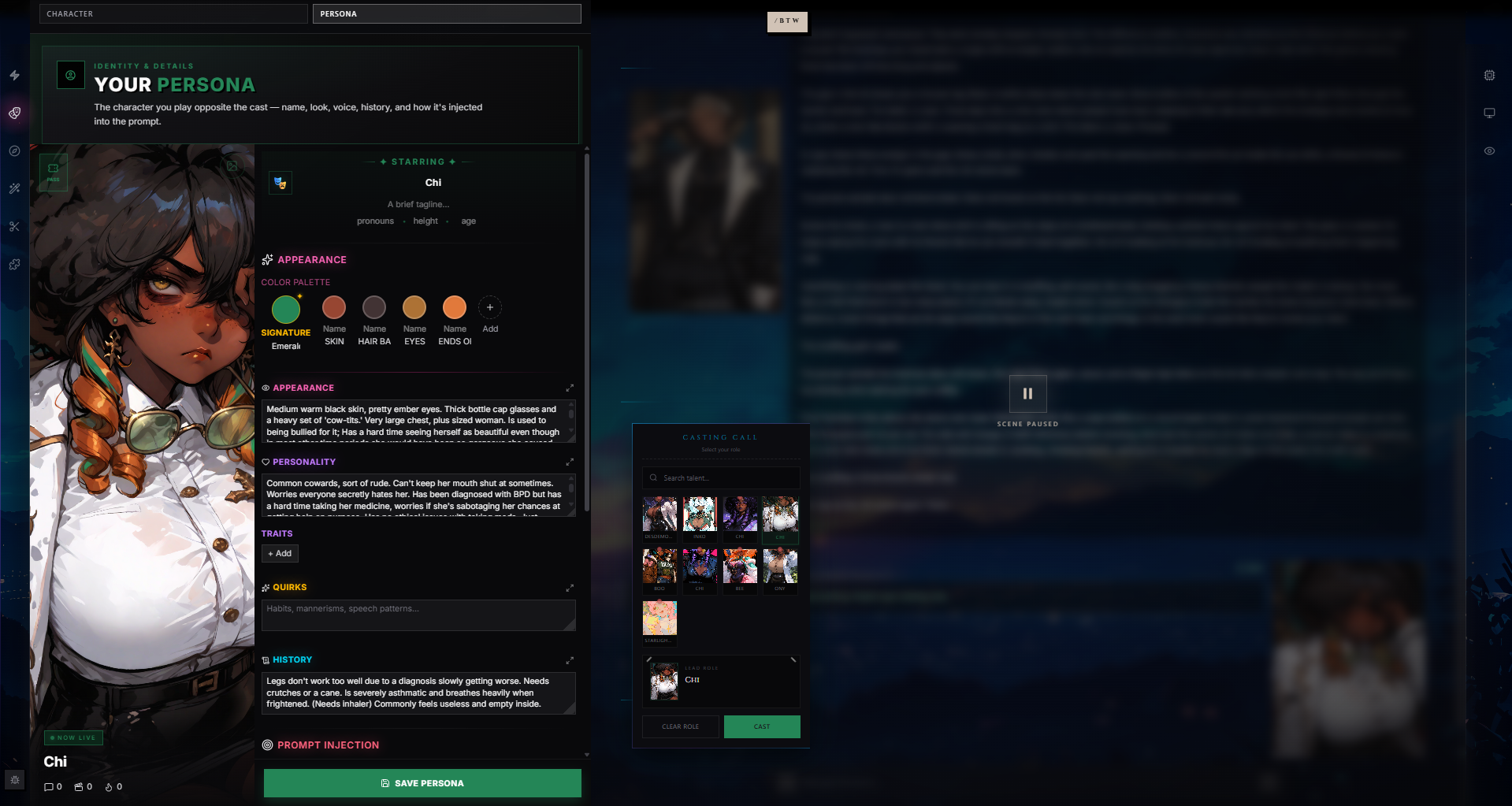
A Persona is who you play in the roleplay — the player-side identity that pairs with the AI's Character. Where a Character defines who the AI is, a Persona defines who shows up on the other side of the table.
If a Character is the actor's script, a Persona is your seat in the audience that the AI can see. It's how the model knows your name, your pronouns, what you look like, what you carry, and how to refer to you. It's also the source of the {{user}} macro and the {{persona}} block that gets injected into the prompt.
You can have as many Personas as you want — a romantic lead for one scene, a battle-hardened mercenary for another, a generic "Alex" for casual chats — and switch between them at any point, even mid-scene.
What a Persona Is (and Isn't)
A Persona is not a chat history, a save file, or a profile. It's a small, reusable identity card that you point at scenes. Two players can share a Character; only you can have your Persona.
| Concept | Who it's for | Resolves to |
|---|---|---|
| Character | The AI to perform as | {{char}} |
| Persona | You to be referred to as | {{user}} and {{persona}} |
Personas are part of the same library system as Characters, Presets, Lorebooks, and Prompts. Personas use their own status set (draft / private / published / removed), the same forking model, and the same import/export tooling.
Anatomy of a Persona
A Persona card holds three layers of information: a fixed Identity strip the AI always sees first, a body of descriptive sections (some fixed, some reorderable), and injection settings that decide how the persona text shows up in the prompt.
The Fixed Order
The persona block always assembles in this shape:
- Identity (fixed first — pronouns, height, age)
- Appearance (fixed second — color palette, then the appearance prose)
- Reorderable body (personality, quirks, history — and "body" if you use it)
- Prompt Injection (fixed last — the position / depth / prefix settings)
Identity and Appearance are always at the top; injection settings are always at the bottom. Only the four middle sections — body, personality, quirks, history — can be reordered.
Identity Strip
These fields render at the top of the persona block — short, surface-level facts the model can rely on without scanning prose.
| Field | Purpose |
|---|---|
| Name | Your display name. This is what {{user}} resolves to. |
| Emoji | A single glyph used as a fallback avatar in pickers and chips when no portrait is set. Pick from a searchable emoji panel. |
| Tagline | A one-liner that shows on Discovery cards, on your persona library tiles, and under your name in the Persona wing. |
| Pronouns | Used by the AI when narrating about you and by pronoun macros like {{they}} / {{them}}. The wing displays each slash-separated segment capitalised. |
| Height | Optional. Useful for action scenes and physical descriptions. |
| Age | Optional. Free-form — exact numbers, ranges, or descriptors like "Eternal" all work. |
Appearance — Color Palette
Appearance is always the second section. It opens with a color palette, then a free-form appearance prose field.
The palette is a row of labelled swatches. The first slot is your Signature color (locked in position, marked with a star); the rest are user-added swatches with three fields each.
| Field | What it does |
|---|---|
| Hex | The actual color (chosen via inline color picker). |
| Name | What you'd call the color in prose — "Lavender", "Storm Grey", "Wine". |
| Label | The category the color belongs to — "Skin", "Hair", "Eyes", "Tattoo", "Cloak". |
Each non-signature swatch becomes its own XML tag named after the label (lowercase, spaces become underscores). So Hair: Silver (#C0C0C0) injects as <hair>Silver (#C0C0C0)</hair> — the AI gets clean, structured access to it. The hex code is included so colour-aware models can match exactly.
You can:
- Click any swatch to open the inline picker and change the color.
- Click the + Add circle to append a new swatch.
- Right-click a non-signature swatch to remove it.
- Drag-edit the name or label inline.
The Signature color is special — it themes the persona's chips, the "Now Live" pill, the casting-call ring, and the Save button accent. Pick one strong colour per persona; you'll be able to spot the persona at a glance everywhere it appears.
Appearance — Prose
Below the palette is a free-form Appearance textarea: build, distinguishing features, clothing, scars, posture, the way they carry themselves. Single newlines are preserved; multiple blank lines are collapsed when the prompt is assembled.
Every field with a textarea has a small expand button (top-right of the field). Click it to push that field into a fullscreen editor with a generous textarea and ESC-to-close. Useful when you're writing more than the row will comfortably hold.
Reorderable Body Sections
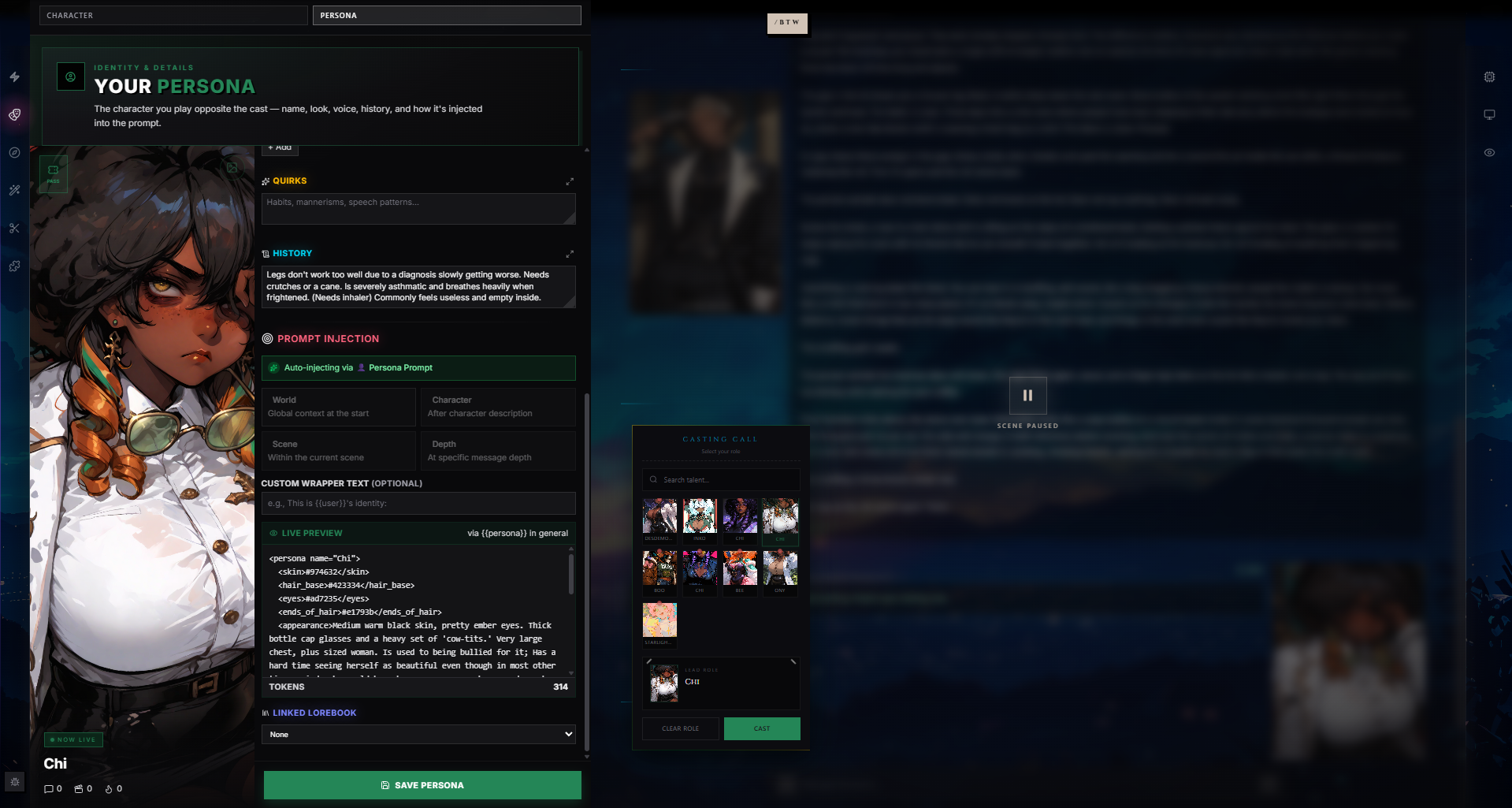
The four middle sections can appear in any order you choose. By default they show as body (rarely used; left over from older personas), personality, quirks, history.
| Section | What it's for |
|---|---|
| Body | Legacy slot for physical-build text separate from the appearance section. Most personas leave this empty. |
| Personality | How you act and react — temperament, demeanor, attitudes, soft spots. |
| Quirks | The small, specific things — a nervous habit, a verbal tic, a favorite phrase, an allergy. Supports multiple entries via the + Add button. |
| History | Background and backstory — where you're from, who you've been, what you carry into the scene. |
Empty sections are silently skipped when the persona is assembled for the prompt — there's no penalty for leaving History blank if your persona is "stranger at a bar."
Traits
Sitting under Personality is a list of traits — short tag-style descriptors that render as colored chips in the panel and inject as a single comma-separated <traits> tag in the prompt.
- Click + Add to type a new trait. Enter to confirm, Escape to cancel.
- Click any existing chip to remove it.
- Trait chips cycle through five accent colours (purple, cyan, amber, pink, emerald) by order — purely cosmetic.
Good traits are one-or-two-word descriptors: stoic, curious, left-handed, night-owl, terrible-cook. Save full sentences for the Personality field.
Portrait Image
Each persona has a portrait slot on the left side of the wing. When set, it shows as the persona's avatar everywhere — the active-persona chip, the casting call, the library tile.
To set or change the portrait:
- Hover over the image area and click the camera button in the top-right corner.
- Pick an image file. It uploads to your private storage.
- The new image appears immediately and is saved automatically (no need to click Save).
If you haven't uploaded a portrait, the emoji is shown instead at a large size.
Linked Lorebook
You can attach a single Lorebook to a Persona. When the persona is active in a scene, that lorebook auto-attaches alongside it — useful if your character carries world context that should travel with them (a fictional academy, a magical condition, a fictional language).
The link is set at the bottom of the panel via a dropdown of every lorebook in your library. Pick None to unlink.
Injection Settings
The persona block gets injected somewhere into the prompt. You decide where.
| Position | Where it lands |
|---|---|
| World | Top of the prompt, as global context. |
| Character (default) | Just after the character description — the most natural pairing. |
| Scene | Inside the active scene block. |
| Depth | At a specific message depth (a number you set, 0–20). Useful for keeping the persona top-of-mind in long chats. |
When Depth is selected, a slider appears that ranges 0–20. Depth 0 means "at the very end of the chat history"; depth 5 means "5 messages from the end". Anything depth 1–6 is a sweet spot for long scenes — it keeps the persona block inside the model's recent attention window without crowding the latest exchanges.
You can also set a custom wrapper text — a short scrap of prose that prepends the persona block. The wrapper supports {{user}} and {{persona}} macros so the text can include the persona's name without you typing it twice. Use this to steer how the AI interprets the introduction:
The user you are speaking with is described below:
This is {{user}}'s identity card —
Player profile —
Auto-Injection via {{persona}}
If the active preset already contains a {{persona}} macro inside one of its prompts, the persona panel automatically detects it and shows an "Auto-injecting via {prompt name}" banner. When auto-injection is active:
- The position picker is greyed out — the macro is doing the work, the position setting is ignored.
- The Live Preview still shows the persona block, marked with
via {{persona}} in {category}so you can see exactly where it's landing.
This is the recommended path for most users — author your preset once with {{persona}} in the right place, and every persona you swap to drops in automatically.
The Live Preview
Below the injection settings sits a Live Preview panel that shows the exact text that will be injected into the prompt, including:
- The custom wrapper text (with macros expanded).
- The full persona XML block, with colour hex codes inline.
- The current injection position label or "via
{{persona}}in {category}" if auto-injecting. - A live token count of the rendered block.
The preview updates as you type. If something isn't showing up in chat, the Live Preview is the first place to check — what you see there is what the AI sees.
Stats and Profile
The Persona wing's hero image carries three small stats next to your name:
| Stat | What it counts |
|---|---|
| Messages | Total messages you've sent across every chat where this persona was active. |
| Chats | Number of distinct chat sessions where this persona has been used. |
| Streak | Current day-streak — consecutive days you've used this persona at least once. |
The streak number turns orange once it's above zero. There's no penalty for breaking a streak; it just resets to zero. Stats are pure vanity metrics — the AI doesn't see them.
Writing a Good Persona
Personas are smaller than character cards by design. The AI is reading you to know how to refer to you, not to perform you. Keep that in mind and you'll write better personas.
Be Specific Where It Matters
The AI cannot guess your hair color, your scars, your accent, your relationship to the world. Anything you want consistently mirrored back at you belongs in the card.
Appearance: Tall, broad-shouldered, with a close-cropped beard going
silver at the chin. Always wears a long oilskin coat over scuffed
leather, and a brass compass on a chain that {{user}} fidgets with
when nervous.
Notice the use of {{user}} even inside the persona description — see How {{user}} Resolves below for why this is a good habit.
Don't Over-Specify Personality
The temptation is to write a 2,000-token personality section so the AI plays you "correctly." Resist it. You are the one playing you — the AI just needs enough to react to you believably.
Three or four sentences of personality is usually enough:
Personality: Quiet and watchful, the kind of person who notices a room
before stepping into it. Slow to trust but loyal once given. Hides
discomfort behind dry humor.
Use Quirks for the Texture
The Quirks field is where small, repeatable details live — the things that make the AI feel like it's interacting with you and not a generic "User."
Quirks: Drums fingers on hard surfaces when thinking. Refers to large
groups as "the assembled menagerie." Cannot drink coffee without making
a face. Always greets dogs before greeting their owners.
Keep History Lean
A full life story is rarely useful in roleplay. What the AI actually needs is the current-day context — what you carry into this scene, not every event that built you.
History: Recently mustered out of the Northern Watch after eight years
of service. Lost a brother on the last expedition and hasn't spoken his
name since. Came south looking for "anything that isn't snow."
Use the Color Palette
The Skin / Hair / Eyes labels aren't decorative — each one injects as a named XML tag into the persona block (e.g. <hair>Silver (#C0C0C0)</hair>), which means the AI gets clean, structured access to them. If the model keeps getting your eye color wrong, putting it in the palette will fix it faster than burying it in prose.
You're not limited to skin/hair/eyes — add Lipstick, Tattoo Ink, Scarf, Aura if your persona has signature colors there. Each label becomes its own tag.
Use Traits Sparingly
Five to ten short traits is usually plenty. The point of traits is to give the AI fast, scannable bullets of personality — adding twenty waters them down and makes the model lean on the wrong ones.
XML in Fields
The persona block goes into the prompt as XML. If you write your own XML tags inside any of the prose fields (Appearance, Personality, Quirks, History), they're preserved as-is — the panel detects user-written tags and doesn't escape them. Most users will never need this; it's there for advanced authors who want to mark up sub-structures the AI can address by name.
Switching Personas Mid-Scene
The Persona wing is one of the rail panels on the right side of any scene. Opening it shows the currently-active persona with the full editor, plus a list of all your other personas to switch between.
You can switch personas at any time — between turns, mid-scene, or right after a message. The new persona takes effect on the next prompt the AI builds, which means:
- The AI's next message will reference the new persona.
- Past messages keep whatever they were written under — switching doesn't retroactively rewrite history.
This is genuinely useful, not just a curiosity. Common switches:
- Outfit change. You changed clothes in the fiction. Switch to a persona with the new appearance baked in.
- Identity reveal. You've been playing a disguise. Switch to the "real" persona at the moment of unmasking.
- Body swap, possession, transformation. Any narrative event where who you are changes can be reflected in a one-click switch.
- Time skip. You're playing the same character years later — switch to an aged-up persona instead of rewriting the card.
The Casting Call Picker
When more than one persona is in your library, the wing shows a horizontal Casting Call strip at the bottom of the panel on phones and tablets. Each entry is a tile with the persona's portrait, emoji fallback, and name; the active persona has a coloured ring and a tinted background. Tap any tile to switch.
On desktop, the same picker appears as the Satellite Orbiters ring outside the panel — small persona portraits arranged around the wing border.
Clearing the Persona
You can also pick "No Persona" to clear the active persona entirely. The {{user}} macro will fall back to the literal name "User" (or your account username in group chats), and the {{persona}} injection won't happen at all. This is occasionally useful for very short test scenes or when you want the AI to know nothing about you specifically.
Saving vs Auto-Save
The Persona wing's Save button changes state to reflect what's happening:
| State | What it means |
|---|---|
| Create Persona | You're in create mode (no persona is loaded). Click to make a new persona. |
| Save Persona | You've made edits to an existing persona. Click to commit them. |
| Saving… / Creating… | The save is in flight. |
| Saved | No pending changes — everything is on the server. |
Ctrl/Cmd + S triggers the save from anywhere in the wing. Portrait image uploads save immediately on upload — they don't wait for the Save button.
Persona Library and Status
Personas live on a four-state lifecycle.
| Status | Who can see it | Appears on Discovery |
|---|---|---|
| Draft | Only you | No |
| Private | Only you | No |
| Published | Everyone | Yes |
| Removed | Only you (taken down) | No |
Most personas stay in Draft or Private forever — they're for you, not for an audience. Publishing a persona makes sense for archetypes that travel well: a generic "human adventurer," a popular reader-insert template, a meticulously researched historical figure.
When you publish, the Persona appears on Discovery (over on PlotLight) under the Personas filter, with its tagline, portrait, and creator name. Other users can favorite it, fork it into their own library, or add it to their repertoire.
When NOT to Publish
- Personalised data. If your persona's history is your real history, it's a personal write-up, not shareable content.
- A persona that only makes sense with one specific character. That belongs in your private library, not a public catalogue.
- Half-finished sketches. Use Draft until the persona is at least token-coherent.
Tags and Content Rating
Personas can be tagged with the same system as Characters. Each tag has an intensity (1 = Subtle, 2 = Moderate, 3 = Prominent) that helps browsers find what they're after.
Personas also have a content rating (All Hours / Late Night / After Dark). Rating matters less here than it does for characters — a persona isn't generating content on its own — but it still influences where the persona appears and who can browse to it. After Dark personas get the same warnings as After Dark characters.
Forking Other Creators' Personas
Forking copies someone else's published persona into your library as a fresh draft. From there it's yours — rename it, change anything, layer your own details on top.
How Forking Works
- Find a persona on Discovery (or on a creator's profile).
- Open it and click Fork.
- A new copy lands in your library with a "Forked from" attribution preserved.
- Edit anything — the original is untouched.
Attribution
Forked personas carry a lineage trail:
- "Forked from {persona name} by @creator"
- The attribution persists even if the original is deleted or made private.
- The original creator's fork count goes up; the social proof is theirs.
If a creator has set fork rules on their persona (some creators require accepting their conditions before forking), you'll see those rules at the fork prompt — accept them to proceed, or don't and back out.
Syncing With Upstream
If the original is updated later, the fork can check for upstream changes via the Sync flow. You'll see a diff of four core fields — name, description (tagline), content, and image — between your current fork and the upstream. For each field you can:
- Keep your version (no change).
- Pull the upstream value into your fork.
- See a conflict marker if both you and the upstream changed the field since you forked.
Only those four top-level fields participate in upstream sync. Your detailed edits (palette, traits, sections, injection settings) are never overwritten by a sync — they're yours from the moment you forked.
When to Fork
- You like someone's writing in their persona and want to use it as a starting template.
- You want to play "their persona, but a fork of it" — same archetype, your name and details.
- You want to translate a public persona to a different setting (their fantasy-archer persona becomes your sci-fi-sharpshooter persona).
When NOT to Fork
- You only want to use the persona as-is. Add it to your repertoire instead (see below) — you don't need a copy.
- You want to change a published persona of your own. Edit it directly; forking your own persona makes a variant copy and breaks lineage to the public version.
Repertoire — Using a Persona Without Copying
If you find a persona on Discovery you'd like to use, you don't have to fork it. Click Add to Repertoire instead. That pins the persona to your library as a reference — you can select it in scenes, but you don't get an editable copy and you don't show up as a "creator."
Repertoire items can be set to auto-update: when the original creator updates the persona, your reference picks up the new version automatically. You can also pin to a specific snapshot if you want to stay on a particular version.
Fork when you want to change the persona. Repertoire when you only want to use the persona.
Import & Export
Personas use the same Character Card V2 format as Characters, which means they round-trip cleanly between RoleCall, SillyTavern, and most card-aware tools.
Importing a Persona
From your persona library, click Import and pick a file:
| Format | Notes |
|---|---|
| PNG | A character-card PNG with embedded persona metadata. RoleCall reads any of four keywords from the PNG's text chunks: rcpersona, persona, ccv3, or chara. RoleCall's own PNG exports use the chara keyword (V2 compatible), which makes them re-importable everywhere. |
| JSON | Either RoleCall's native rolecall_persona format, a Character Card V2/V3 JSON, a legacy library export wrapper, or a loose flat persona JSON. The importer detects which shape you handed it and unpacks accordingly. |
Imported personas land in your library as drafts so you can review them before publishing. Identity fields (name, pronouns, height, age), section content, color palette, traits, signature color, linked lorebook, and section order all survive the round trip.
If a JSON contains a character-card V2 description with Appearance: and Body: blocks folded in (the shape RoleCall's own export produces), the importer unfolds those back into their proper fields instead of dropping them into one wall of text.
Exporting a Persona
From any persona you own, click Export and pick a format:
| Format | What you get |
|---|---|
| JSON | A Character Card V2 JSON — the universal interop format. Traits round-trip via the card's top-level tags field; a rolecall extensions block carries the remaining RC-only fields (palette, signature color, lorebook link, section order) for lossless re-import. |
| PNG | A PNG with the persona metadata embedded as a V2 chara chunk. Requires the persona to have a portrait image. If you're exporting a portrait-less persona, use JSON. |
Exported files are portable: they work in other character-card-aware tools, and another RoleCall user can re-import them into their own library. The JSON export uses SillyTavern's expected flat shape (not the V2 envelope), so ST users can drop it straight into their cards folder.
Updating From JSON
If you have an updated JSON for a persona that already exists in your library, the editor offers an Update from JSON flow. It overwrites the current persona's fields with the JSON contents instead of creating a new one. Useful when you're iterating on a persona externally (in a text editor or another tool) and want to push your changes back in.
The update supports a dry-run mode that previews exactly what would change without committing — useful for big imports where you want to check the diff first.
Personas in Group Chats
In a Group Chat, each player slot has its own active persona. If you're the only human in the group, that's just your persona. If you've invited other players, each of them brings their own.
A few things are different in groups:
- Each member's persona is shown next to their name in the group lobby and in turn ordering.
- When a character generates, they see each player's persona block alongside their own character card — so the AI knows who's at the table.
- Switching your active persona only affects future turns where you are the player being addressed. It doesn't change anyone else's persona.
For solo scenes the model is simple: one persona, one player. For groups, see the Group Chats doc for the per-character settings (pinned persona per character slot, per-character preset overrides, etc.).
How {{user}} Resolves
The {{user}} macro is one of the two most common macros in character cards and presets, alongside {{char}}. It resolves to the active persona's name at the moment the prompt is built.
{{char}} glances up as {{user}} enters the room.
"You're late," she says, not unkindly.
If the active persona is "Alex Vance," that resolves to:
{{char}} glances up as Alex Vance enters the room.
"You're late," she says, not unkindly.
If you switch personas to "Captain Mira," the same template now resolves with "Captain Mira" instead — no edits needed.
Why Use {{user}} Everywhere
Even when you're writing your own persona's description, prefer {{user}} over your literal name. Two reasons:
- Renaming is free. Change the persona's name field and every reference updates.
- Forking is clean. If someone else forks your persona, they can rename it without hunting through prose for stale references.
Fallback Behavior
If there's no active persona for a scene, {{user}} falls back to the literal name "User" (in group chats, the fallback is your account username instead). This keeps generic references like "Hi, {{user}}!" from breaking even when you haven't set a persona.
The {{persona}} Macro
A few presets use {{persona}} directly — usually inside a system prompt like "The user you are talking to is: {{persona}}." When the AI assembles the prompt, that placeholder expands into the persona's full structured block (identity + appearance + personality + quirks + history, in your chosen order).
The persona wing tells you when the current preset uses {{persona}} and where — useful for debugging "why doesn't the AI know my pronouns?" The fix is almost always either a missing pronoun field or a preset that doesn't include the {{persona}} placeholder at all. The wing also shows the position the persona is being injected at (World / Character / Scene / Depth), so you can see exactly where it lands.
Pronoun Macros
If you fill in the Pronouns field, pronoun macros work for your persona too:
{{they}} looked up as {{char}} entered.
"This is {{their}} story," {{they}} said.
The macros resolve based on the active persona's pronouns — switching personas changes the pronouns the AI uses for you.
The Generated XML — What the AI Actually Sees
When a persona is injected, it lands in the prompt as a single XML block. Knowing the shape helps you author smart prompts in your preset.
<persona name="Alex Vance">
  <identity>
    <pronouns>he/him</pronouns>
    <height>6'1"</height>
    <age>34</age>
  </identity>
  <skin>Olive (#C2A57A)</skin>
  <hair>Black (#1F1F1F)</hair>
  <eyes>Grey (#7E8C99)</eyes>
  <appearance>Tall and lean, with a close-cropped beard...</appearance>
  <personality>Quiet and watchful, slow to trust...</personality>
  <traits>stoic, dry-humored, left-handed</traits>
  <quirks>Drums fingers when thinking...</quirks>
  <history>Recently mustered out of the Northern Watch...</history>
</persona>
Notes on the format:
- Identity always renders first inside the block.
- Appearance always follows identity. Color palette items render as individual top-level tags named after their labels.
- Personality / Quirks / History render in the order you set, with their labels as the tag names.
- Traits render as one comma-separated
<traits>tag, not one tag per trait. - Empty fields are skipped entirely — no empty tags.
- Multiple blank lines in prose are collapsed to a single newline.
- User-written XML inside prose fields is preserved (not double-escaped), so you can mark up sub-structures if you want.
- The custom wrapper text (if set) appears as plain prose immediately before the
<persona>tag.
Tips & Common Patterns
Make a "default" persona first. Before doing anything fancy, set up one persona with your usual name and pronouns. This becomes the auto-pick for casual chats and saves you from the awkward "User" fallback.
Build a small roster. Most users end up with three to six personas: a default, one or two romantic-lead variations, a generic adventurer for fantasy chats, maybe a heel for villain scenes. You don't need fifty.
Keep portraits consistent in style. If your library is full of mismatched artwork, the casting-call pickers get noisy. Pick a style (oil painting / line art / photoreal / anime) and stick to it where you can.
Use the signature color. It's a small thing, but a distinct color per persona makes the persona chip in chat instantly recognizable in a glance — particularly handy if you switch personas often.
Don't duplicate work that belongs in a Lorebook. If your persona is from a fictional country with its own customs, language, and cuisine, that detail belongs in a lorebook attached to the persona — not in History. Personas stay lean; lorebooks carry the world.
Don't bury preferences in History. "Hates cilantro" and "left-handed" go in Quirks (or as a Trait), not History. The model is more likely to surface Quirks in everyday turns than to dig through backstory.
Use injection position deliberately. Default (Character) is right for almost everyone. Switch to Depth if you're in a long scene and the persona is being forgotten — re-injecting at depth 4 keeps it inside the model's recent attention window.
Use the wrapper text for tone, not content. "This is the player {{char}} is speaking with:" steers the model to treat the block as identity information. Don't pile facts into the wrapper — that's what the persona fields are for.
Read what gets sent. The Live Preview panel shows the exact block being injected into the prompt — including the wrapper text, the macro expansions, and the token count. If you're not sure why the AI is or isn't doing something with your persona, the preview is the fastest way to find out.
Fork your own persona to experiment. If you want to try a radical change but aren't sure, fork it into a variant first. The original keeps its history and stats untouched.
Use the fullscreen editor for long fields. The expand button (top-right of any prose field) gives you a roomy single-field view with ESC-to-close. Much friendlier than wrestling with the small textarea when History runs to a few paragraphs.