CarrotKernel
Deep dives into every tool on stage
CarrotKernel
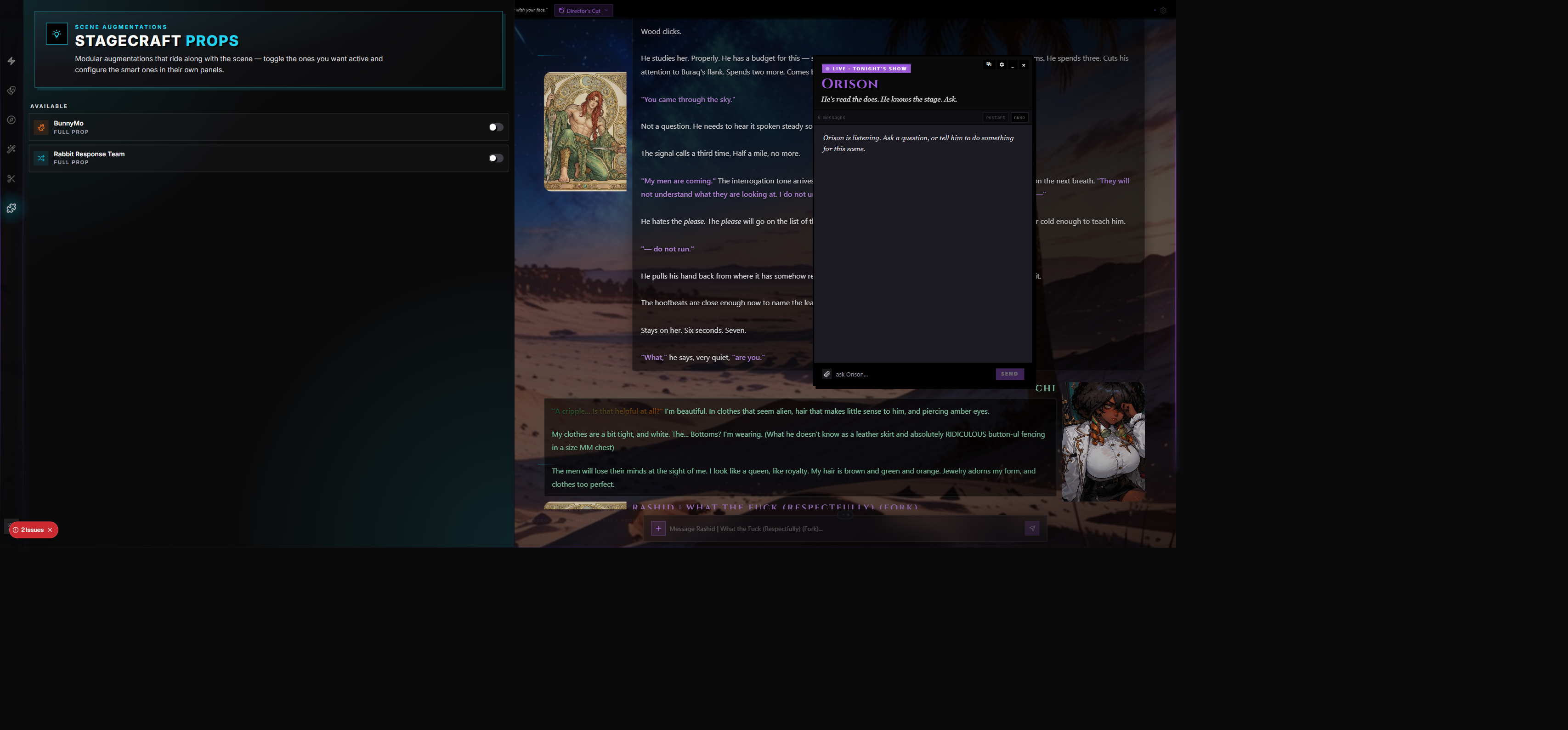
CarrotKernel is one of RoleCall's two shipping Stage Props — a native scene augmentation that turns scattered character data into structured, AI-readable context. It reads BunnyMo-style tag blocks out of your lorebooks, builds a roster of detected characters, lets you generate full character sheets from those tags, and quietly injects everything back into the prompt so the AI stays consistent with your cast.
Think of CarrotKernel as a casting binder for the AI. The actor (the Character card) still plays their role, but CarrotKernel keeps a tidy index card on every named character in your world — their species, their personality archetype, their speech patterns — and slides those cards in front of the AI exactly when they're needed.
CarrotKernel is the orange one in the Stagecraft Props. It's the Tier 3 Full Prop built by BunnyMo, and it's the most elaborate Stage Prop RoleCall ships with.
What CarrotKernel Does
At its core, CarrotKernel is three coordinated systems:
| System | What it does |
|---|---|
| Pack library | A bundled collection of BunnyMo content packs (character traits, dere archetypes, MBTI types, species, linguistics, and more) that you can toggle on and off. Each pack contributes triggerable entries to the prompt. |
| Tag detection | Scans your active lorebooks for <BunnymoTags> blocks and automatically builds a roster of characters with their parsed tags (personality, physical, speech, kinks, etc.). |
| Sheet generation | Generates structured character sheets (full sheets, tag sheets, quick sheets, memory sheets, update sheets, physical sheets) for any character on demand using your chosen model. |
All three feed into the AI prompt through the same injection pipeline RoleCall uses for lorebooks — keyword triggers, depth, position, probability — so CarrotKernel content respects the same rules everything else does.
Enabling CarrotKernel
CarrotKernel lives in the Stagecraft Props wing, which you open from the wing rail on the right side of any scene.
- Open the Stagecraft wing (puzzle-piece icon, cyan accent).
- Find Carrot Kernel under Available in the prop list — orange carrot icon, labeled Full Prop.
- Flip its toggle on. The card moves from Available up to Active.
- A small gear button appears on the active row. Click it to open the CarrotKernel panel itself.
When CarrotKernel is active, you get a dedicated wing for it in the rail — its own panel with four tabs, its own orange accent color, and its own configuration that lives alongside the scene.
Toggling CarrotKernel off later does not delete your packs, sheets, or settings. Stagecraft preserves the prop's full configuration between toggles, so flipping it back on restores everything exactly as you left it.
The Stagecraft Tier System Applied to CarrotKernel
Every Stage Prop has a tier describing how much it does. The tier is shown right under the prop name in the Stagecraft Props.
| Tier | Label | What it means |
|---|---|---|
| 1 | Prompt Pack | Static prompt injections. No panel of its own — just text that gets pushed into the prompt. |
| 2 | Smart Prop | Prompt injections plus a small generic settings panel for configuration. |
| 3 | Full Prop | A complete custom panel with its own UI, its own state, and its own logic — wired directly into the prompt pipeline. |
CarrotKernel is Tier 3 — a Full Prop. That means it ships with its own dedicated wing panel, its own state store, its own sheet renderer, its own pack manager, and its own settings page. It's the most full-featured tier a prop can occupy in RoleCall, and CarrotKernel uses every bit of it.
When you turn CarrotKernel on, you don't just get a checkbox somewhere — you get a whole sub-application living inside your scene.
The CarrotKernel Panel
Opening the CarrotKernel wing gives you a four-tab interface. The header shows an active-entries badge (how many of your kernel entries are toggled on out of the total) and an Add button when you're on the Packs tab.
The Four Tabs
| Tab | Icon | What's in it |
|---|---|---|
| Detected | Scan-eye | The character roster — every character CarrotKernel has parsed out of your lorebooks, plus any character that has an existing generated sheet. |
| Packs | Package | The pack library — every bundled BunnyMo pack, toggleable on/off, with per-entry overrides for the obsessive. |
| Sheets | File-text | The sheet generation studio — pick a character, pick a sheet type, generate, review, approve. |
| Settings | Settings | All the global CarrotKernel knobs — injection depth, role, character cap, CoT directive, streaming, reminder. |
Each tab has a small numeric badge showing how many items it currently holds — detected characters, kernel entries, generated sheets — so you can see at a glance where the activity is.
The Detected Tab
The Detected tab is the heart of CarrotKernel's day-to-day usefulness. It shows every character the prop has identified across your active lorebooks.
How Detection Works
CarrotKernel watches your active lorebooks. When a lorebook entry contains a <BunnymoTags> block — the BunnyMo standard for structured character data — CarrotKernel parses it and extracts:
| Piece | Source |
|---|---|
| Name | From the <Name:...> tag inside the block |
| Tag categories | Every <CATEGORY:VALUE> pair — <DERE:Tsundere>, <SPECIES:Cat Girl>, <MBTI:INFP>, etc. Multiple values per category are deduplicated. |
| Linguistics | The <Linguistics>...</Linguistics> block, if present — used to track speech patterns and dialect |
| Source lorebook | Which lorebook and entry the character was found in, so you can navigate back |
Each detected character becomes a row in the Detected tab. Click to expand it and you see the full parsed tag breakdown grouped by category. There's also a per-row remove button for trimming the roster.
Auto-Archive
CarrotKernel can also detect characters in AI responses, not just lorebooks. When Auto-Archive is enabled in Settings, the prop watches each generated message for new <BunnymoTags> blocks. If it finds one, it can archive that character into a lorebook entry so the data persists for future scenes.
This is useful when you're using a sheet-generation flow that produces tag blocks inline — the AI writes a new character into the scene, and CarrotKernel catches it on the fly.
Roster Display Modes
The Display Mode setting controls how the detected roster appears in the panel:
| Mode | Appearance |
|---|---|
| None | Roster hidden entirely — useful if you don't want to look at it but still want injection to work |
| Compact | One-line rows with name and tag count (default) |
| Expanded | Full tag breakdown visible by default, no need to click in |
The Packs Tab — Bundled BunnyMo Content
The Packs tab is your library of pre-built content packs. RoleCall ships with the following official packs out of the box:
| Pack | What's in it |
|---|---|
| BunnyMo | The Golden Carrots — core character sheet framework, tags, and memory infrastructure |
| BSM-5 | Bunny Statistical Manual — mental health conditions and adjacent traits, written for character writing rather than diagnosis |
| BSM-5 CoT Lenses | Chain-of-thought reasoning prompts tied to each BSM-5 condition. An expansion that requires the base BSM-5 pack |
| BunnyRX | Package inserts for psychiatric medications — onset, effects, withdrawal, interactions |
| CarrotCast | Streaming-style character channels and broadcasts — broadcast voice, audience interaction patterns |
| Dere Tagpack | Emotional archetypes — tsundere, yandere, dandere, kuudere, and the rest |
| Dere Expansion | Rarer dere archetypes and cross-type combinations (expansion of the base Dere pack) |
| Linguistics | Speech patterns, dialect, voice coding for character consistency |
| Linguistics Lite | Slim version of Linguistics with just the core rules — for tight token budgets |
| MBTI | The 16-type personality framework, pop-culture grounded |
| Species | Anthro and fantasy species, formatted as collectable TCG cards |
| Tell Tail Lenses | Narrative lenses — ways of viewing character behavior through different story frames |
| Traits | A grab-bag of miscellaneous personality, behavior, and quirk tags |
Enabling Packs
Each pack has a toggle. Flip it on to add the pack's entries to the trigger pool. Disabled packs are still visible in the list — their entries just don't fire.
The Packs tab also exposes the active/total count in the header badge (e.g. 12/47), telling you how many entries are currently turned on across all enabled packs.
Per-Entry Overrides
Inside each enabled pack you can drill into individual entries. Every entry exposes the full lorebook-style configuration so you can fine-tune behavior without forking the pack:
| Override | What it changes |
|---|---|
| Disabled | Turn this single entry off without disabling the whole pack |
| Keys / Secondary Keys | Override the entry's trigger keywords |
| Position | Where the content gets injected — world info, character, before example, after example, depth, scene |
| Depth | How many messages from the bottom (for depth injection) |
| Order | Insertion priority among other entries at the same position |
| Probability | Percent chance the entry fires when triggered |
| Constant | Always inject, regardless of keyword match |
| Selective + Logic | Use secondary keys as AND/NOT conditions (AND_ANY, NOT_ALL, NOT_ANY, AND_ALL) |
| Role | Inject as system, user, or assistant message |
| Sticky / Cooldown / Delay | How long the entry stays active, how long it waits between fires, how many messages before it's eligible |
| Scan Depth | How many recent messages to scan for trigger keywords |
| Case-Sensitive / Whole Words | Keyword matching strictness |
| Group / Group Weight / Group Override | Mutual exclusion grouping for entries that shouldn't co-fire |
| Ignore Budget | Skip the token budget when packed |
| Exclude / Prevent Recursion | How the entry participates in recursive triggering |
| Character Filter | Whitelist or blacklist by character name or tag |
These overrides are stored locally to your scene and don't modify the underlying pack — toggling a pack off and on again preserves your overrides. The Reset button on each override restores the entry to its pack-shipped default.
Pack Ordering
Drag-handle reordering lets you set the display and injection priority of packs. Packs higher in the order get evaluated and injected first when multiple entries match.
Manual Kernel Entries
Beyond the bundled packs, you can also add your own one-off kernel entries from the Packs tab. Click the + Add button in the panel header and fill in:
| Field | Purpose |
|---|---|
| Title | Display name for the entry |
| Content | The actual text injected into the prompt when triggered |
| Category | One of: Lore, Rules, Tone, Character, World, Custom |
| Priority | 1-10, where higher means injected first |
Manual entries live alongside pack entries and can be toggled, edited, and deleted independently.
Token Budget
The Packs tab shows a token budget bar that visualizes how many tokens your currently-active kernel entries are consuming versus the budget you've set. The bar color shifts as you approach the limit:
| Color | State |
|---|---|
| Green | Under 70% of budget |
| Amber | 70%–90% of budget |
| Red | Over 90% — you're close to or over the cap |
The default budget is 2,000 tokens. You can raise or lower it from the panel. Entries that overflow the budget get held back automatically unless they're flagged Ignore Budget.
The Sheets Tab — Generating Character Sheets
The Sheets tab is CarrotKernel's most interactive feature. It lets you generate full structured character sheets from your detected characters (or any name you type), using your chosen AI model.
The Six Sheet Types
| Sheet | What it produces |
|---|---|
| Full Character Sheet | A comprehensive 13-section profile — identity, physical, personality, behavior, attachment, linguistics, MBTI, species, chemistry, kink, mood, traits, intimacy |
| Tag Sheet | Structured BunnymoTags XML — the compact tag-only format optimized for re-injection |
| Quick Sheet | Essential fields only — physical appearance, personality, the minimum viable card |
| Memory Sheet | Temporal data, relationships, and memory tracking — what the character remembers and how it shifts |
| Update Sheet | How the character has developed during the current roleplay — changes from initial state |
| Physical Sheet | Detailed physical appearance and outfit catalog — wardrobe, posture, distinguishing marks |
Each sheet type uses a dedicated prompt template designed for that format, so a Tag Sheet generates compact XML while a Full Sheet generates richly formatted markdown.
Picking a Character
Sheets are generated per character. You pick the target one of three ways:
- Select from the detected roster — click a character in the detected list at the top of the Sheets tab.
- Type a free-text name — the input box accepts any name, even characters CarrotKernel hasn't detected.
- Use the first detected character automatically — if nothing is selected and no custom name is typed, the first character in the roster is used.
Free-text input takes priority over the selection, in case you've typed a name and forgot to clear it.
Picking a Model
Sheet generation runs on whatever model you select in the Mini Model Selector inside the Sheets tab. This is independent of the scene's main chat model — you can have a fast model for sheet generation and a more expensive one for the chat itself, or vice versa.
The model selector respects your encrypted provider keys (BYOK). If you have a key for the selected provider, generation happens with that key. Otherwise the request falls back to whatever the server-side provider configuration allows.
Context Selection
What chat history gets included in the sheet generation prompt is fully configurable. The Generation Context controls let you pick:
| Mode | Behavior |
|---|---|
| Tokens | Include messages from the end of the chat until you hit a token cap (default 4,000) |
| Messages | Include a specific number of messages — last N, first N, or a custom range |
| All | Include every message in the chat |
You can also choose which other content to bundle in:
| Inclusion | What it adds |
|---|---|
| Character Card | The full character card content — and optionally only specific sections (description, personality, scenario) |
| Persona | Your active persona's content |
| Preset Prompts | Specific prompt entries from a selected preset, by identifier |
| Lorebooks | Selected lorebooks, and within them, specific entries |
This means a sheet you generate can reflect everything the AI already knows about the scene — not just the recent chat — and you don't have to manually copy-paste anything.
Hidden Depths Mode
Generated sheets sometimes contain a "Hidden Depths" section — secrets, things the character doesn't reveal openly. You can control how this section is handled:
| Mode | Effect |
|---|---|
| Secret | The section is in the sheet but flagged as DM-only knowledge. The AI knows it but won't volunteer it. |
| Visible | Hidden Depths becomes part of the regular sheet content. |
| Exclude | The section is dropped from the generated sheet entirely. |
Streaming and Cancelling
When Enable Streaming is on (default), the sheet renders live as it generates, token by token. You can watch it form. A Cancel button stays available the whole time — clicking it stops generation immediately. Any partial content already received is discarded.
Sheet Review and Approval
Every generated sheet starts as pending. The Sheets tab gives you three actions per sheet:
| Action | Effect |
|---|---|
| Approve | The sheet is marked approved and eligible for injection |
| Reject | The sheet is marked rejected and removed from injection |
| Remove | The sheet is deleted from the history entirely |
Only approved sheets get injected into the prompt. Pending and rejected sheets stay visible in your history but don't reach the AI.
Per-Sheet Injection Mode
Each approved sheet has its own injection mode:
| Mode | What gets injected |
|---|---|
| Off | Nothing. The sheet exists but isn't used. |
| Full | The entire generated sheet content as a system block. |
| Tags | Just the compact tag synopsis — the BunnymoTags-format summary. Cheap on tokens, still keeps the AI aligned. |
This is useful when you have a long Full Sheet but only want the tag synopsis active most of the time. Flip to Full when you need the AI to deeply remember backstory, then flip back to Tags to save tokens.
Per-Sheet Injection Settings
Beyond the injection mode, every approved sheet exposes the same per-entry overrides the Packs tab does — keys, position, depth, order, probability, role, sticky, cooldown, scan depth, group, recursion, character filter. A sheet behaves exactly like a lorebook entry under the hood.
By default a new sheet ships with constant injection at depth 4, system role, high priority — meaning it's always active and lands near the top of recent context. Tweak the settings if you want a sheet that only fires when the character is mentioned, or only after a certain delay, or only some of the time.
The Settings Tab
The Settings tab is the global control panel for CarrotKernel. Every setting here applies across all packs, sheets, and detections.
Injection Settings
| Setting | What it controls | Default |
|---|---|---|
| Injection Depth | How many messages from the bottom the character consistency block is injected at | 4 |
| Injection Role | Role the consistency block is injected as (system or user) | system |
| Max Characters to Inject | Cap on how many detected characters get included in the consistency context | 6 |
| Token Budget | Maximum tokens for the kernel entry corpus | 2,000 |
The character cap matters when your scene has lots of detected characters — without it, large rosters could blow up your context. Six is enough to cover most ensemble scenes without crowding out the rest of the prompt.
Chain-of-Thought (CoT) Carrot Directive
CarrotKernel can append a thinking-block directive to its injection that asks the model to scatter carrot emoji () inside its <think> blocks. This serves two purposes:
- It's a strong signal that the model is actually engaging with the character data — counting carrots in the thinking trace tells you the AI processed the consistency block.
- The carrots get stripped from the user-visible response, so it's invisible to anyone reading the chat.
| Setting | What it controls | Default |
|---|---|---|
| Enable Carrot CoT | Turn the CoT directive on or off | on |
| Carrot Count | How many carrots the AI must emit in its think block | 10 |
This is purely a quality signal — it doesn't change what the AI writes, only what it's asked to think.
Reminder Bookend
Long contexts can lose the consistency block in the middle of the prompt where attention dilutes. CarrotKernel can also inject a condensed reminder at the bottom of the prompt — a lightweight bookend that just lists the detected characters and reinforces the "stay consistent" instruction.
| Setting | What it controls | Default |
|---|---|---|
| Enable Reminder | Turn the bottom-of-prompt reminder on or off | on |
| Reminder Depth | Depth at which the reminder is injected | 0 (very bottom) |
The reminder is small — it doesn't repeat the tag data, just the character names and the rule. It's cheap and effective for long chats.
Streaming
| Setting | What it controls | Default |
|---|---|---|
| Enable Streaming | Whether sheet generation renders live or waits for full completion | on |
Turn streaming off if your model or provider doesn't support SSE streaming, or if you prefer the sheet to appear all at once.
Auto-Archive
| Setting | What it controls | Default |
|---|---|---|
| Auto-Archive | Watch AI messages for new BunnymoTags blocks and archive them as lorebook entries | off |
| Auto-Archive Notify | Show a toast when auto-archive fires | on |
Auto-archive is opt-in because it modifies your lorebooks. Turn it on when you're actively building a world from AI-generated character data.
Display Mode
| Setting | What it controls | Default |
|---|---|---|
| Display Mode | How detected characters appear in the panel (none, compact, expanded) | compact |
Model Selection
The Settings tab also pins the sheet generation model. This is the same Mini Model Selector that appears in the Sheets tab — changing it in either place updates both. The model is per-prop, not per-chat — so it follows CarrotKernel around independently of the scene's main model.
The Active / Available Split
The Stagecraft Props always shows props in two groups:
| Group | What's in it |
|---|---|
| Active | Props you've enabled for the current scene. Each row shows the prop, its tier, a Settings gear (for Tier 2+ props), and the toggle. |
| Available | Props you haven't enabled. Same row shape minus the gear (since there's nothing to configure when off). |
CarrotKernel will live in Active the moment you flip its toggle, and slide back down to Available if you turn it off. The split is per scene — different chats can have CarrotKernel on in one and off in another.
Per-Prop User Configuration That's Preserved
Stagecraft is built so toggling CarrotKernel off doesn't destroy your work. Everything you've configured stays attached to the prop activation in the scene:
| What's preserved | Description |
|---|---|
| Enabled packs | Which bundled packs you had toggled on |
| Pack order | Your custom drag-reorder priority |
| Pack entry overrides | All your per-entry tweaks — disabled flags, keys, depth, order, role, group, every override field |
| Manual kernel entries | Custom entries you added through the + button |
| Detected characters | Roster CarrotKernel built from your lorebooks |
| Generated sheets | All sheets — pending, approved, and rejected — with their injection settings |
| Settings | Every value on the Settings tab — depth, role, character cap, CoT, carrot count, streaming, auto-archive, display mode, reminder |
| Selected model | The sheet-generation model you picked |
| Generation context | Your context-mode preferences for sheet generation (message count, included content, etc.) |
| Active tab | Which CarrotKernel tab was open when you last closed it |
Flip the toggle off, walk away for a week, come back and flip it on — your panel reopens exactly as you left it.
Cross-Device Persistence
CarrotKernel's state is part of the scene's encrypted snapshot. That means:
- Open the scene on your phone, generate a sheet, approve it — the sheet is there when you reopen the scene on your desktop.
- Edit pack entry overrides on one device, switch devices, the overrides come with you.
- Settings changes follow you cross-device the same way.
All of this is stored encrypted using your recovery phrase (BYOK / E2E), so the server can't see what your character data looks like — only your devices can decrypt it. Like all encrypted RoleCall data, losing your recovery phrase means losing the saved state.
How CarrotKernel Hooks Into the Prompt
CarrotKernel shares the same injection shape as lorebooks — positions, depths, and priority buckets all resolve through the same slots. But CarrotKernel runs its own keyword scan to decide what fires rather than reusing the lorebook engine's matcher, and it is not subject to the engine's probability rolls, recursion-exclusion rules, or budget-drop pass — those only apply to lorebook entries.
When you send a message, here's what CarrotKernel contributes:
| Contribution | When |
|---|---|
| Character Consistency Block | Always, if there are detected characters. Includes the parsed tag data for each character, capped at the max-character setting. Injected at the configured depth and role. |
| CoT Carrot Directive | Appended to the consistency block if Enable Carrot CoT is on. Tells the model to scatter carrots in its <think> block. |
| Approved Sheets | If a sheet is approved and its injection mode is Full or Tags, the sheet content (or just the tag synopsis) is injected per its individual settings — same as a lorebook entry. |
| Pack Entries | Pack entries are evaluated like lorebook entries against the recent scan-depth text, the character card, the persona, the current message, the preset prompts, and any already-matched lorebooks. Matching entries inject at their configured position. |
| Reminder Bookend | At the very bottom of the prompt (depth 0 by default), if Enable Reminder is on. Lists detected characters and reinforces the consistency rule. Also reminds about the carrot count if CoT is on. |
Pack entries can trigger recursively — if a sheet is injected and it contains tags like <Dere:Tsundere>, the Dere pack's Tsundere entry can fire from that injected content the same way a lorebook entry could trigger from another lorebook entry's content.
Generated Post-Actions
CarrotKernel doesn't fire any post-message actions automatically — there are no "after the AI responds" scripts the user controls directly. The closest thing is Auto-Archive, which is a post-message detection that watches the latest AI response for BunnymoTags blocks and can add detected characters to the roster (and optionally to a lorebook). Turn it on from the Settings tab if you want CarrotKernel to keep pace with characters the AI introduces mid-chat.
Color Coding in the Prompt Inspector
When CarrotKernel injects content, it surfaces in the Prompt Inspector with distinctive orange badges so you can see at a glance what came from where.
| Badge | Meaning |
|---|---|
| Orange — CarrotKernel | The main CarrotKernel context block. Always followed by sub-labels listing the sections inside: Characters, Packs, Sheets, Tags, CoT, and Pack Entries with a count when inline pack entries appear in the same block. |
| Orange — CK Reminder | The reminder bookend at the bottom of the prompt — a softer orange than the main context block. |
| Amber — BunnymoTags | A BunnyMo pack entry injected at depth, with the entry's name in the badge (for example, BunnyMo Cat Girl). |
The sub-labels are how you confirm which features of CarrotKernel actually fired:
| Sub-label | What it tells you |
|---|---|
| Characters | The character consistency block landed — detected characters are in front of the AI |
| Packs | One or more kernel entries (manual or pack-derived) are in this block |
| Sheets | At least one approved sheet was injected in Full mode |
| Tags | At least one approved sheet was injected in Tags (tag synopsis) mode |
| CoT | The carrot CoT directive is present — the AI is being asked to emit carrots in its think block |
| N Pack Entries | N inline BunnymoTags entries are part of this block |
If you expect a section to fire and don't see its sub-label, you know exactly where the configuration broke down — probably a pack toggled off, a sheet not approved, or a setting disabled.
When to Use CarrotKernel
You have a cast of characters that recurs across scenes. A consistent roster — a party of adventurers, a band of crewmates, a household of vampires — is exactly what CarrotKernel is built for. Define them once in BunnymoTags lorebook entries, and every scene that opens that lorebook gets the consistency injection for free.
You want structured tag data, not just prose. Character cards work great for one-off characters, but a tagged character with <DERE:Yandere> <SPECIES:Vampire> <MBTI:INTJ> gives the AI scaffolding it can lean on for consistency across long chats.
You're building a world from scratch. Auto-Archive turns the chat itself into a worldbuilding tool — let the AI introduce new characters with BunnymoTags blocks, and CarrotKernel files them away for you.
You want to enforce reasoning quality on long chats. The carrot CoT directive is a strong signal that the model is engaging with character data. Counting carrots in the think block tells you whether the consistency injection is being read.
You roleplay with elaborate personality archetypes. The Dere pack, MBTI pack, BSM-5 pack, and Linguistics pack each give the AI a coherent framework to operate inside, instead of generic personality prose.
You want to share a character setup that travels with the scene. All of CarrotKernel's state lives inside the scene's encrypted snapshot, so the configuration follows the scene across devices.
When NOT to Use CarrotKernel
You're chatting with a single character and don't care about a cast. CarrotKernel's overhead — token budget, injection depth, character consistency block — is wasted on a one-on-one chat with no other named characters. Use a regular character card and a lorebook.
You don't have BunnymoTags in your lorebooks. CarrotKernel detects characters by parsing <BunnymoTags> blocks. If your lorebooks use a different format, detection won't fire and the prop won't have anyone to track. You'd have to either rewrite entries in BunnyMo format or rely entirely on manual kernel entries and generated sheets.
You're tight on tokens. Even with the budget cap, the consistency block, packs, sheets, and reminder can add up. If your scene is already running close to your model's context limit, every extra source of context fights for space. Either turn off packs you don't need, trim approved sheets to Tags mode, or skip CarrotKernel entirely.
You don't want the AI thinking about pre-defined archetypes. The Dere, MBTI, and BSM-5 packs nudge the AI toward specific frameworks. If you want emergent character personalities that aren't pre-categorized, those packs can flatten the AI's portrayal toward the archetype label.
You're testing a preset's raw behavior. CarrotKernel layers a lot of additional system content on top of your preset. If you're debugging why a preset behaves a certain way, turn CarrotKernel off to isolate the preset before turning it back on.
You want one specific character's data injected only when needed. CarrotKernel injects the character consistency block whenever it has detections — it's constant-ish by design. If you want a specific character's info to only appear when the character is mentioned, that's a job for a regular lorebook entry with keyword triggers, not CarrotKernel's consistency block. (You can set per-sheet injection settings with custom keys to get this behavior on individual sheets — but it's extra setup compared to just using a lorebook.)
You're publishing a character publicly. CarrotKernel state is per-scene and per-user. Other people who fork your scene won't get your CarrotKernel sheets or pack configuration — only your character card and lorebooks travel with the export. If you want shareable character data, put it in the character card or a lorebook directly.
Tips and Best Practices
Tag your lorebook entries in BunnyMo format from the start. CarrotKernel only sees <BunnymoTags> blocks. If you're already running a BunnyMo workflow, the prop is plug-and-play. If you're not, retrofitting a lorebook to BunnyMo format is the highest-leverage move you can make before turning the prop on.
Start with Tags injection, escalate to Full. Approved sheets default to Tags mode (the compact tag synopsis) for a reason — it's cheap on tokens and usually enough. Only flip to Full for characters where the AI is forgetting nuance from the longer sheet.
Watch the CoT carrot count. If you've set the carrot count to 10 and the AI is emitting 3, the consistency block isn't being read deeply. That's a signal to either move the injection depth up, increase its priority, or trim other context that might be drowning it out.
Disable expansion packs you don't need. BSM-5 CoT Lenses, Dere Expansion, and the Lite packs are optional companions. If your scene doesn't need them, turning them off keeps the trigger pool small and the budget low.
Use the Inspector to verify. After sending a message with CarrotKernel active, open the Prompt Inspector and look for the orange CarrotKernel badge. Confirm the sub-labels match what you expect (Characters, Tags, CoT, etc.). If a label is missing, the corresponding feature didn't fire.
Keep the character cap honest. Six characters is the default for a reason — past that, the AI's attention starts to spread thin and the consistency block stops landing. If you have a roster of twenty characters, consider grouping them into scenes and only having the relevant six detected at a time.
Approve sheets after reviewing, not before. Generated sheets land in pending state by design — give them a read, fix any tagging errors before approval, and only then promote them. Approving a flawed sheet feeds the flaw back into every future message.
Toggle off, don't delete. Disabling CarrotKernel from the Stagecraft Props preserves everything. Deleting individual sheets or kernel entries is destructive. When in doubt, toggle.