Your Library
Save it, version it, share it
Your Library — Organize, Fork, Publish
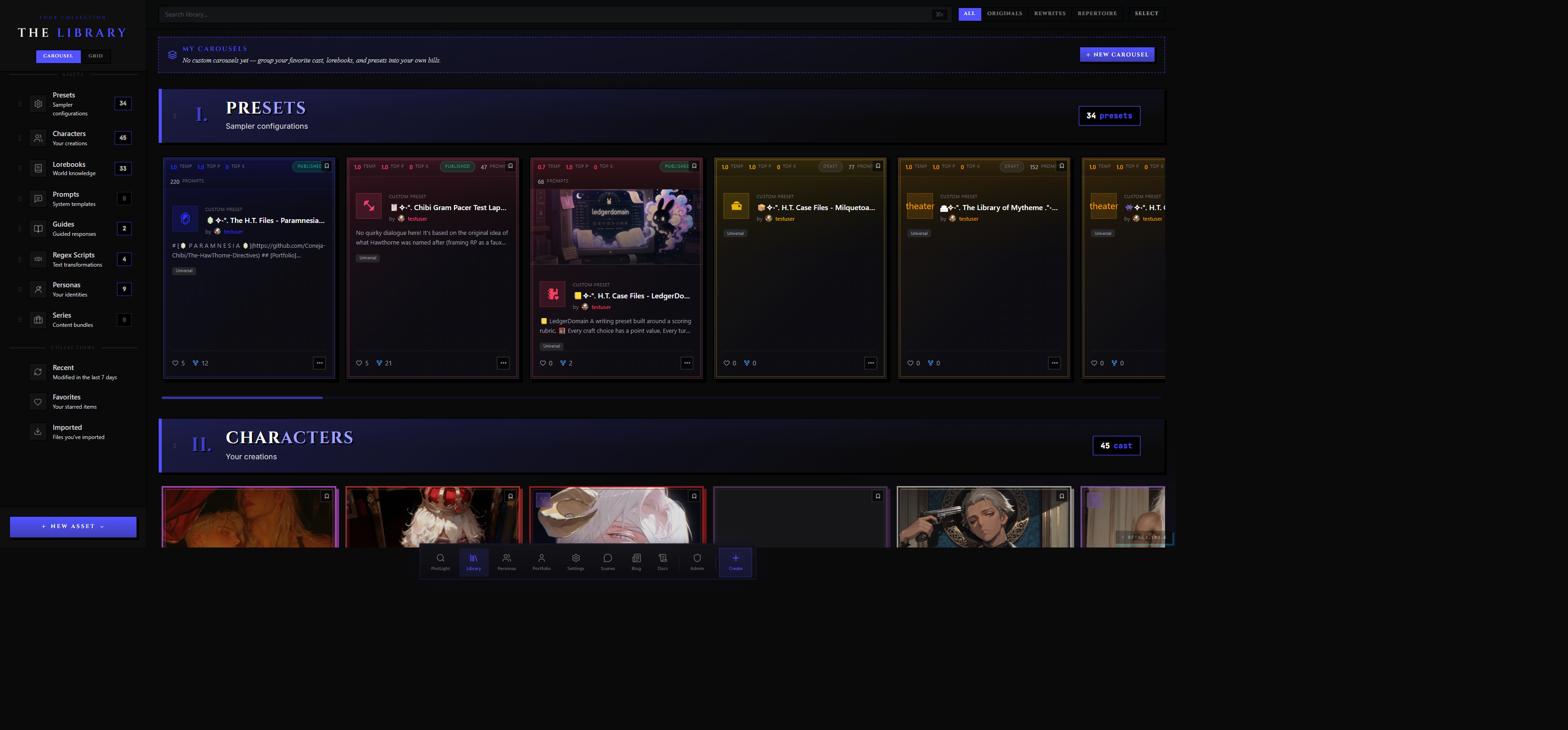
Your Library is your private side of the catalogue — everything you've created, imported, or pulled in from PlotLight's Discovery page via Rewriting (forking). It's where drafts live, where forks land, where you organize work into custom carousels, and where you push content through the draft → private → published lifecycle.
This page covers Library organization, content types, Rewriting (forking), the Repertoire vs Rewriting choice, Fork Rules that creators can set on their published work, how to tag your own content, and how to import/export between RoleCall and other formats.
The Content Types
The following content types live in your Library. They share filtering, search, and the publish lifecycle — but each has its own editor and its own dedicated reference doc.
| Type | What it is | Reference |
|---|---|---|
| Characters | Who the AI plays — name, personality, scenario, greeting | Characters |
| Personas | Who you play — your player-side identity card | Personas |
| Presets | The AI behaviour recipe — prompts plus samplers | Presets |
| Lorebooks | Keyword-triggered world info entries | Lorebooks |
| Prompts | Standalone prompt snippets, reusable building blocks | Presets |
| Guided Responses | Saved guidance the AI follows when you swipe, correct, or polish a message | linked from message actions |
| Regex Scripts | Find/replace rules applied to AI output | Stage & Utilities |
| Series | A curated bundle of related content (a character plus its preset, lorebook, persona, etc.) | — |
Your Library
The Library is the centre of your personal catalogue. Every piece of content you've created, imported, or rewritten lives here, organised by type. Subscribed content (from the Repertoire system above) appears alongside, distinct but in the same view.
Layout
The page is built from horizontal carousels, one per content type. Default order from top to bottom:
- Presets
- Lorebooks
- Characters
- Prompts
- Guides
- Regex Scripts
- Personas
- Series
Each row has a section header with the type name, a count chip ("29 cast", "12 books", "8 scripts"), and an icon picked from the type's signature palette. You can drag any row's grip handle to reorder the rows. The order persists per device.
View Modes
Character and persona cards use their saved signature colors in the Library. Character outlines and Start Scene buttons match; content-rating warnings remain separate. Presets retain their saved accent colors. Characters without a saved color use a stable fallback, and asset types without a signature-color setting keep their type styling.
Each row has a toggle for Carousel (horizontal drag-scroll, the default) or Grid (flat responsive grid). Carousel is faster to skim; Grid is better when you have many items and want to see them all at once. The chosen mode persists per device.
The Lineage Filter
A strip at the top of the page filters every section by lineage:
| Filter | Shows |
|---|---|
| All | Everything in your library |
| Originals | Only content you created from scratch (no rewrite lineage) |
| Rewrites | Only content you rewrote from someone else |
| Repertoire | Only content you've subscribed to (not copied) |
Collection Filters
A second strip filters by virtual collection:
- Recent — modified in the last 7 days
- Favourites — content you've starred
- Imported — items you brought in from a file upload
Combining the lineage filter with a collection filter is allowed — e.g. "Rewrites that are also Favourites".
Search
A search box in the header runs against name, tagline, and description across all sections at once. The keyboard shortcut Cmd + K (Mac) or Ctrl + K (Windows / Linux) focuses it. Search is debounced and runs locally against your library — there's no submit button.
Bulk Select
A Select mode toggles checkboxes on every card. Once you tick items, the bulk-actions bar at the top offers:
- Add to Carousel — pick a custom carousel (or create a new one) to drop the selected items into
- Remove from Carousel — if you opened the section from inside a custom carousel
- Cancel / Exit Select Mode
Select mode works across types — you can pick a character, a preset, and three lorebooks at once and add them to the same carousel.
The Floating Dock
A floating dock at the bottom of every page has shortcuts for the actions you'd otherwise dig through menus for. On the Library page in particular, the dock includes:
- Import Asset — upload a JSON or PNG character card, preset JSON, lorebook JSON, etc.
- Import Chat — bring in an exported chat session
- Create — a submenu with one option per content type (Character, Persona, Preset, Lorebook, Series, Regex Script, Visual Novel)
The dock fades while you're scrolling and wakes back up when your cursor approaches the bottom of the viewport. On mobile it stays visible longer because thumb travel is slower than a mouse.
Custom Carousels
Beyond the default per-type carousels, you can build your own. Custom Carousels are user-defined groupings of mixed-type items — drop a character, a preset, and three lorebooks into the same row and label it "Goblin Campaign Kit".
To create one, hit + New Carousel at the top of the My Carousels section. You set:
- Name — what shows in the header
- Colour — accent colour for the title and chips (defaults to your signature colour)
- Icon — picked from the Iconify library (any of thousands of icons) or left blank
To add items, hit Select mode in the section you want to draw from, tick the cards you want, then Add to Carousel from the bulk-actions bar. The carousel grip handle on the header lets you drag-reorder the carousels themselves; an inline rename and a colour/icon editor live behind the pencil icon. Carousels persist across devices.
Custom Carousels are private — they don't appear anywhere outside your Library and they're not shared by default. For sharing a curated bundle publicly, see Series in the content types list above.
When NOT to Use Custom Carousels
If you're trying to group content by type ("all my characters"), the default per-type rows already do that — Custom Carousels are for mixing across types. If you're trying to share a curated bundle with someone, publish a Series instead.
The Status Lifecycle
Every piece of content you create moves through a set of states, and the exact set depends on the content type:
| Status | Who sees it | Appears in Discovery |
|---|---|---|
| Draft | Only you | No |
| Private | Only you | No |
| Published | Everyone | Yes |
| Unlisted | Only you and anyone with the direct link | No |
| Pending Review | Only you (sits in your library greyed-out) | No, until reviewed |
| Removed | Only you (actioned by moderation) | No |
Draft is the autosave state when you're still building. Private is for finished content you want to keep to yourself. Published puts the content on Discovery and makes it forkable, ratable, and reportable by anyone. Unlisted content stays reachable by direct link without appearing in Discovery. Pending Review is a moderation holding state; publishing never puts your content there. Removed is a moderation action, not something you set yourself.
There is no Archived status — no library content table permits it, so there's nothing to archive or restore.
Publishing
The Publish modal walks you through:
- Title for the version (e.g. "First public release", "Polish pass v2") — optional
- Release notes explaining what changed (visible to anyone who's already subscribed) — optional
- Visibility — Private or Published
- Per-field change reasons — for each field that changed since the last publish, you can leave a short note explaining the change (powers the version-history view that subscribers see)
The header of the modal shows the version transition (e.g. "v3 → v4" or "First version"). Publishing increments the version number, freezes a snapshot, and surfaces it to anyone who's subscribed. Subscribers see "Update available" the next time they open the content; if they have auto-update enabled, the update applies on its own.
Publish Validation
Before the publish button enables, the modal checks:
- That at least one change has been staged (you can't publish an empty version)
- For Lorebooks: that at least one tag is present and required categories are filled
- For After Dark content: that trigger warnings have been declared
If validation fails, the modal explains what's missing and disables the publish button until you fix it.
Republishing a Rewritten Piece
If you rewrote someone else's work and you're publishing the rewrite, the publish flow runs a Diff Modal that compares your version against the original you forked from. This is your last chance to confirm the rewrite is substantial enough to be its own thing rather than a near-copy — important when the original creator has fork rules in place.
If your rewrite is still too similar to the original once the creator's fork rule is checked, the publish button is blocked with a similarity summary so you can keep editing.
Unpublishing
You can flip a Published item back to Private at any time. Anyone who already subscribed keeps their snapshot, but the content disappears from Discovery, the share link 404s for non-subscribers, and the rewrite count freezes.
Rewriting (Forking)
Rewriting copies someone else's published content into your library as a fresh draft, preserving attribution to the original creator. It's how derivative work happens on RoleCall.
How It Works
- Find content you like on Discovery (or on a creator's Portfolio).
- Click Rewrite in the card context menu or on the detail page.
- Give the rewrite a name. By default it's the original name plus "(Fork)" — change it to whatever you'd like.
- (Characters only) The rewrite can include all, some, or none of the base character's Alt Arts.
- The rewrite lands in your library as a draft. From there it's yours — edit anything, publish under your own name, rewrite it again.
Attribution
Every rewrite carries permanent lineage data:
- Forked from — the immediate parent content
- Original creator — the user it ultimately came from
- Forked at — the timestamp
- Original name at fork — what it was called when you forked it
This attribution shows on the rewritten card both in Discovery (when you publish your version) and inside the editor when you're working on it. It persists even if the original is deleted or made private. Rewriting is not a trick to hide where something came from — the credit is permanent.
Self-Rewrites Are Variants
Rewriting your own published content creates a Variant instead of a Fork — no attribution chip is needed (it's already yours). Mechanically identical: full deep copy in your library, ready to edit. Useful for spinning off an alternate version without disturbing the published original.
Rewrites vs Subscriptions vs Favourites
| Action | What it does | When to use |
|---|---|---|
| Rewrite | Deep copy into your library, fully editable, attribution kept | You want to change the content |
| Subscribe (Add to Library) | Versioned reference, content stays under creator's control | You want to use the content as-is |
| Favourite | Bookmark only | You want to come back to it later |
Each of the three has its own button in the Discovery card's context menu, and they're not mutually exclusive — favouriting something then subscribing to it then rewriting it is a normal sequence.
When NOT to Rewrite
Rewriting is the wrong call when:
- You just want to read the latest version. Subscribe instead — you'll get every update the creator publishes.
- You only want to tweak a sampler value. Apply a Sampler Profile on the scene side and leave the source preset alone.
- You only want to add a single lorebook entry that's specific to your campaign. Make a new lorebook in your library and link both into the same scene.
- The creator has a fork rule in place and you don't actually plan to substantially rewrite the content. Subscribe instead, and don't burn the rewrite slot on something that will get flagged as a near-copy.
Syncing With Upstream
If the original creator publishes a new version after you rewrote it, your rewrite shows an Update available marker. Opening the sync panel lets you:
- See a field-by-field diff between your version and the upstream version
- Cherry-pick which changes to pull in (e.g. accept the new description but keep your custom greeting)
- Keep your customisations intact for fields you don't accept
Syncing is opt-in per change. Auto-merging never happens — the choice is always yours.
For subscribed content, the sync experience is different (you don't have a rewrite to merge into — you just bump your pointer to the new snapshot). The Repertoire version-history modal handles that flow.
Repertoire vs Rewriting — Which One Should I Use?
The two buttons sit side-by-side on every Discovery card, and they're easy to confuse. The short version: Repertoire is a subscription, Rewriting is a copy. Repertoire keeps you tethered to the creator's work — you get their updates, you cannot edit anything, the content stays under their name. Rewriting cuts the cord — you take a frozen snapshot into your library, you own that copy, you can change anything in it, but the creator's future improvements never reach you unless you manually sync.
Put another way: Repertoire is renting a flat the landlord still maintains; Rewriting is buying the flat and being responsible for every leak yourself.
Side-by-Side
| Repertoire (Add to Library) | Rewriting (Fork) | |
|---|---|---|
| What it is | A versioned pointer to the creator's snapshot | A full deep copy in your library |
| Auto-updates from the creator | Yes, if you enable it (off by default) | No — frozen at the moment you forked |
| Can I edit it? | No — the content belongs to the creator | Yes — every field is editable |
| Shows in my Library? | Yes, under the Repertoire lineage filter | Yes, under the Rewrites lineage filter |
| Counts toward the creator's stats? | Increments their Subscribers count | Increments their Forks count |
| Lineage / attribution visible? | Implicit — the content still has their name on it | Yes — permanent "Forked from" chip on your version |
| Can I publish my version? | No — you don't own the content | Yes — publish under your own name with credit preserved |
| Survives if the creator deletes the original? | The snapshot you're subscribed to persists; new versions stop arriving | Yes — your copy is fully independent |
| Survives if the creator makes it private? | Yes — your snapshot stays accessible to you | Yes — you already have a full copy |
| Fork rules apply? | No — there's nothing to acknowledge | Yes — the creator's ground rules pop a modal |
| Need to be the same content rating? | Subscribes regardless of rating, but After Dark items still respect your safety settings | Same — fork goes into your draft regardless |
| Counts toward my storage / library quotas? | Light — just a pointer | Heavier — a full content row |
| Can I subscribe to my own content? | No — blocked at the source | N/A (self-rewrites become Variants instead) |
| Version history visible? | Yes — scroll, pin, rollback to any past snapshot | No — you have one frozen copy unless you sync diffs in |
| Best for | Playing with someone else's work as-is | Making it your own |
When to Repertoire
Subscribe (Add to Library) when:
- You love the character/preset/lorebook the way the creator built it and just want quick access from your Library.
- You want the creator's future polish. Turn auto-update on and every new release flows in.
- You're using a preset by a tuning specialist. Their job is to keep that preset sharp across model changes; let them do it.
- You don't want to maintain your own version. No edits, no merge conflicts, no decisions.
- You want to keep your library light. Pointers cost almost nothing compared to full copies.
When to Rewrite
Rewrite (Fork) when:
- You want to change the personality, scenario, or greeting of a character.
- You want to add your own lorebook entries to someone else's world without touching the source.
- You're remixing a preset — swapping prompts, retuning samplers, restyling the system message.
- The creator deleted the original and you want a copy you can edit and publish.
- You want to publish a remix under your own name with proper attribution to the original.
- You disagree with the creator's direction and want to fork off a permanent alternate version.
Switching Between The Two
You're not locked into either choice — the buttons are independent.
- Can I Rewrite from a Repertoire entry? Yes. The Rewrite button stays available on any content you've subscribed to. You'll end up with both: the Repertoire pointer (still receiving updates) and a separate rewrite draft (frozen, fully editable). Many creators do this — Repertoire for the latest, Rewrite for the campaign-specific tweaks.
- Can I Repertoire-subscribe to my own fork? Not a useful question — you already own it. If you want a variant of your own published content, use the Rewrite button on your own work to create a Variant (deep copy, no attribution chip needed).
- Can I Repertoire-subscribe to my own original content? No — the API blocks self-subscription. You don't need to: your own content already shows in your Library's Originals lineage.
- What if the upstream creator deletes the content after I subscribe? Your subscribed snapshot persists (snapshots are immutable, separate from the live content). You keep using the version you were on, but no new updates can arrive. The card may show an "upstream unavailable" hint.
- What if the upstream creator makes the content private after I subscribe? Same outcome — your snapshot stays accessible to you, new versions stop arriving, the Discovery link 404s for anyone else.
- What if the upstream creator's account is deleted? Your subscription keeps the snapshot you have. The content leaves Plotlight and gets no further updates, and its creator shows as an anonymous "Deleted creator". Rewrites survive intact.
- Can I un-subscribe and re-subscribe later? Yes. Removing from Library is one click; re-subscribing fetches the latest snapshot at that moment. If you want to keep using the old version you were on, pin the version in the version-history modal before unsubscribing.
If you find yourself constantly toggling between "I want updates" and "I want to change one thing", the right answer is usually Repertoire the source + maintain your tweaks separately — a small custom lorebook, a sampler profile, or a personal prompt — rather than rewriting just to override a single field. Rewrites are for substantial changes; lighter customisation belongs on the scene side. See Presets and Lorebooks for the per-scene override patterns.
Fork Rules (Creator Restrictions)
Creators can set fork rules on any published piece of content. Fork rules are a soft contract — they don't block rewriting outright, but they pop a modal asking the rewriter to acknowledge specific terms before the rewrite is allowed.
The Near-Copy Ceiling
Fork rules don't use a creator-tunable posture or threshold. There's a single platform-wide ceiling: if your rewrite's similarity to the original exceeds 80%, it's blocked as a near-copy once you try to publish it. The ceiling is the same for every creator and every content type — it isn't something a creator dials up or down. Similarity is measured by comparing identity fields (like description, personality, and scenario) between your version and the original.
What the Rewriter Sees
When you click Rewrite on content with fork rules, you'll see a modal that lays out:
- A numbered ground-rules checklist — up to eight short lines the creator wrote, like:
- "Credit me by handle"
- "No NSFW additions"
- "No AI-image covers"
- "Link back to my original"
- "Don't claim it's solo work"
- Free-form notes from the creator (if they added any)
Once you click Acknowledge & Rewrite, the rewrite proceeds. Your acceptance is recorded so the creator knows their rules were seen.
What Happens at Publish Time
If you later try to publish the rewrite and it's still too similar to the original, the publish flow blocks you with a similarity summary so you can keep editing until the rewrite clears the near-copy ceiling.
Most creators leave fork rules off and accept the default behaviour (rewrite freely, attribution preserved). The rules exist for creators who care about how their work is remixed.
Tagging Your Own Content
When you publish (or even save as private), the Tagsheet wizard walks you through tagging your content. It's shared across every content type — characters, personas, presets, lorebooks, prompts.
The wizard covers, depending on type:
- Name and tagline
- Cover image and emoji
- Signature colour and palette (the colours your card and editor use)
- Tag selection — the curated tag picker with intensity sliders
- Trigger warnings — flags so users with safety preferences can filter your content (severity is set by the tag itself, not by you)
- Fandoms — structured fandom data (separate from fandom tags, used for fandom-specific Discovery pages)
- Content rating — All Hours, Late Night, or After Dark
The modal's visual chrome changes with the rating tier — Late Night gets a blue accent shine, After Dark gets a red one — so you have a constant reminder of which tier you're publishing into.
Tags determine where your content surfaces on Discovery. Trigger warnings let users with safety preferences know what to expect. Both are required for After Dark content, and the publish flow won't let you proceed without them.
Importing and Exporting
The Library is the hub for moving content between RoleCall and the wider world.
Importing
Use the floating dock's Import Asset button or drag-and-drop a file onto the Library page. RoleCall recognises:
- PNG character cards (V2 and V3, with embedded JSON in image metadata)
- JSON character cards (V2 and V3)
- Preset JSON (RoleCall format, SillyTavern-compatible)
- Lorebook JSON (RoleCall format and SillyTavern world-info exports)
- Persona JSON
- Series export bundles (a single zip containing many items)
- Visual Novel export bundles
- ST scene exports (whole chat sessions, see Import Chat)
Imported items land as drafts in your library. If an imported character has an embedded lorebook, you're prompted to import that too. After import you'll see a toast confirming the new item, and the library refreshes automatically so it appears in the right row.
When an import fails (unsupported format, malformed JSON, etc.) the toast tells you what went wrong — there's no silent drop.
Exporting
Every Library item has an Export action in its card context menu. The format options depend on type — for characters you can choose Character Card V2 JSON, V3 JSON, PNG (V2-embedded), PNG (V3-embedded with V2 fallback), or Backyard/Faraday-compatible JSON. Other content types export to a single canonical JSON format.
Export options include:
- Include RoleCall extensions — bundles recommended content (presets, lorebooks, regex scripts, personas) into the export so other RoleCall users get the full setup
- Merge linked lorebooks — packs multiple linked lorebooks into one for tools that only support a single embedded lorebook
For full round-trip compatibility details see Characters → Import & Export.
Finding Other Creators
Every Discovery card has the creator's avatar and username in the corner. Tap either to open the creator's Portfolio — a public page they've designed where their published work, their bio, their pinned characters, and their custom carousels live. The Portfolio is where you go to see "everything else this creator has made" and to follow their voice across the catalogue.
The Portfolio surface is its own deep feature with a block-based editor and embedded widgets. See Portfolio & Whispers for the full reference.
If a creator blocks you (or you block them), their Portfolio is unreachable from your account and their content is hidden from your Discovery feed.
Mobile Differences
The Library and Discovery surfaces both work on mobile, with a few changes:
- Mobile lineage filters — open an asset type, tap Filter and sort, then choose All, Originals, Rewrites, or Repertoire. Repertoire shows subscribed snapshots, while Rewrites shows your editable copies. Collection shortcuts and folders remain separate controls.
- Card context menus — long-press a card to open the context menu (right-click on desktop)
- The floating dock stays visible longer (3.5 seconds of idle vs 1.5 on desktop) because thumb travel is slower than a mouse cursor
- Carousel rows scroll with horizontal swipe; tap a card to open it
- Bulk select works the same — tap the Select button, then tap each card to toggle its checkbox
- The Discovery Hub opens as a full-screen panel on mobile rather than a dropdown
Tips & Common Patterns
Use Subscribe rather than Rewrite if you just want to play. Subscribing keeps you on the creator's latest version. Rewriting makes a frozen copy that won't get the creator's future improvements unless you sync manually.
Favourite generously. Your Favourites collection is the easiest way to remember "the thing I wanted to come back to". Favouriting doesn't notify the creator beyond the count bump.
Build Custom Carousels around campaigns, not types. "My Tuesday Group" with the GM character, the players' personas, the world lorebook, and the campaign preset is more useful than a single huge "Characters" row.
Saved Searches are underused. If you have a niche — "1k–2k token characters", "Claude-only presets", "noir tropes" — name it and save it. Two clicks to re-run beats six clicks of filter setup.
Don't game the rating system. Self-rating is blocked. Mutual-rating rings get noticed and the moderation tools flatten them. Honest ratings make Discovery work; gamed ratings make it useless.
Tag accurately even on Private content. Tags don't just gate Discovery — they drive search inside your own library and inside other creators' use of your work after they fork it. A character tagged "noir mystery" is easier to find six months later than an untagged one.
Use the Lineage filter to audit yourself. If your Library is mostly Rewrites, you're a remixer — lean into it and credit thoroughly. If it's mostly Originals, you have a body of work — publish it and watch the Forks counter.
When you publish a fork, give a real release note. "Rewrote the description, added two new alt greetings, swapped the preset reference." Anyone subscribed to your version will see it; people considering your fork on Discovery will too.
Set Default Sort to match your habits. If you find yourself flipping to Newest every time, just make Newest the default in the Settings tab.
Use the Diff Modal as a writing prompt. Before republishing a fork, open the diff and look at what hasn't changed. Those are the bits that don't yet feel like yours.
Report sparingly but firmly. Reports cost reporter trust if they're dismissed as frivolous. Reserve reports for actual rule violations, write a clear explanation, and attach an evidence link when the report type calls for one.