Providers & Keys
Where your scenes get their brains
Providers, BYOK & Encryption
RoleCall runs your chats against AI models — but you choose which models, hosted where, paid for how. You can use RoleCall's own hosted infrastructure, plug in your own keys to thirty external providers, or mix both in the same account. Everything sensitive — your chat history, your memory snapshots, your API keys — is encrypted in your browser before it ever reaches the server.
This page covers how providers work, how to add one, what the recovery phrase is, the difference between the two privacy modes, and exactly where the encryption boundary sits.
Two Theaters
RoleCall splits inference into two "theaters" — the two places your chat turns can actually be generated.
Premiere Theater (RoleCall-hosted)
The Premiere Theater is RoleCall's own hosted models.
Local Theater (Bring Your Own Key)
The Local Theater is everything else — external AI providers you connect with your own API keys. You pay the provider directly, you control your own usage limits, and RoleCall just passes requests through. Your key is encrypted in your browser before it's stored and decrypted in your browser before each request.
Most creators end up using a mix: the Premiere Theater for casual chats and BYOK for specific models their favorite presets were tuned around.
Supported Providers
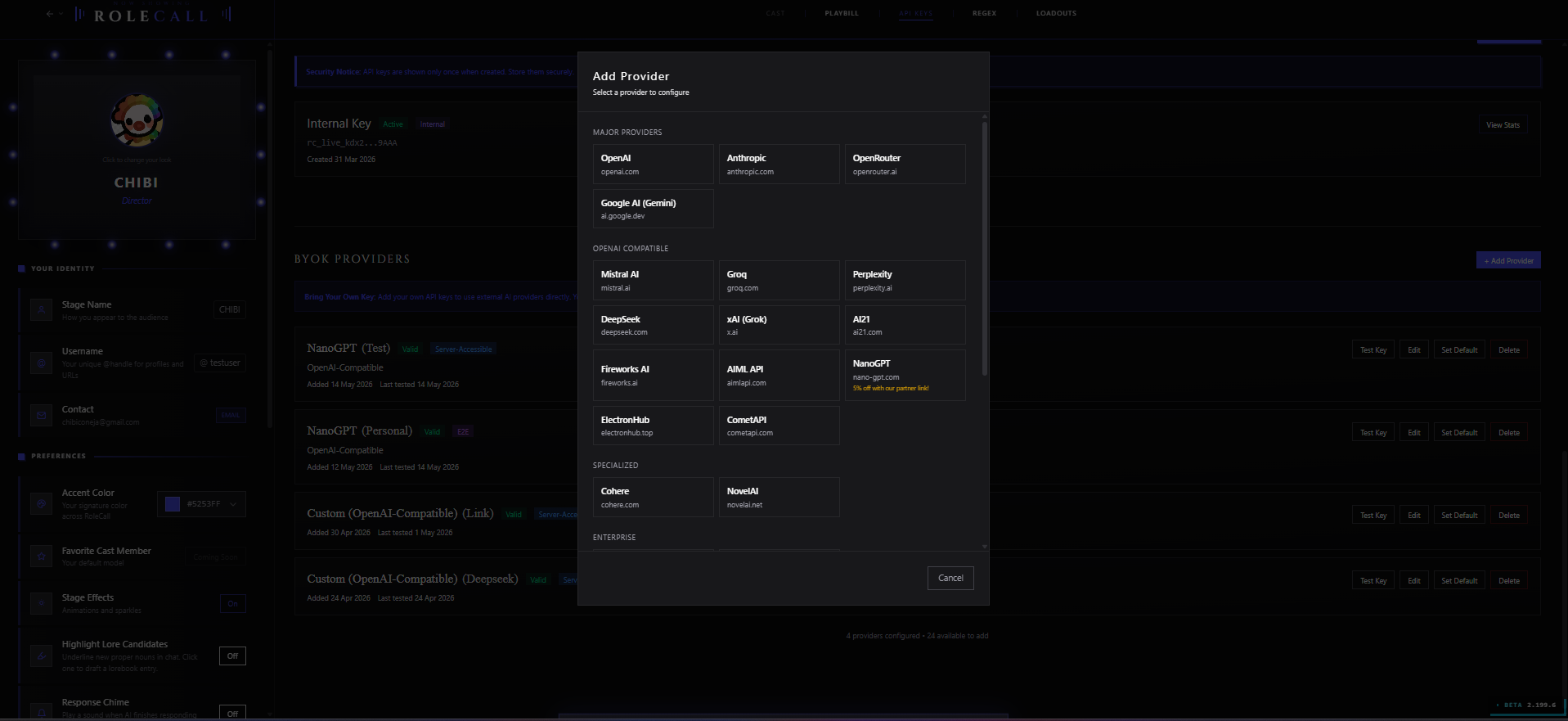
RoleCall ships with adapters for 31 providers organized into categories: RoleCall's own in-house adapter plus 30 external ones, including a text-generation set, dedicated voice-output (TTS) providers, and image-generation gateways. Every provider in the tables below is selectable from the Add Provider picker. The "Connect with" column is what you actually paste in.
Major Providers
| Provider | Connect with |
|---|---|
| RoleCall | Nothing — built-in. Hosted models, tier-based access, no key needed. |
| OpenAI | API key (sk-...). GPT-4 family, GPT-4o, o-series reasoning models. Supports streaming, parallel tool calls, and optional Organization ID for billing routing. |
| Anthropic | API key (sk-ant-...). Claude family direct from Anthropic. The custom base URL is the domain only (https://api.anthropic.com) — the /v1 path is appended automatically. |
| OpenRouter | API key (sk-or-...). One key, hundreds of models across many vendors. Model IDs use the vendor/model-name format. |
| Google AI (Gemini) | API key (AIza...). Gemini family direct from Google AI Studio. Authentication is a query-parameter style rather than a header. |
OpenAI-Compatible Providers
| Provider | Connect with |
|---|---|
| Mistral AI | API key. Mistral Large, Codestral, the open-weight family. |
| Groq | API key (gsk_...). Fast inference on Llama, Mixtral, and similar open-weight models. |
| Perplexity | API key (pplx-...). Sonar models with optional live web search. |
| DeepSeek | API key. DeepSeek Chat (V3.2 non-thinking) and DeepSeek Reasoner (V3.2 thinking mode). DeepSeek has no public models endpoint — the available models are a fixed list. The Reasoner model also accepts a reasoning_effort value. |
| xAI (Grok) | API key. Grok models from x.ai. |
| AI21 | API key. Jamba family. |
| Fireworks AI | API key. Hosted open-weight inference (Llama, Mixtral, others). Model IDs use the full account path: accounts/fireworks/models/.... |
| AIML API | API key. Aggregator across multiple vendors. |
| NanoGPT | API key + plan type. Pay-per-use bills your account per token; Subscription draws from your NanoGPT subscription quota. Aggregator across many vendors. |
| ElectronHub | API key. Aggregator across multiple vendors. |
| CometAPI | API key. Aggregator — reliability can be uneven, test the connection after saving. |
| TokenReply | API key. A trusted partner offering free models alongside paid ones. |
Specialized
| Provider | Connect with |
|---|---|
| Cohere | API key. Command R / Command R+ family. |
| NovelAI | API token. NovelAI's text-generation models with their own sampler set (typical-P, tail-free sampling, repetition penalty). |
Enterprise
| Provider | Connect with |
|---|---|
| Azure OpenAI | API key + Resource Name + Deployment ID + API Version. OpenAI models served through your Azure subscription. |
| Vertex AI (Google Cloud) | Service Account JSON + Region. Gemini models served through your GCP project. The JSON must include client_email, private_key, and project_id, and the service account needs the Vertex AI User role. (Currently a WIP) |
Regional
| Provider | Connect with |
|---|---|
| Moonshot (Kimi) | API key. Moonshot's Kimi models — moonshot-v1-8k, -32k, -128k. |
| SiliconFlow | API key. Chinese aggregator with DeepSeek, Qwen, and others. |
| Z.AI (Zhipu) | API key + endpoint type. GLM family. The Common endpoint is the default; switch to Coding if your key is a coding-tier key. |
Free
| Provider | Connect with |
|---|---|
| Pollinations | Nothing — no key required. Free text-generation endpoint. |
Voice Output (TTS)
| Provider | Connect with |
|---|---|
| ElevenLabs | API key + TTS model. |
| Minimax | API key + Group ID + TTS model. |
| Voice Output (Custom TTS) | Protocol + Base URL + API key + TTS model + voice IDs. Point at any TTS-compatible endpoint. |
Image Generation Gateways
| Provider | Connect with |
|---|---|
| Image Gateway (Custom) | Base URL + API key. Point at a custom image-generation endpoint. |
| OpenAI Images (Custom) | Base URL + API key. Point at an OpenAI-compatible image-generation endpoint. |
Custom
| Provider | Connect with |
|---|---|
| Custom (OpenAI-Compatible) | Base URL + optional API key. Point at any OpenAI-compatible endpoint — proxies, self-hosted servers, services not on the list above. |
The Custom option is the escape hatch. If you can hit it with a Bearer token (or no auth) and an OpenAI-shaped chat-completions endpoint, you can route RoleCall through it. You can override both the chat-completions URL and the models-list URL independently if auto-detection from the Base URL fails.
Which samplers each provider accepts
Not every provider accepts every sampler. RoleCall passes whatever the provider supports and silently ignores the rest. The compatibility matrix:
| Provider | Temperature | Top-P | Top-K | Frequency Penalty | Presence Penalty | Max Tokens |
|---|---|---|---|---|---|---|
| RoleCall | yes | yes | yes | yes | yes | yes |
| OpenAI | yes | yes | — | yes | yes | yes |
| Anthropic | yes | yes | yes | — | — | yes |
| OpenRouter | yes | yes | yes | yes | yes | yes |
| Google AI (Gemini) | yes | yes | yes | — | — | yes |
| Mistral AI | yes | yes | — | — | — | yes |
| Groq | yes | yes | — | — | — | yes |
| Cohere | yes | yes | yes | yes | yes | yes |
| Perplexity | yes | yes | — | yes | yes | yes |
| DeepSeek | yes | yes | — | yes | yes | yes |
| xAI (Grok) | yes | yes | — | yes | yes | yes |
| AI21 | yes | yes | — | yes | yes | yes |
| Fireworks AI | yes | yes | — | yes | yes | yes |
| Moonshot | yes | yes | — | yes | yes | yes |
| SiliconFlow | yes | yes | — | yes | yes | yes |
| Z.AI (Zhipu) | yes | yes | — | yes | yes | yes |
| Azure OpenAI | yes | yes | — | yes | yes | yes |
| AIML API | yes | yes | — | yes | yes | yes |
| NanoGPT | yes | yes | — | yes | yes | yes |
| ElectronHub | yes | yes | — | yes | yes | yes |
| CometAPI | yes | yes | — | yes | yes | yes |
| Vertex AI | yes | yes | yes | — | — | yes |
| Pollinations | yes | yes | — | yes | yes | yes |
| NovelAI | yes | yes | yes | yes | yes | yes |
| Custom | yes | yes | — | yes | yes | yes |
A dash means the provider's API doesn't have that knob — turning it up in your sampler profile has no effect on this provider, or worse might break it. NovelAI is the most non-standard: it also exposes Typical-P, Tail-Free Sampling, and a dedicated Repetition Penalty in its own sampler block.
For samplers the provider doesn't natively support (a common one is min_p), drop the value into Custom Body Params as min_p: 0.05 and it gets injected into the request. Whether the model actually honors it is up to the provider.
Connecting a Provider
The full connection flow lives under Settings → BYOK Providers.
Step 1 — Choose your privacy mode first
Before you can save your first provider key, RoleCall needs to know how you want encryption set up. If you haven't completed the recovery-phrase onboarding (see The Recovery Phrase below), the connection flow pauses and routes you through it. Your API key needs an encryption key on standby before it can be stored.
Step 2 — Click "Add Provider"
The picker opens with the full provider list grouped by category — Major, OpenAI Compatible, Specialized, Enterprise, Regional, Free, Custom. Pick the one you have a key for.
Step 3 — Fill the connection fields
Every provider has its own fields. Required ones are always at the top; optional ones (custom base URL, proxy password, model overrides, custom headers, custom body params) sit behind an Advanced toggle.
Common required fields:
| Field | What it's for |
|---|---|
| API Key | The credential the provider issued you. Some providers have a recognizable prefix (sk-, sk-ant-, gsk_, pplx-, sk-or-, AIza). |
| Resource Name | Azure-only. The name of your Azure OpenAI resource. |
| Deployment ID | Azure-only. The name of your model deployment in Azure. |
| API Version | Azure-only. Usually a dated string like 2024-02-15-preview. |
| Service Account JSON | Vertex AI only. Paste the full GCP service account JSON. |
| Base URL | Custom-only. The base of your OpenAI-compatible endpoint. |
Common optional fields:
| Field | What it's for |
|---|---|
| Model ID | Pin this provider to a specific model. If empty, you pick the model per-scene from the picker. For OpenRouter, the format is provider/model-name (e.g., anthropic/claude-3-opus). |
| Organization ID | OpenAI-only. Bills usage to a specific organization. |
| Custom Base URL | Route the provider through a proxy. Most providers support this. |
| Proxy Password | Auth header for a reverse proxy that sits in front of the provider. Only relevant if you've set a custom base URL. |
| Custom Headers | Extra HTTP headers added to every request. One per line as key: value, or paste a JSON object. Useful for proxies that want a non-standard auth header. |
| Custom Body Params | Extra fields merged into every request body. Use for sampler values not in the standard UI (top_k: 50, min_p: 0.1). One per line as key: value, or paste JSON. |
| Endpoint Type | Provider-specific. NanoGPT exposes Pay-per-use vs Subscription; Z.AI exposes Common vs Coding. |
| Region | Vertex AI only. GCP region for the inference call. Defaults to us-central1. |
| Chat Completions URL | Custom-only. If auto-detection from your Base URL fails, paste the full chat-completions URL here. |
| Models List URL | Custom-only. The endpoint that returns the available model list. Used by Test Key to populate the picker. |
Step 4 — Choose an encryption mode for the key
When you save a provider config, RoleCall asks where the key should live. The two modes match the two privacy modes you can choose at sign-up, but they're decided per-config — you can hold both kinds of keys in the same account.
| Mode | What it means |
|---|---|
| E2E | The key is encrypted in your browser with your 12-word recovery phrase. Only your browser can decrypt it. The server stores an opaque blob it cannot read. |
| Server-Accessible | The key is encrypted with a server-held secret. RoleCall can decrypt it on your behalf during a request. Slightly less private but more flexible — and necessary for some group features. |
Group auto-responders require Server-Accessible. When a group chat has the orchestrator or round-robin responder pick the next character to speak without you in the room, the request to the AI provider has to be assembled and sent server-side. The server can't sign that request if it can't decrypt your key. If you only ever do solo chats or hit "Send" yourself for every group turn, E2E is fine.
Most users pick E2E for the providers they care about and add one Server-Accessible config (often OpenRouter or a free Pollinations endpoint) as the group-friendly fallback.
Multiple configs per provider
Almost every provider lets you save more than one config. The picker shows each one as a separate row labeled with the config's display name. Common reasons to keep several:
- Two OpenAI keys, one personal and one shared with a collaborator's organization.
- A direct Anthropic key for solo chats and an OpenRouter key as the group-friendly fallback, both saved as separate configs.
- One Custom config per self-hosted server — a local Ollama at home, a remote vLLM on a rented GPU, etc.
- Two Z.AI configs, one with Endpoint Type set to Common for general chat and one set to Coding for code-focused turns.
Each config carries its own encryption mode, custom headers, and pinned Model ID independently.
Step 5 — Test the connection
After saving, hit Test Key on the config card. The test pings the provider's models-list endpoint with your key and reports back:
| Badge | What it means |
|---|---|
| Valid (green) | The key works and the model list was fetched. |
| Invalid (red) | Bad key, wrong base URL, expired billing, or the model list endpoint is unreachable. |
| Not Tested (grey) | You saved without testing. Common after editing fields. |
The model list returned by the test is cached against the config so the model picker can populate fast next time. Test Key is also how you re-prime the list after a provider releases new models.
If the test fails for a Custom provider, the most common cause is that the Base URL you entered points at the homepage instead of the API root. Try the explicit /v1 or /api/v1 suffix.
Choosing Models
Once you have one or more providers connected, models become pickable in three places.
The Cast (Provider Model Selector)
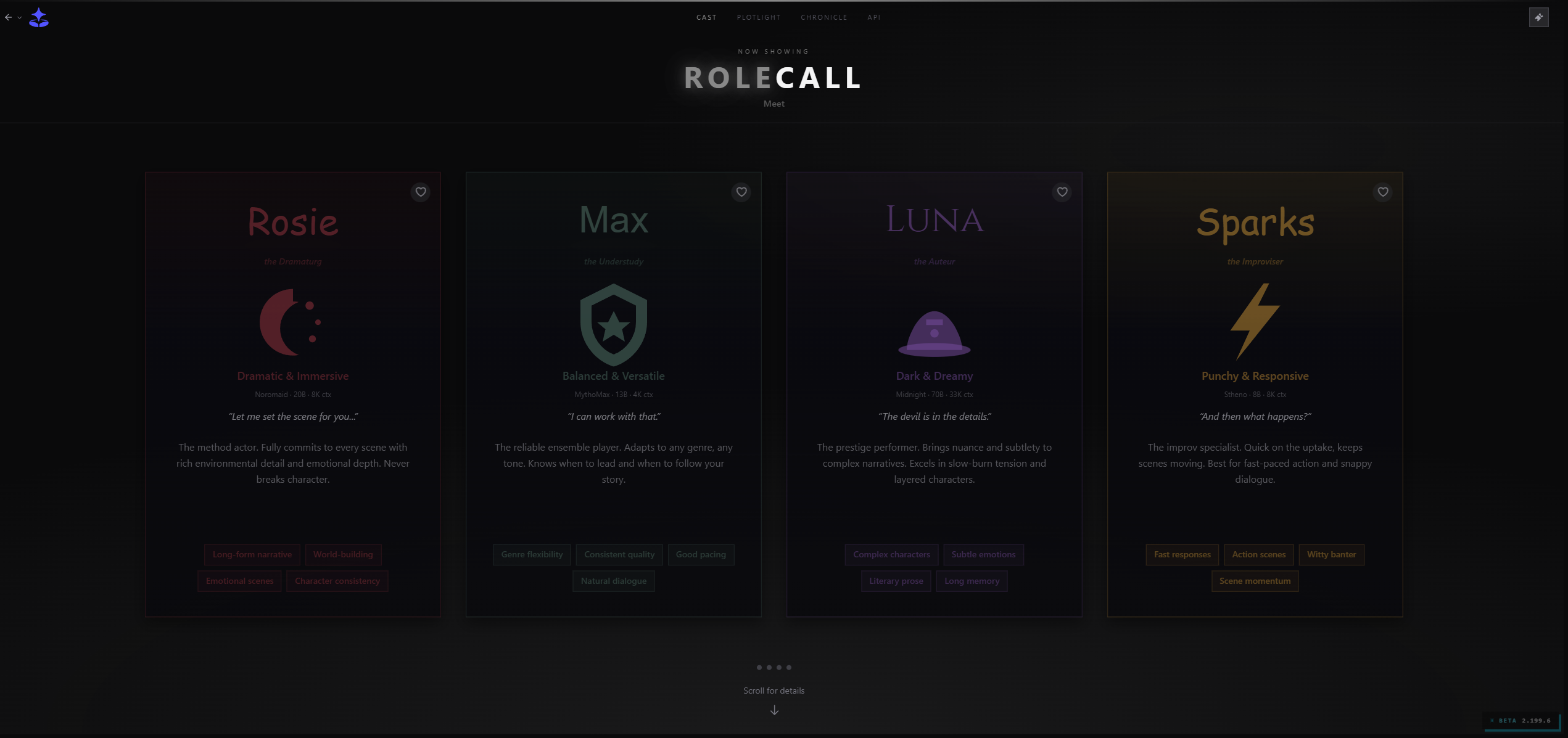
The Cast is the model picker that sits at the top of most generation panels. It shows every model from every provider you have configured, plus all Premiere Theater models, organized by provider and (where applicable) by tag.
Inside the Cast:
| Control | What it does |
|---|---|
| Search | Fuzzy match across provider name, model name, and model ID. Type sonnet to filter to every Sonnet across every provider. |
| Star | Favorite a model. Favorites pin to the top of the picker. |
| Group by tag | Premiere Theater models surface their internal tags (vision, fast, frontier, role-play, etc.) as group headers. |
| Context badge | Each model shows its context window — 8K, 32K, 128K, 200K, 1M. |
| Speed badge | Models are labeled as Instant, Fast, or Deep when the name signals it (haiku, mini, flash, opus, etc.). |
| Free flag | Free models (Pollinations, free OpenRouter slots) show a price-free indicator. |
Model role badges
Each model in the picker carries a generated role badge based on its name and what RoleCall knows about it. The roles are rough — they're a hint, not a rating — but they help when you're scanning a long list:
| Role | Typical members |
|---|---|
| Flagship | The vendor's current best — Claude 3.5/4 Sonnet, Claude 4 Opus, GPT-4o, Gemini 2.0, Grok 2 (non-mini), o3, DeepSeek V3. |
| Lead | The previous-generation flagship still in use — Claude Opus (older), GPT-4 (non-mini), Gemini Pro, Command R+. |
| Supporting | The reliable midsize models — Claude Sonnet (older), Gemini 1.5, Llama 70B / 405B. |
| Economy | Fast and cheap — Haiku, mini variants, Flash, instant, 8B-class open weights, anything free. |
| Classic | Older still-functional — Claude 2 family, Gemini 1.0. |
| Legacy | The old guard — GPT-3.5, Davinci, Curie. |
Combine that with the speed badge (Instant / Fast / Deep based on the model name) and the free flag (for cost-free models), and you can usually pick a sensible model at a glance without looking up specs.
Encryption Status
Behind the scenes, your account sits in one of a few encryption states. You'll usually only see the first one (Ready) — the others surface as the setup modal at sign-in or after clearing browser data.
| Status | What you see | What to do |
|---|---|---|
| Loading | A brief spinner on first paint. RoleCall is checking whether your browser already has the key. | Nothing — it resolves in a second. |
| Ready | No modal. The chat is usable. | Nothing — you're set up. |
| Needs Setup | The Choose Your Stage modal with Quick Start / Full Privacy options. | New account or wiped account. Pick a mode. |
| Needs Recovery | The Take the Stage modal asking for your 12-word phrase. | Returning user on a new device or fresh browser. Paste your phrase. |
| Error — HTTPS Required | A red error: "End-to-end encryption requires a secure connection (HTTPS)." | You're on http:// instead of https://. Switch to the secure URL. |
| Error — Browser Unsupported | "Web Crypto API is not available in your browser." | Use a modern browser. The Web Crypto API is required for encryption. |
The status is recomputed on every page load by checking your local key store first, then asking the server whether you've ever confirmed a recovery phrase. If both come back empty, you're treated as a new user.
The Recovery Phrase
The first time you sign in, RoleCall asks you to choose a privacy mode. This is the most important decision in your whole account setup.
What it is
The recovery phrase is 12 random English words drawn from the BIP39 word list — the same standard cryptocurrency wallets use. Something like:
ribbon orchid coffee marble swan paper
violet candle anchor garden lemon storm
That 12-word sequence is converted, in your browser, into an AES encryption key. Every encrypted thing in your account (chats, memory chunks, API keys) is encrypted with a key derived from that phrase. The phrase never leaves your browser unless you let it. RoleCall never sees the Full Privacy version. It is not stored on our servers in any form.
Why it matters
The recovery phrase is the only thing standing between your encrypted data and oblivion:
- Lose the phrase, lose access. Under Full Privacy there is no "forgot password" link. We cannot recover it for you. We do not have a copy.
- Anyone with the phrase can read your chats. Treat it like a password — never share, never paste it into a chat with anyone.
- The phrase is your portable identity. Plug it into a fresh browser or a new device and you get your chats back.
Setup flow
When you first encounter the recovery phrase prompt, you'll see two options on a screen called Choose Your Stage.
| Option | What it does | Recommended for |
|---|---|---|
| Quick Start | RoleCall generates a phrase silently and stores the wrapped key on our servers. You don't see the phrase. The trade-off is that RoleCall staff could, in theory, decrypt your chats. | Casual users who'd rather not manage a phrase, anyone who shares a device across multiple browsers. |
| Full Privacy (E2E) | RoleCall generates the phrase and shows it to you. You write it down. You type it back to prove you saved it. Then the key stays only in your browser. Nobody — not even us — can read the chats. | Privacy-focused users who can responsibly store a 12-word phrase. |
Quick Start is the recommended path for new accounts because it removes the "I forgot my phrase" failure mode. Full Privacy is for users who want a cryptographic guarantee with no server-side recovery option.
You can pick Full Privacy at sign-up and still add Server-Accessible provider configs later, or vice versa. The privacy-mode decision is mostly about your chat content, not the individual provider keys.
A small "You can change this later in Settings" line appears at the bottom of the choose screen. In practice, changing the account-wide mode after you've recorded any encrypted chats requires the wipe flow described below — it isn't a free toggle.
Type-back verification (Full Privacy only)
Full Privacy setup forces a type-back step before the key becomes usable. You see your 12 words on the Before the Curtain Rises screen, you copy them somewhere safe, then you re-type them into a 12-box grid on the next screen. Until the grid matches exactly:
- Your encryption key sits in a pending state.
- It is not stored to your browser's local key store.
- It is not exposed to the chat system.
- It is not used to encrypt anything.
This prevents the worst-case scenario where you encrypt a chat with a phrase you didn't actually save.
The verification grid has small affordances to help:
- Press space or tab to auto-advance to the next box.
- Press backspace on an empty box to jump back.
- Paste the full 12-word phrase into any single box and the words distribute across the grid automatically.
- Only lowercase letters are accepted (BIP39 words are all lowercase).
If your typed grid doesn't match the issued phrase, the boxes containing wrong words are highlighted and you'll see a count: "3 words don't match. Check the highlighted cues and try again." If every word is wrong, the message reads "None of the words match. Did you save the right phrase?" — usually a sign you typed back a phrase from a different account.
Once the grid matches, the key gets stored locally, the database records that you've confirmed the phrase, and the chat system can start encrypting and decrypting.
Storing your phrase
Where to keep it:
- A password manager. Best option for most people. Treat it like a master credential.
- A paper copy in a safe place. Old-school, immune to digital loss.
- A note in offline storage. A locked file on your own device, not synced anywhere unencrypted.
Where NOT to keep it:
- A chat message to yourself on any platform.
- An email draft.
- A note in a service you'd lose access to if your email gets compromised.
- A screenshot in your phone's cloud-synced photo library.
- A sticky note on your monitor in a co-working space.
The Copy button on the show-phrase screen is offered as a convenience — use it to paste into your password manager, then close the source app entirely.
What's Encrypted, What Isn't
The encryption boundary is precise. Some things are encrypted with your key, some aren't. Knowing which is which clarifies what's actually private.
Encrypted with your key
| Data | Why |
|---|---|
| Chat messages | The actual conversation text. Your messages, the AI's messages, every swipe. Compressed before encryption for smaller storage. |
| Memory chunks | Summaries the system stores for long chats. They're derived from chat text, so they get the same protection. |
| Provider API keys (E2E mode) | The keys you paste into BYOK with E2E selected. Encrypted in your browser before they're stored. |
| Tracker / immersion snapshots | The state Story Director and the Compendium write back to your chat — relationships, resources, scene state — sits inside the encrypted chat blob. |
Not encrypted
| Data | Why |
|---|---|
| Character cards | Designed to be sharable. Other users can fork them on Discovery. |
| Lorebooks | Same — sharable content. |
| Presets | Same — your preset is part of the public library if you publish it. |
| Personas | Same. |
| Prompts | Same. |
| Tags, ratings, reviews | Public catalogue metadata. |
| Profile information | Display name, bio, portfolio. |
| Provider API keys (Server-Accessible mode) | Still encrypted, but with a key the server holds. Required for group auto-responders. |
The rule is simple: anything you might want to publish is unencrypted. Anything that's just you talking to the AI is encrypted. The grey area — Server-Accessible provider keys — exists specifically to unblock features that need server-side request signing.
Pairing a New Device
Encrypted chats only decrypt on a device that knows your recovery phrase. The phrase is stored once, locally, in your browser — not synced across devices automatically.
To pair a new device when you're on Full Privacy:
- Sign in on the new device with your email and password.
- RoleCall detects there's no local key and prompts for your recovery phrase on a screen called Take the Stage.
- Paste or type the 12 words.
- The phrase is validated against a sample of your existing encrypted data — RoleCall fetches a small sample of your encrypted chat blobs and attempts to decrypt them with the key you just entered.
- If any sample decrypts cleanly, the key is correct: it gets derived and stored locally on the new device.
- Your chats decrypt and become readable.
If the phrase you enter is valid BIP39 (twelve real BIP39 words in the right order length) but doesn't match your existing data, you'll get Incorrect recovery phrase. The phrase is valid but does not match your encrypted data. That means the phrase is well-formed but it's not yours. Double-check.
If the phrase is malformed (wrong number of words, words that aren't in the BIP39 list), you'll get Invalid recovery phrase. Please enter all 12 words separated by spaces.
Pairing works the same way after clearing browser data, switching browsers on the same device, or restoring from a backup. The phrase IS the credential.
Quick Start users
If you signed up with Quick Start, you didn't see a phrase — and you don't need to paste one to pair a new device. The wrapped key follows your account and rehydrates silently on first sign-in. You're trading the "even-RoleCall-can't-read-it" guarantee for that convenience.
If you cleared the local key on a Quick Start device (logged out + cleared site data, for example), the next sign-in regenerates one silently from server-held state. You won't be prompted for anything.
Losing Your Recovery Phrase
If you have a Full Privacy account and you've truly lost your phrase, your encrypted data is unrecoverable. We mean this literally — there is no backdoor, no admin override, no support ticket that gets the data back.
Your only path forward is the wipe & start fresh flow:
- From the encryption setup modal, click I lost my phrase.
- A warning screen explains what's about to happen — every encrypted chat, every memory chunk, every E2E-encrypted provider key will be deleted.
- You type
DELETE MY CHATSinto a confirmation box. Anything else fails the check. - RoleCall calls a wipe endpoint that deletes all your encrypted chat data and your encrypted provider configs.
- Your encryption state resets. You get a fresh phrase to set up.
- Your characters, lorebooks, presets, personas, and prompts are untouched — they were never encrypted.
After a wipe, any other tabs you have open detect the wipe and reload automatically (a cross-tab broadcast catches them so you don't accidentally write encrypted data with the old key in a stale tab). Quick Start accounts can use the same flow — it'll regenerate the silent key without prompting you for a new phrase.
The wipe is destructive. There is no undo.
Tool-Call Modes (Native, Prompted, Auto)
Some RoleCall features — the in-chat agent, the post-production planner, the Compendium standardizer, the suggestion generators — use function calling. The AI is asked to emit structured calls that RoleCall then executes. Models differ wildly in how (and whether) they support this.
RoleCall offers three wire modes, configurable per-chat in the in-chat agent's settings panel:
| Mode | What it does | When to use |
|---|---|---|
| Native | Use the provider's native function-calling API. Tool calls travel as structured JSON in the response. | Frontier models (Claude, GPT-4, Gemini) connecting directly to their first-party API. |
| Prompted | Inject <tool_call> blocks as plain text inside the prompt and parse them out of the response. Works on any model that can follow instructions. | Older or open-weight models, or any model accessed through an aggregator that mangles the native tool format. |
| Auto | Start with Prompted by default. If you explicitly picked Native and the model breaks, fall back to Prompted automatically for the rest of the turn. | The default. Lets RoleCall pick the format most likely to work. |
A note on the Auto behavior: in practice it defaults to Prompted, not Native, because native function-calling over OpenAI-compatible aggregators (NanoGPT, OpenRouter, ElectronHub, AIML) tends to be unreliable in subtle ways — silent drops, wrong argument types, runaway loops. Prompted is slower (the model has to write more text) but more predictable. If you have a key directly with Anthropic or OpenAI for a frontier model, switching to Native is usually safe and a little snappier.
Most users never need to touch this setting. Auto handles it.
When NOT to Use BYOK
BYOK is great, but it isn't always the right tool. A few patterns where the Premiere Theater is the better default:
- You don't have a billing relationship with the provider. BYOK doesn't get you cheaper rates — you're paying the provider directly and they bill you directly. If you don't want to manage another invoice, RoleCall's in-house Premiere Theater absorbs the cost.
- You're trying a brand-new model for the first time. Add a provider, paste a key, fail the test, dig through Provider X's docs to figure out why — the friction can sink an idea. Try the Premiere version (if it exists) first, then commit to BYOK once you know you like the model.
- The model isn't worth a dedicated key. If you'll use a model twice a month, OpenRouter is almost always a better choice than a direct provider key. One key, pay-per-use, no commitment.
- You're running auto-responder groups. Solo BYOK is no friction; auto-responder BYOK requires Server-Accessible mode, which is a configuration choice you have to make consciously. Premiere is auto-responder-friendly by default.
Subscription Tiers
The Premiere Theater is metered by account; BYOK usage isn't — when you bring your own key, RoleCall is just routing the call and you pay the provider directly. Account limits do not apply to BYOK.
Account limits vary; see your Settings page for current quotas.
If you hit a limit on a Premiere model, the request is denied with a rate-limit error; you can switch to a configured BYOK provider and keep going. The Cast picker shows which models you don't currently have access to — they're visible but greyed out.
Connection Behavior
When a key works, there's still a question of how RoleCall talks to the provider. Adapters handle most of this transparently, but a few things are worth knowing.
Streaming
Every supported provider streams tokens as they're generated, so messages appear word-by-word instead of all at once. NovelAI streams differently from OpenAI, Anthropic streams differently from Google, Vertex differs from direct Google AI. The adapters smooth that over — you just see the streaming behavior in the chat.
Custom headers and body params
For most providers, the Advanced section lets you inject extra HTTP headers and extra body fields. Two practical uses:
- Header injection — A reverse proxy in front of OpenAI demands
x-proxy-secret: ...on every request. Add it under Custom Headers. - Body field injection — Your favorite preset assumes a sampler value like
min_p: 0.1ortop_k: 50that the standard UI doesn't expose. Add it under Custom Body Params and it gets merged into every generation request.
Both fields accept either line-by-line key: value pairs or a pasted JSON object — whichever's easier.
Self-hosted models
Custom (OpenAI-Compatible) covers self-hosted setups — Ollama, LM Studio, llama.cpp, vLLM, KoboldCpp, TabbyAPI — but the endpoint has to be reachable from the public internet.
A localhost or 127.0.0.1 URL won't work, and not because RoleCall is being difficult. RoleCall's servers run AI requests on your behalf; when they try to resolve "localhost," they reach their own loopback, not yours — there's no network path from RoleCall's infrastructure to your home machine. The URL validator also rejects loopback and RFC 1918 private IPs (10/8, 172.16-31/12, 192.168/16) as a defense-in-depth check, so even if routing somehow worked the request would be blocked at the door.
To use a self-hosted model, expose your endpoint at a real address:
- Cloudflare Tunnel — free, gives you a public hostname for a local port (
https://my-llm.trycloudflare.com). - ngrok — quick tunnels for testing, free tier available.
- Tailscale Funnel — if you're already on Tailscale.
- A public IP / reverse proxy — if your host has one.
Paste the public URL into the Custom provider's Base URL field. Production requires HTTPS.
Tips & Common Patterns
RoleCall Premiere Theater is a quick way to try a lot of models. One key, hundreds of models. Model IDs use the format provider/model-name (e.g., anthropic/claude-3-opus, openai/gpt-4-turbo). Leave the Model ID field blank if you want to pick per-scene.
Aggregator caveat for tool calls. If you mostly use NanoGPT, OpenRouter, ElectronHub, or AIML for frontier models, leave the tool-call mode on Auto (which defaults to Prompted). Native tool-calling over those routers is frequently unreliable.
Server-Accessible keys for groups, E2E for solo. Group auto-responders need the server to be able to decrypt your provider key. If you only do solo chats, E2E is the right default for everything.
Save the recovery phrase before you write anything important. The type-back step gates encryption from being usable until you confirm — so writing a chat without finishing setup will simply prompt you to finish setup. But once you've completed Full Privacy setup, treat the phrase as sacred. The wipe flow is real and it deletes real chats.
Test your key after long breaks. Provider keys expire, billing lapses, models get deprecated. Hit Test Key if you come back to a config that hasn't been used in a while — it'll tell you what changed.
Use the Custom provider for anything OpenAI-shaped. Self-hosted models, exotic proxies, internal company endpoints — if it speaks the OpenAI chat-completions protocol, Custom can hit it. Override the chat-completions URL or the models-list URL independently if auto-detection trips up on your endpoint.
Don't paste your recovery phrase anywhere it doesn't belong. Real RoleCall flows ask for it on the encryption setup modal and the new-device pairing screen — nowhere else. Anyone asking you for it via DM, email, or a chat is phishing.
Quick Start is a trade, not a downgrade. It's the right pick for most users. You give up "even RoleCall can't see this" in exchange for never losing access to your own chats. Both modes still encrypt the data; the question is just who holds the wrapping key.
Premiere first, BYOK when it matters. The Premiere Theater is fast, included in your tier, and well-tuned for chat — start there. Add a BYOK provider when you have a specific preset, a specific model, or a specific budget reason to go around it.