Orison & /btw
Your account, settings, and helpers
Orison & /btw
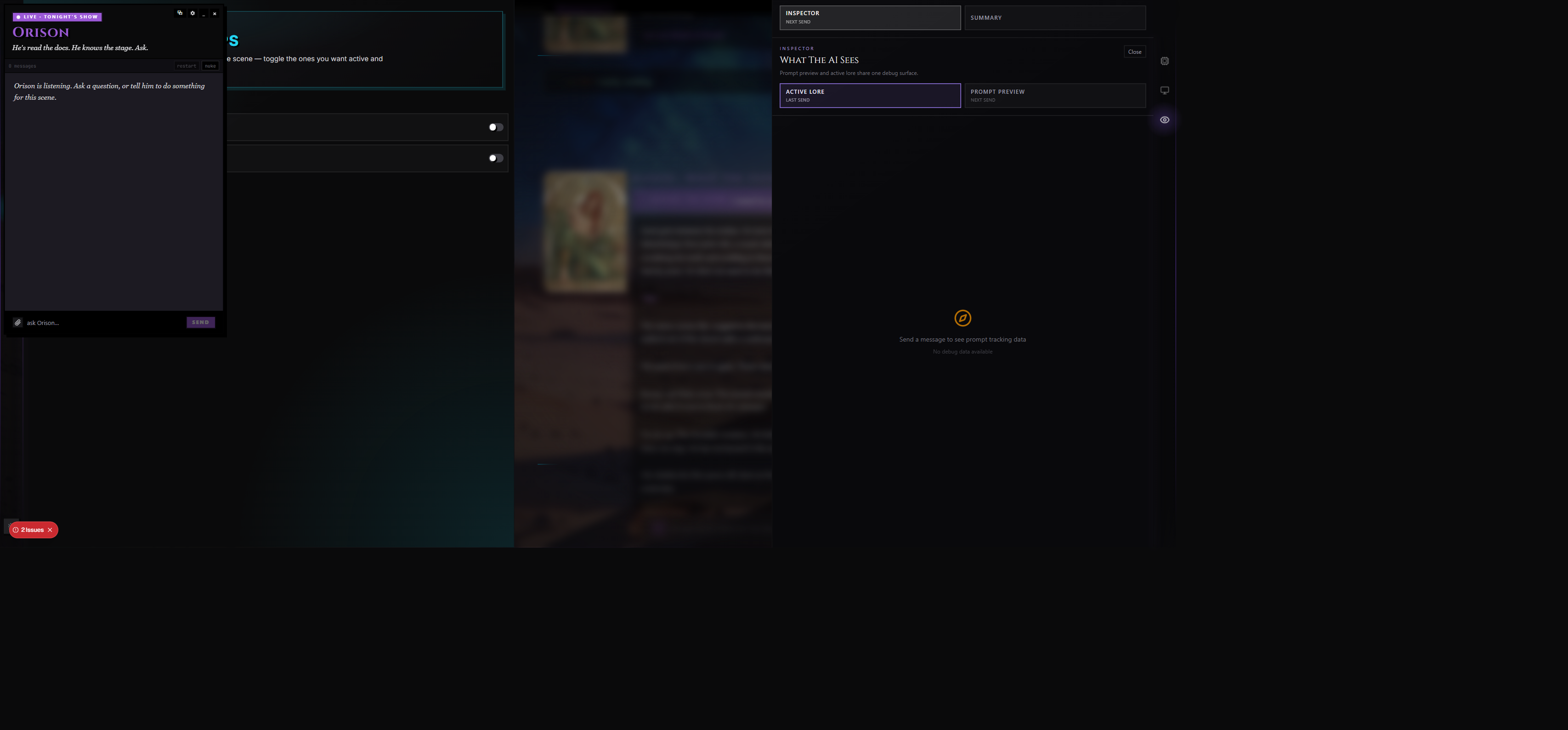
Orison is your in-app stage manager. He's the friendly assistant who lives in the small floating panel beside your chat — the one you ask "where is X?", "open the lorebook for me," "what did the story director plan this turn?", "rewrite this paragraph less purple," or "teach me what this screen does."
/btw is the panel itself — the picture-in-picture surface that hosts your conversation with Orison (and a few specialized agents he stands in for). It's named after the trigger button: a small /btw chip that floats over every page. Click it to open Orison, click again to close.
Orison also appears as a smaller Orison card pinned to the bottom of every scene wing panel (Context, Lorebook, Preset, etc.). That per-wing card is a quick-access entry point into the same /btw conversation — it's not a separate assistant instance. This doc covers the full /btw panel experience.
This is the doc for everything inside that panel. For the in-scene roleplay chat, see Scenes & Chat. For the story-planning agent Orison can read on your behalf, see Story Director. For the lorebook agent, see Compendium. For the prose-pass agent, see Post-Production.
Orison vs. The Scene Chat
This is the single most important distinction in the whole panel, so it goes first.
| Surface | What it is | Who you're talking to |
|---|---|---|
| The scene chat | The full-page conversation with the character you cast. Every reply is in-character; everything you send is in-character. | Your character (driven by the AI you picked). |
| The /btw panel | A small side panel that floats over the same page. Has its own input, its own model, its own history. | Orison — out-of-character, talks like a stage hand. |
Orison is not playing your character. Your character is not talking through Orison. They are two separate AI threads with two separate models, two separate histories, two separate purposes. Asking Orison "kiss me" returns a polite "wrong window" — asking your character "kiss me" returns whatever your character would say. Asking Orison "fix the typo in the last reply" runs a real spellcheck on your scene; asking your character to fix a typo just gets you a confused in-character response.
When you're not sure which window you're typing in, look at the chrome:
- Scene chat lives in the main page, full width, with the character's name in the header.
- /btw is a small floating box with a
Live · Tonight's Showchip at the top, the agent's name in big serif type ("Orison"), and an italic tagline ("He's read the docs. He knows the stage. Ask.").
Who Is Orison?
Orison is a personality, not just an interface. He's the Stage Manager — pragmatic, faintly theatrical, decisive about what he knows and what he doesn't.
Voice
| Trait | What it sounds like |
|---|---|
| Register | Balanced — neither casual nor stiff. The right number of words. |
| Tone | Professional. Helpful without being precious. |
| Humor | Occasional dry humor where it doesn't slow down the answer. |
| Confidence | Decisive. States what he knows plainly, flags what he doesn't. |
| Pronouns | He / him. |
Core Beliefs
Orison's prompt holds him to a small set of rules that shape every reply:
- The user's time is the most expensive resource in the room — replies stay tight.
- A confident wrong answer is worse than a hedged uncertain one. He'd rather cite or say "I don't know" than guess.
- Every surface in RoleCall has a doc. When you ask how something works, he'd rather quote the doc than improvise.
- Tools aren't toys. He calls them when they answer the question faster than prose can.
- If a request would delete content, send a message, or publish something, he stops and asks before doing it.
- You are the director, not the audience. He's not here to entertain — he's here to get something done.
What That Means in Practice
- He doesn't pad replies with "Great question!" or "Let me know if I can help further!"
- He won't invent UI labels he can't verify. If he doesn't know what's on your screen, he asks instead of making something up.
- He cites sources for factual claims (doc paths, recent commits, etc.) when accuracy matters.
- He won't auto-run anything destructive (publish, delete, send) without a confirm step.
Opening the Panel
The /btw trigger is a small floating chip — three letters in serif type with a hard offset shadow. It uses your scene's accent color as its fill, so it visibly belongs to the current scene without dominating the page.
The Trigger Button
| Action | What happens |
|---|---|
| Click the chip | Opens the panel at the same position the chip was sitting in. |
| Click and drag | Repositions the chip anywhere on the screen. The position persists across page reloads. |
| Resize the window | The chip auto-clamps back into the viewport so it never strands off-screen. |
The chip and the open panel share the same position on disk. Drag the panel while it's open, close it — the chip reappears at the panel's last spot on next load. Drag the chip somewhere — open the panel — the panel opens at the chip's spot. They move together.
Where the Chip Lives
By default it sits in the bottom-right corner of the screen, well clear of standard scene-chrome. You can drag it to any edge. The position is global across the whole app — moving the chip on the library page also moves it in scenes, in Discovery, in the character editor. That's intentional: most people want /btw in the same spot no matter where they are.
Closing & Minimizing
Inside the open panel:
| Button | Behavior |
|---|---|
× close | Closes the panel entirely. The chip returns at the same position. Your conversation with Orison is preserved — re-open and it's still there. |
_ minimize | Collapses the panel to a small name chip ("Orison") that you can click to restore. Useful when you need the screen real estate but want the conversation a click away. |
| Drag the header | Moves the panel anywhere on screen. The position saves on release. |
The panel does not have a resize handle today — it ships at a fixed width and height that fits a comfortable reading column without dominating the page. Drag it instead of resizing.
Where Orison Has Eyes — Scope
Orison's context depends on where you opened him. The panel always knows what page you're on and adapts to it.
| Scope | What he sees | What he can do |
|---|---|---|
Scene (/scene/...) | The character, the preset, the persona, the scene's encrypted message history, the lorebooks, the trackers, the post-production setup. | Full tool surface — read the scene, run prose passes, open wings, click panel buttons, talk to the DM / TV / Narrator agents. |
| Library | Your owned content. | Read-mostly: search, list, inspect. |
| Discovery | Public content browsing. | Read-only — he never publishes or follows on your behalf. |
| Entity editor (character / preset / lorebook / persona) | The entity in scope. | Helps you shape the entity. Reads and suggests; writes still go through your editor — he proposes, you commit. |
| Other pages | Generic global utilities. | Talk to him, ask questions, look things up. |
Each page remembers its own Orison conversation, so the question you asked in the library doesn't surface when you switch to a scene. See Threads below.
What Orison Can Do
Orison is part assistant, part remote control. He answers questions, opens panels, fires actions, reads state, and runs the prose-quality agents on demand. The full list:
Knowledge & Teaching
- Answer questions about RoleCall — features, mechanics, terminology.
- Walk you through whatever screen you're on (
Teach menudge, see below). - Cite the doc he's quoting so you can verify or follow up.
- Be honest when he doesn't know — he refuses to invent UI labels he can't see.
Reading Scene State
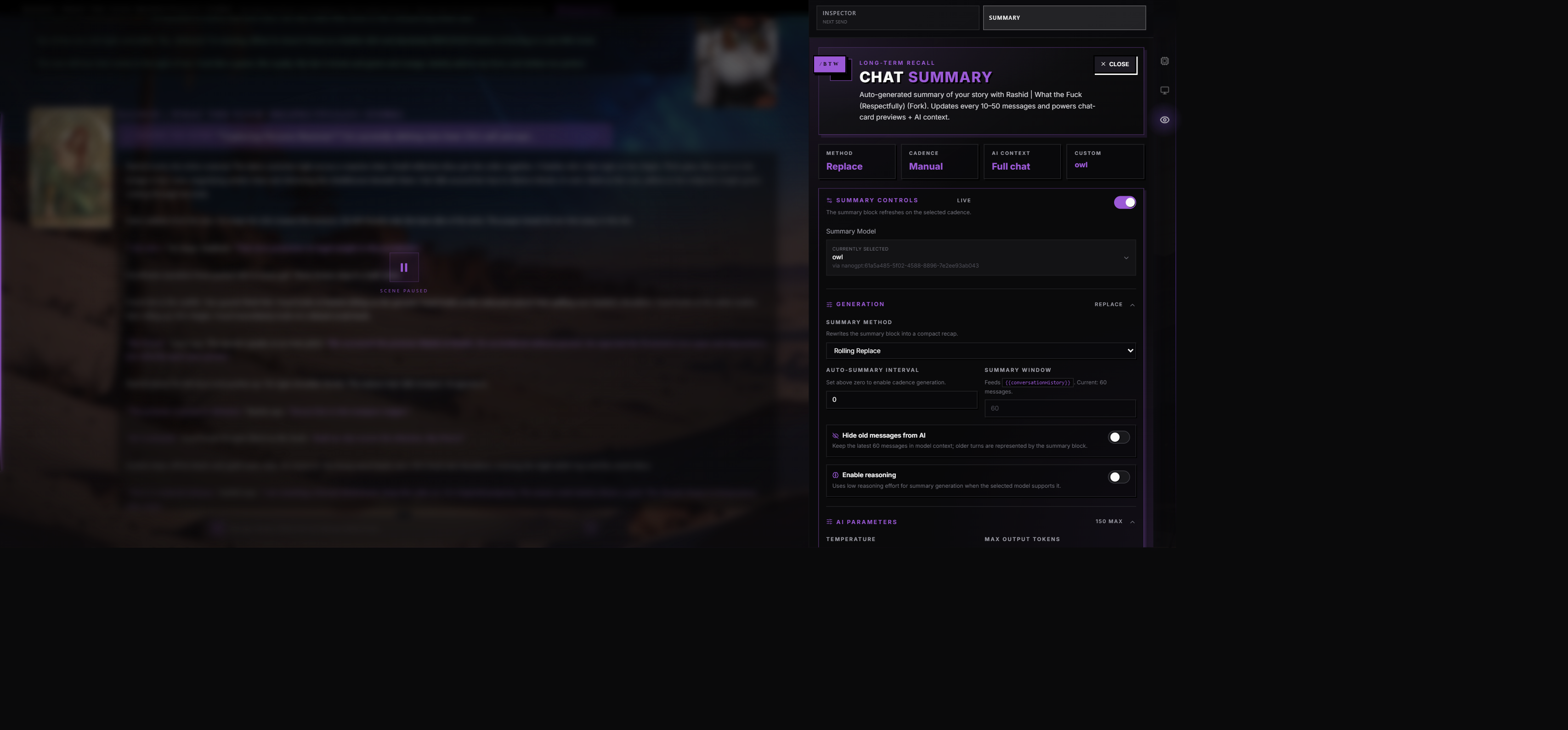
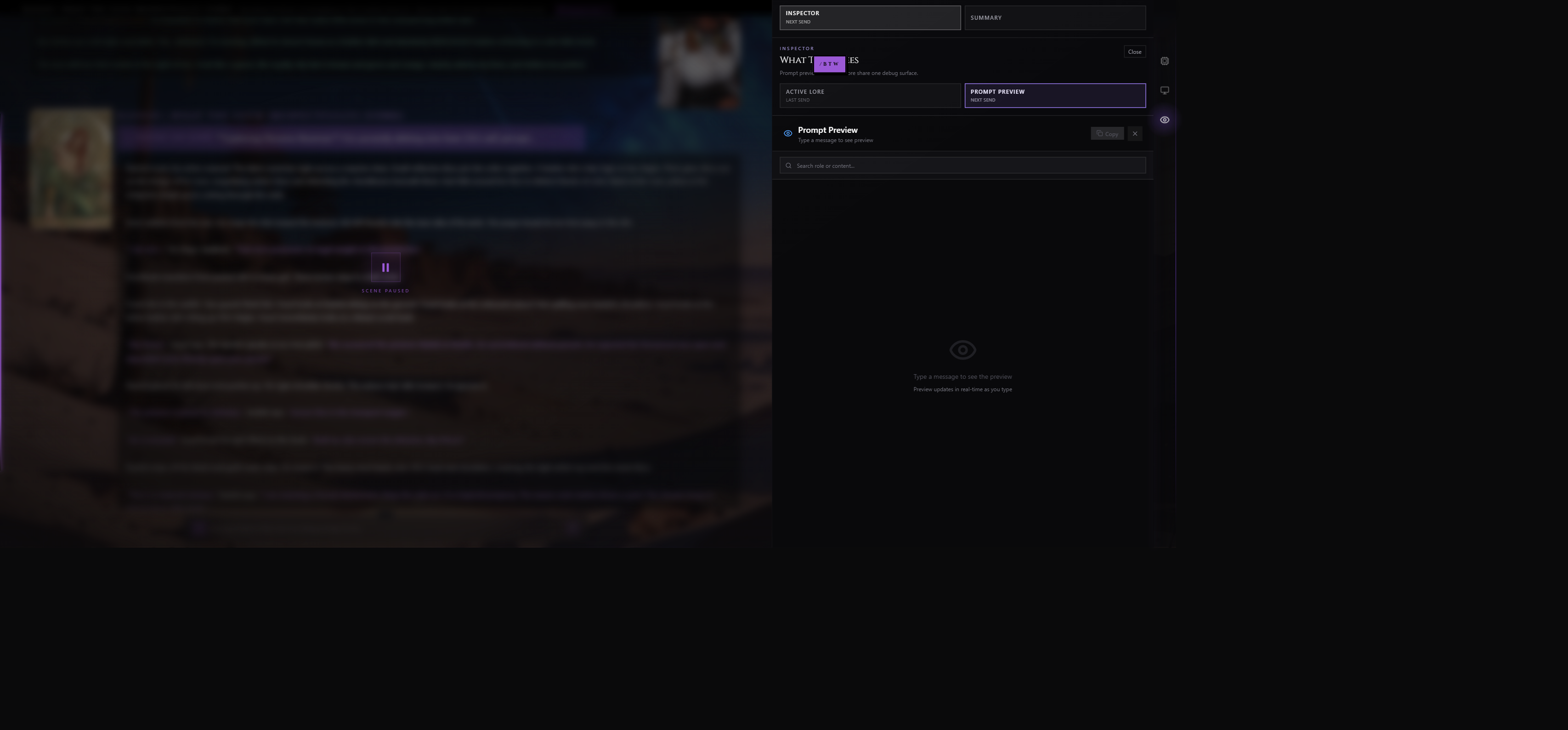
In a scene, Orison can read on your behalf:
- The list of recent chat messages (their indices and metadata).
- The plaintext content of any specific range of messages (after end-to-end decryption — see Privacy).
- Your Compendium / lorebook entries.
- Your current trackers (relationships, inventory, map, quests, etc.).
- Your post-production pipeline configuration (what passes run, with what models, with what banks).
- The active story arcs, seeds, DM notes, and chapter state.
- Recent directives the story director issued and why a scene moved a certain way.
- The prompt that's about to be sent to your model (preview before generation).
Acting on Your Behalf
- Open and close wings — every rail panel can be opened or closed by name.
- Click buttons inside open wings — most wings register their controls so Orison can fire them.
- Run on-demand prose passes — spellcheck, correction, guided swipe, selection rewrite. He drafts the candidate, the existing message-correction UI applies it.
- Modify post-production configuration — change which passes run, their model, their temperature, their bank assignments.
- Plant a story arc — add an invisible arc the story director will hold in mind.
- Manage compendium entries — search, write, update, reorganize, delete, summarize.
What He Won't Do
- Roleplay as your character. That's the scene chat's job.
- Run anything destructive without asking. Publish, delete, send — all of those pause for a confirm.
- Invent UI he can't see. If he doesn't have a live catalog of the screen, he says so and asks.
- Make pricing or tier claims he can't verify. He defers to your real settings.
The Agent Roster
Orison is the face of the panel, but he's not the only voice behind it. RoleCall has four specialist agents already running invisibly under the hood. Orison is your direct line to those four — when you ask him about story planning, he consults the story director under the hood; when you ask about the lorebook, he consults the compendium worker.
| Agent | Role | When Orison reaches for them |
|---|---|---|
| Orison (Stage Manager) | The default voice. Knows the app, runs actions on your behalf, cites docs. He's the persona you actually talk to. | Always. He's the front. |
| DM (Story Director) | Story planning — arcs, seeds, DM notes, chapter state, parallel timelines. | When you ask "what did the DM plan?", "plant a seed about X," "leave a note for the director." |
| TV (Compendium Worker) | Lorebook memory — characters, locations, items, organizations, events, world facts. | When you ask "what do I know about X?", "remember Y," "reorganize the lore tree." |
| Narrator | Prose surface — voice, register, density, AI-isms, dialogue rhythm. | When you ask "tighten this paragraph," "less purple," "kill the AI tells," "rewrite in the cold persona." |
| Stage | Live tracker state — relationships, inventory, map, quests, and the rest of the immersion modules. | When you ask "what's the current relationship state?", "update the quest board," "what's on the map?" |
You don't have to know which one to ask for. Orison routes automatically based on what you typed. The tool chips that appear inline as he works tell you who he's consulting (you'll see consult_director, consult_compendium, consult_narrator, consult_stage, etc.).
Where Each Agent's Knowledge Comes From
| Agent | Primary surface |
|---|---|
| Orison | Your current screen state + the docs slab embedded in his prompt. |
| DM | The story directives running this scene, your arcs, seeds, notes, chapter state. |
| TV / Compendium | Your attached lorebooks and the managed Compendium tree. |
| Narrator | The recent scene messages (decrypted on demand), the post-production configuration. |
| Stage | The live tracker state for enabled immersion modules. |
Switching Agents
You don't need to switch — Orison handles routing for you. There is no "talk to TV directly" toggle in the UI; Orison is the catchall. If a request is specialist-only (e.g. "remember this fact about Chandler"), Orison will consult the right specialist and act on its behalf within the same turn.
Talking to Orison
The compose bar sits at the bottom of the panel. Type, press Enter to send. Shift + Enter for a newline.
What a Turn Looks Like
- You type something and send.
- Your message appears at the top of the scrollback in a small bordered card with a
YOUeyebrow in the accent color. - Orison starts replying. While he's working you'll see an italic eyebrow:
Orison is thinking…thenOrison is reaching for tools…thenOrison is answering…— the text shifts as the turn progresses, so you can tell whether he's deciding what to do, running a tool, or actually writing. - Tool chips appear inline as he fires actions — small mono-typed pills showing the tool name, status (
okorFAILED), and a click-to-expand details inset. - The visible answer streams in below the eyebrow, in the same card as the tool trace.
- The eyebrow ends as either
Orison answers —(pure prose),Orison concludes —(he did work and is summarizing), orOrison was stopped —(you cut him off mid-turn).
The Compose Bar
| Control | What it does |
|---|---|
| Paperclip | Open a file picker to attach images or text files. See Attaching files below. |
| Textarea | The draft. Auto-grows to a sensible cap; horizontal scroll past that. |
| SEND | Sends the draft. Disabled when the draft is empty and there's nothing staged. |
| STOP | Replaces the SEND button while a reply is streaming and the input is empty — pure abort, no new message. |
Mid-Flight Send
You can send a new message while Orison is still replying to the previous one. This is the same behavior Claude Code uses for ESC + redirect:
- Type your new message during the stream.
- Press Enter.
- The in-flight turn aborts. The partial reply is preserved (marked "stopped").
- Your new message goes immediately. Orison starts fresh.
The SEND button shows a ↻ icon while a turn is in flight to signal "this will redirect, not queue."
Stopping a Turn
To halt without sending anything new, click STOP (the button in the compose bar replaces SEND while you're streaming and the input is empty). The partial reply is saved with a "stopped" marker so you can see what Orison was doing when you cut him off. The thinking trace stays attached, opened by default on stopped turns.
Copy Transcript
The header has a small ⧉ button that copies the entire visible transcript to your clipboard — useful when you want to paste a conversation into a bug report or a discussion thread. It flashes ✓ on success.
The Nudge Bar
Below the message area sits a small mono-styled chip strip — the Nudge bar. Each chip fires a pre-canned phrase as a new user turn, so you can steer Orison without retyping common asks.
| Nudge | Fires |
|---|---|
| ↻ Retry | Real retry. Deletes the last reply, re-sends your last message. Disabled when there's nothing to retry. |
| + Keep going | "Keep going." — useful when his reply cut off mid-thought. |
| · Be terser | "Be terser. One short paragraph max." |
| ! Cite sources | "Cite your sources for each claim." |
| ? Teach me | "Walk me through what this screen is for and the main controls on it. Answer plainly from what you actually know — do NOT invent UI labels you can't verify. If you don't have a live UI catalog, say so and ask me which panel I'm looking at." |
| × Stop | Aborts the in-flight turn. Same as the STOP button. |
Nudges go through the regular send path — they show up in scrollback as user turns with a small Nudge pill next to YOU so you can distinguish chip-fired phrases from things you actually typed.
Teach Me — The Walkthrough Chip
Teach me is worth calling out. It's the one chip that explicitly tells Orison to walk you through the current screen using only what he actually knows. If he doesn't have a live UI catalog for the screen, he'll say so and ask which panel you're looking at — instead of confidently inventing one.
Good times to fire Teach me:
- You've landed on a new page and want a one-paragraph orientation.
- You're staring at a wing and forgot what each control does.
- You want a guided tour without leaving the page to read docs.
Threads
Orison preserves multiple conversations — one main thread per scope, plus any branches you create.
Per-Scope Threads
Each place you open Orison gets its own thread:
- A scene gets a thread tied to that scene's chat id.
- The library page gets a thread tied to "library".
- A character editor gets a thread tied to that character's id.
- And so on.
This means the conversation you had on the library page doesn't bleed into a scene, and a scene's Orison context doesn't follow you into another scene.
Branches (Tabs)
When you have more than one thread for the same scope (e.g. you branched from a message), the panel shows a thread tab strip above the messages. The first tab is always the main thread; subsequent tabs are branches in order of creation. Click any tab to switch to that branch's history.
| Tab control | What it does |
|---|---|
| Click the tab | Switches to that thread. |
Hover × | Deletes that thread. The main thread also takes its branches with it; deleting a branch leaves the rest alone. |
The thread strip auto-hides when you only have one thread — most users will never see it.
Thread Action Row
Just under the tabs sits a small mono action row with the active thread's stats. It shows the message count and two buttons:
| Action | What it does |
|---|---|
| restart | Wipes every message in the current thread but keeps the thread (and its branches) around. Recoverable in the sense that the thread structure stays; the messages don't. |
| nuke | Deletes the whole thread (and any branches under it if it's main). Confirms first. |
These actions are destructive — Orison won't fire them on his own, and the panel prompts for confirmation before either runs.
Message-Level Actions
Every persisted message — yours or Orison's — has a hover row of controls in mono type at the bottom of the card. Hover the card to reveal them.
| Action | Available on | What it does |
|---|---|---|
| copy | All messages | Copies the message text to your clipboard. Flashes ✓ copied briefly. |
| edit | Your messages | Opens inline edit. ⌘↵ / Ctrl+Enter saves, Esc cancels. Saving forks a new branch — your edit doesn't overwrite the original; the new thread holds the changed history from that point forward. |
| retry | Both | Forks a new branch from this message and continues from there. On a user message, re-sends with attachments. On an agent message, re-asks Orison to reply. |
| delete | All messages | Confirms first. Removes the message and any paired tool / reply rows tied to it. |
Why Edit and Retry Fork
Editing or retrying a message doesn't rewrite the existing thread — it creates a branch with the new version. The original conversation is still there, accessible from the thread tab strip. You can compare both branches by switching tabs.
This is intentional: it means you can experiment freely without losing the original. If you regret the edit, switch back to the main tab and the original message is right there.
Resync After Edit
When you edit a user message, the branch picks up at the edited message and Orison's next reply is generated fresh against the new content. Nothing in the original thread changes.
The Thinking Trace
Orison's replies often include a collapsible "thinking" block — the chain-of-thought he produced before writing the visible answer. This only appears for reasoning models (DeepSeek R1, GPT-5 reasoning variants, Claude extended thinking, etc.). Non-reasoning models silently skip it.
What It Looks Like
A small indented block above the visible reply with a chevron and the word "thinking." A pulsing dot animates while the trace is streaming live. The character count sits on the right.
| State | Default |
|---|---|
| Live (streaming right now) | Open by default. Auto-scrolls to the latest token so you can watch tokens arrive. |
| Past turn (already finished) | Closed by default. Click the chevron to expand. |
| Stopped or failed turn | Open by default — so you can see what Orison was doing when he cut off. |
Thinking vs. Final Reply
The thinking trace is the model deciding what to do. The final reply is what it decided. They're separate streams; the thinking trace is mostly for you to follow along or debug a confusing answer. The visible reply is the thing Orison is actually committing to.
You can toggle the trace open or closed on any past turn — it stays in the message metadata so closing the panel and reopening doesn't lose it.
Turn Diagnostics
Past turns also show a small diagnostics chip with:
| Field | What it tells you |
|---|---|
| stop | The model's reported reason for ending the turn — stop, end_turn, length, tool_use, etc. Failure reasons are tinted red. |
| iter | How many loop iterations the turn consumed (one tool call + reply = one iteration). Helps diagnose runaway tool loops. |
| err | Captured error message if the loop hit one. Truncated if long. |
These are most useful when a turn returns empty or unexpectedly short — the diagnostics chip surfaces the actual stop reason so you know whether it was a model decision, a token cap, or an upstream error.
Attaching Images and Files
The paperclip button opens a file picker. Orison accepts:
| Type | Examples | How it's handled |
|---|---|---|
| Images | .png, .jpg, .webp | Uploaded immediately to chat-image storage. Sent to the model as vision input on the next turn. |
| Text files | .txt, .md, .json, .jsonl, code files | Read inline, sent as a text block alongside your message. Capped at ~200KB per file. |
| Anything else | binary, video, etc. | Rejected with a clear error chip — Orison tells you why the file didn't stage. |
Staged Attachments
Files you've selected but haven't sent yet appear as chips above the input. Each chip shows its state:
| Chip | Means |
|---|---|
… thumbnail | Image still uploading. |
| Image preview | Image staged and ready to send. |
+ filename · NKB | Text file staged. KB count shown. |
✗ filename (red) | Failed — hover for the reason (too large, unsupported type, upload failed). |
× on any chip | Remove from the staging area before sending. |
Vision Required for Images
Image attachments only work if the model you've picked for Orison is vision-capable. If you stage an image and the model can't see images, Orison shows a small warning below the staged chips ("⚠ images dropped — no vision model") and ignores them for that send. Switch to a vision-capable model in Settings to fix.
Pasting
You can paste images and text directly into the textarea — they stage just like a file picker upload.
Settings
The gear icon in the panel header opens the settings view. It replaces the messages area; the compose bar stays visible so you can ask a question without leaving settings.
Settings are per-scope — each page / scene remembers its own preferences. Changing the model on the library page doesn't affect what model Orison uses inside a scene.
Model
| Control | What it does |
|---|---|
| Model picker | Pick the provider + model Orison uses for replies. Defaults to "inherit from scene" — i.e. the same model your character is using. |
| Reset chip | Returns to inherit-from-scene. |
You usually want a smart, instruction-following model for Orison — something good at tool use. A cheap fast model works fine when you're mostly chatting; a frontier model is worth it when you're asking him to run complex chained actions.
Temperature
A neobrut slider from 0.0 to 2.0. Lower = more deterministic, higher = more creative. Inherits from the scene by default; the reset chip returns to inherit.
For most asks you want Orison at low temperature (0.3 – 0.7). He's a worker, not a poet.
Accent Color
Orison's accent color drives the panel chrome — the chip fill, the tab underline, the send button, the YOU eyebrow, etc.
The five sources match the scene's own accent picker:
| Source | What it pulls |
|---|---|
| Character | The character's signature theme color. |
| Preset | The preset's accent. |
| Persona | The persona's accent. |
| Profile | Your profile's brand color. |
| Custom | A free-form hex you pick with the eyedropper / picker. |
The default is inherit from scene — Orison wears whatever color the scene is wearing. Override here to pin Orison to a specific source without touching the scene.
Tool Domains
Four toggles for the broad capability buckets:
| Domain | What it gates |
|---|---|
| Director | Story-planning tools (arcs, seeds, DM notes, chapter state). Requires DM mode on in the scene. |
| Compendium | Lorebook memory tools (search, write, update, reorganize, summarize). Requires a managed lorebook attached. |
| Narrator | Prose tools (read scene, summarize, propose rewrites). Always available — every scene has the narrator surface. |
| Stage | Live tracker tools (relationships, inventory, map, quests, etc.). Requires immersion modules enabled. |
Defaults match the scene's actual capabilities. Turning off a domain you don't use trims Orison's tool surface, which makes him faster and reduces noise.
A toggle for a domain that isn't currently usable shows a small "unused" badge with the reason ("DM mode is off," "no managed lorebook attached," etc.).
Tool-Call Mode
Controls how Orison fires tool calls to the model. Three modes:
| Mode | When to use |
|---|---|
| Native | Provider-side function calling — the cleanest path for models that support it natively (OpenAI, Anthropic, most major providers). |
| Prompted | <tool_call> blocks inside the visible content. Universal fallback for models that don't support function calling. |
| Auto (default) | Starts native, swaps to prompted if the model breaks. The safest choice. |
You almost never need to change this. Leave it on Auto unless you're debugging a tool-call issue with a specific provider.
Personality
A picker for which RC-agent personality Orison wears. Today only one personality ships — The Stage Manager (Orison). Future personalities slot in here; whichever you pick controls the voice + the rules at the top of this doc.
The Tool-Call Experience
Tool calls are visible in real time. When Orison reaches for one, a small live pill appears in the live card:
⟳ search_lorebook running…
Once the tool finishes, the pill collapses into a tool trace block — a mono knockout showing every call the turn made:
Trace · 2 calls
+ consult_compendium (query: "what do I know about Chandler")  · ok
+ search_lorebook (query: "Chandler")                          · ok
Each row is clickable. Expanding it reveals:
- The full args the model passed.
- The full result (or error) the tool returned.
Pass / Fail Glyphs
| Glyph | Meaning |
|---|---|
+ (green) | Tool returned ok. |
- (red) | Tool failed. Hover or expand to see the reason. |
Destructive Confirms
Tools that publish, send, or delete pause for a confirm. Orison sends a small ask_user_question tool call with the exact action he wants to take; you reply yes / no in the panel; he proceeds (or doesn't) based on your answer.
This is intentional — Orison's prompt forbids auto-running destructive actions. He'd rather slow down and ask.
Errors & Edge Cases
When something breaks, Orison surfaces a clear error card instead of failing silently. The card has a rose offset shadow and an italic eyebrow ("The show stalled —") so you know an error landed without confusing it for a normal reply.
Common Errors
| Error | What it usually means | Fix |
|---|---|---|
| "No model configured" | You haven't picked a model in Settings and the scene's model didn't resolve. | Open Settings → Model and pick one. |
| "API key invalid" | Your provider key isn't valid for the model you picked. | Check the provider in your Providers & Keys page. |
| Quota / rate-limit errors | Your provider returned 429 or a quota error. | Wait, or switch providers. |
| Tool timeout | A tool didn't respond within its window (most often: reading scene messages while the panel was closed, which prevents the in-browser decryption from completing). | Re-open the panel and ask again. |
| "Empty reply — model returned no text" | The model returned a turn with no content and no tool call. | Check the model picker, the API key, or the model's content-filter settings. |
The diagnostics chip on the failed turn shows the underlying stop reason and any captured error message so you can see exactly what happened.
Macro Warnings
If Orison's reply contains a macro that didn't resolve (e.g. you asked him to draft something with {{char}} outside a scene where char is defined), the panel surfaces a small warning so you don't paste broken text elsewhere by accident.
Decryption Recovery
Scene content is end-to-end encrypted with a key derived from your recovery phrase. The key lives in your browser only. If your browser is missing the key (e.g. you cleared site data), Orison's read-scene tools time out cleanly with a soft error, and the panel prompts you to recover the key before retrying.
See Providers & Keys for the full E2E + BYOK story.
Provider Errors Are Redacted
If your provider returns an error that includes the plaintext API key (rare but possible with some providers' verbose errors), the panel redacts the key before displaying the error. The actual key never appears in the panel chat — even when the provider tries to echo it back.
Privacy
What's Stored in a Thread
Each /btw thread persists:
- The messages you and Orison exchanged.
- The tool calls Orison made and their results.
- The reasoning trace (when the model emitted one).
- Per-turn diagnostics (stop reason, iterations, errors).
- Image attachments (in chat-image storage, signed URLs scoped to your user).
- Text attachment content.
What's End-to-End Encrypted
- Scene chat content — every message in your scene chat is encrypted with your recovery-phrase-derived key. Orison can only read it after the browser decrypts a requested range on demand and sends the plaintext to the worker for that single turn.
- Provider API keys — your provider key is BIP39-derived AES-256-GCM encrypted client-side. The server never sees it in plaintext.
What's Not End-to-End Encrypted
- /btw thread messages themselves. Today Orison's conversations are stored plaintext-at-rest. Tier 2 E2E coverage for /btw is on the roadmap; for now treat the /btw thread the same as any standard chat-app history.
- Tool results. Some tool results include scene content (you asked Orison to read it). Those land in the thread row plaintext at rest — keep that in mind if you ask Orison to read sensitive scene content.
What the Provider Sees
Whatever model you pick for Orison sees the system prompt, your messages, the tool definitions, and the tool results. Providers vary on retention — some delete in 30 days, some don't retain, some retain for moderation. See Providers & Keys for the provider matrix.
If you want maximum privacy, pair Orison with a local model running through an OpenAI-compatible endpoint — the request never leaves your machine.
When NOT to Use Orison
Orison is great at a lot of things. He's bad at others. A quick guide:
| Don't use Orison for | Use this instead |
|---|---|
| Roleplaying as your character. He won't break character because he doesn't have a character. | The scene chat. |
| Generating long-form prose to use in-scene. He's an assistant, not a writer. | The scene chat (or a Post-Production rewrite pass). |
| Content moderation decisions. He's not a policy enforcer. | The platform's actual moderation flows. |
| Anything outside the docs or your scene state. He won't search the open web. | A dedicated web-search tool. |
| Replacing the scene's character or persona. He doesn't take the role of any character. | The casting card / persona picker. |
| Stuff he's already told you he doesn't know. Don't argue. He's not stalling — he genuinely doesn't have the catalog. | Tell him explicitly what you're looking at, or use the standard UI. |
Mobile Differences
The panel is built for desktop first, but it works on mobile:
- The trigger chip sits at the bottom-right by default — within easy thumb reach.
- The open panel takes more of the screen on a small device. Dragging works via touch.
- The compose bar sits at the bottom with the keyboard above it.
- The nudge bar scrolls horizontally so the chips don't squeeze.
- Attaching files uses the device's native picker; pasting works as expected.
On very narrow screens (under ~400px) the panel may clip the chrome — minimize it to a name chip and restore when needed.
Tips & Craft
Be specific in your asks. "Open the lorebook wing" is better than "show me the lorebook thing." Orison routes faster when the request names the surface.
Use the nudge chips for fast common asks. Retry, Keep going, Be terser, Cite sources — they're one click, no typing. Save Enter for the actual prompts.
Use "Teach me" the first time you land on a new screen. Faster than reading docs and Orison will tell you straight when he doesn't know.
Switch threads instead of nuking. If you want a fresh conversation, branch a new tab or restart the current thread rather than deleting everything. You can always go back.
Pin Orison to a model that's good at tool use. Sonnet 4, GPT-5, DeepSeek V3 — anything strong at chained function calls. He's not doing creative writing; he's doing executive function.
Pick a low temperature. 0.3 – 0.5 is usually right. He's a worker, not a poet.
Use him to inspect, not narrate. "What did the DM plan this turn?" is a great Orison question. "Tell me a story about Chandler" is not — that's what the scene chat is for.
Open Settings → Tool Domains and turn off domains you don't use. A scene with no DM mode and no immersion trackers doesn't need the director or stage domains. Trim Orison's surface and replies get faster.
Hover any message to reveal controls. Copy, edit, retry, delete — all live in the hover row at the bottom of each card. They're hidden by default to keep the chat clean.
Pair Orison with a vision model when you want to attach images. Otherwise images stage but get dropped on send. Settings → Model picks the right model in one click.
Drag the chip to your favorite corner. It saves across the whole app. Bottom-left, bottom-right, top-right — whatever fits your scene chrome.
Trust the citations. When Orison cites (docs/path:line), that's real. He won't invent paths. If he says "I don't have that doc," he doesn't — and he'll tell you that instead of making one up.
Cross-Links
- Scenes & Chat — the in-character side of the conversation.
- Providers & Keys — BYOK, encryption, tool-call modes.
- Story Director — the agent Orison consults when you ask about planning.
- Compendium — the lorebook tree Orison reads and writes through.
- Post-Production — the prose passes Orison can fire on demand.
- Account & Settings — your platform-level preferences.