Alt-Arts (Character Variants)
Save it, version it, share it
Alt-Arts (Character Variants)
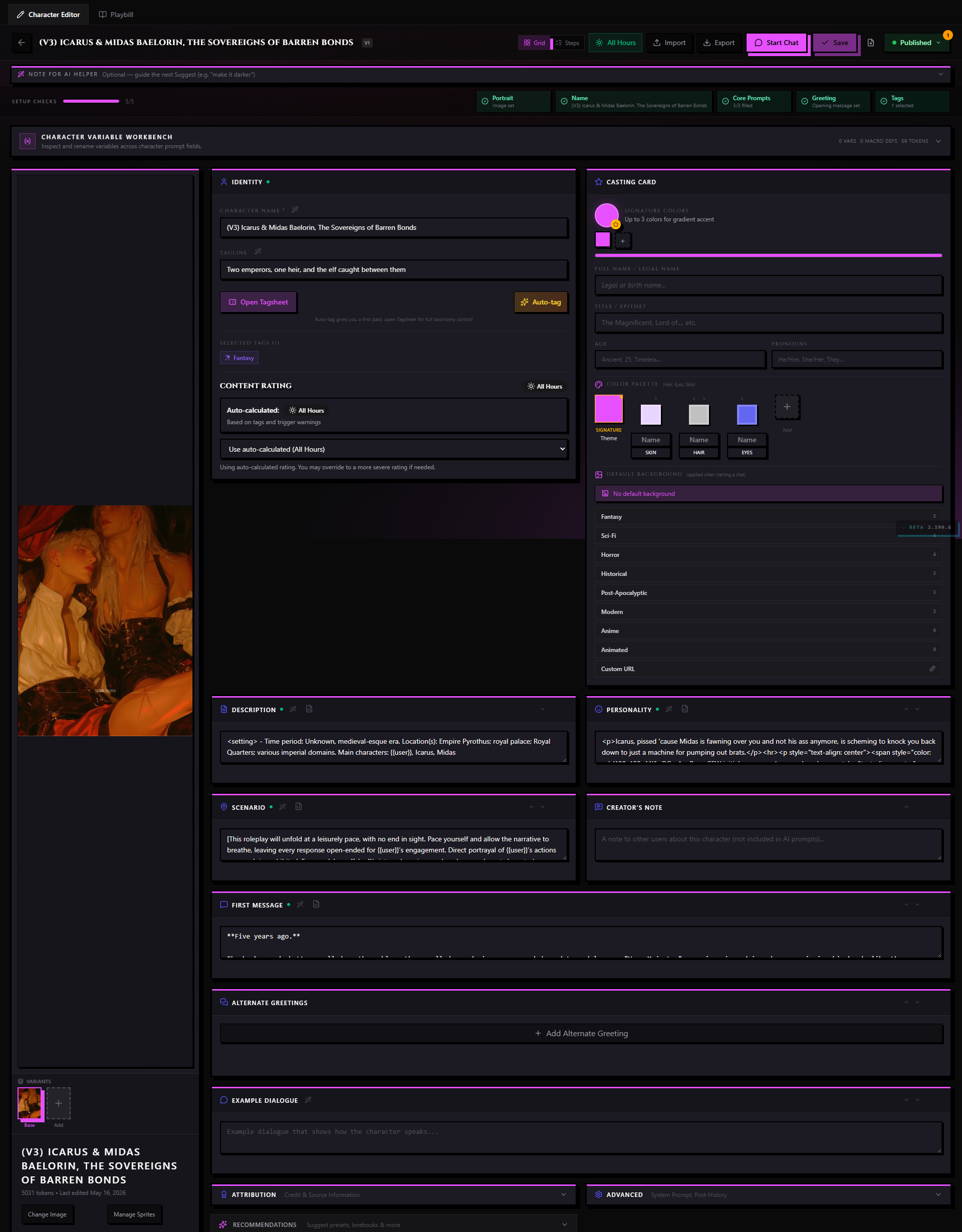
A character card can have more than one face. Alt-Arts are an ordered list of additional visual (and optionally behavioral) variants attached to a character — the primary art is the one displayed by default everywhere, while the alts give the character alternate looks that you and your readers can switch between mid-chat.
Think of it like a costume rack in the wings: the character is the same actor, but they can step into a different look for a different scene, mood, or timeline.
What Alt-Arts Are
Every character has a single primary art — the portrait image set on the main Casting Card. That's what shows on Discovery cards, in the Cast wing header, in share thumbnails, and in PNG exports.
Alt-arts are optional additions to that roster. Each alt is its own visual slot: a distinct image, its own name, an optional short tagline describing the look, and a position in the ordered list. When a user picks an alt in the Cast wing, the character panel swaps to that image for the duration of that chat session.
What an Alt Can Override
Each alt-art can optionally override fields from the base character. Every one of these is a nullable override — leave it blank and the alt inherits the base character's value:
- Image — a different portrait. This is the point of an alt, but it isn't schema-required; an alt can exist without its own image and fall back to the base portrait.
- Name — replaces the base character's displayed name while this alt is active. This is distinct from the alt's own variant name, which is a required label and is covered in the form table below.
- Tagline — a short label for the look ("Battle Armor," "Summer AU," "Age 16")
- Description — override the base character's description for this alt
- Personality — override the base character's personality for this alt
- First message — start a chat differently depending on which art is active
- Example messages — override the base character's example dialogue for this alt
- Scenario — change the opening context when this alt is selected
- System prompt — override the base character's system prompt for this alt
- Post-history instructions — override the base character's post-history instructions for this alt
Fields you leave blank on an alt inherit from the base character. Alt-arts are overlays, not full replacement cards — anything not explicitly overridden falls back to the base.
Use Cases
Alt-arts cover the situations where the character is unmistakably the same person but something meaningful has changed visually or contextually:
| Scenario | Examples |
|---|---|
| Outfit or costume | Casual wear, formal wear, combat gear, swimwear |
| Age variants | Younger past-self, present day, older future version |
| AU / setting shift | Modern AU, fantasy AU, sci-fi AU of the same character |
| Mood or state | Cheerful, corrupted, battle-worn, post-revelation |
| Art style | Anime rendering vs. photoreal vs. painted |
| Seasonal | Holiday-specific looks, anniversary art |
| Scene-specific | A look made for a particular story arc |
They're also a practical solution for creators who want to release new art as the character grows without creating entirely new character cards.
Where to Manage Alt-Arts
You have two entry points, depending on where you're working.
Standalone Character Editor
The dedicated alt-arts management surface lives in the Alt-Arts section of the standalone character editor (the full-page editor you reach via rolecallstudios.com/characters/[id]).
From here you can:
- Add a new alt — click the + button to create a new slot, then upload an image, set the name, add a tagline, and optionally write an override first message or scenario
- Reorder alts — drag the handle on each alt card to change its position in the list
- Edit an alt — click into any alt card to change its image, name, tagline, or field overrides
- Delete an alt — remove a slot entirely (see Deletion below)
The standalone editor is the right place to do a full alt-arts buildout — adding five new looks at once, uploading images in bulk, writing scenario overrides for each.
In-Scene Cast Wing
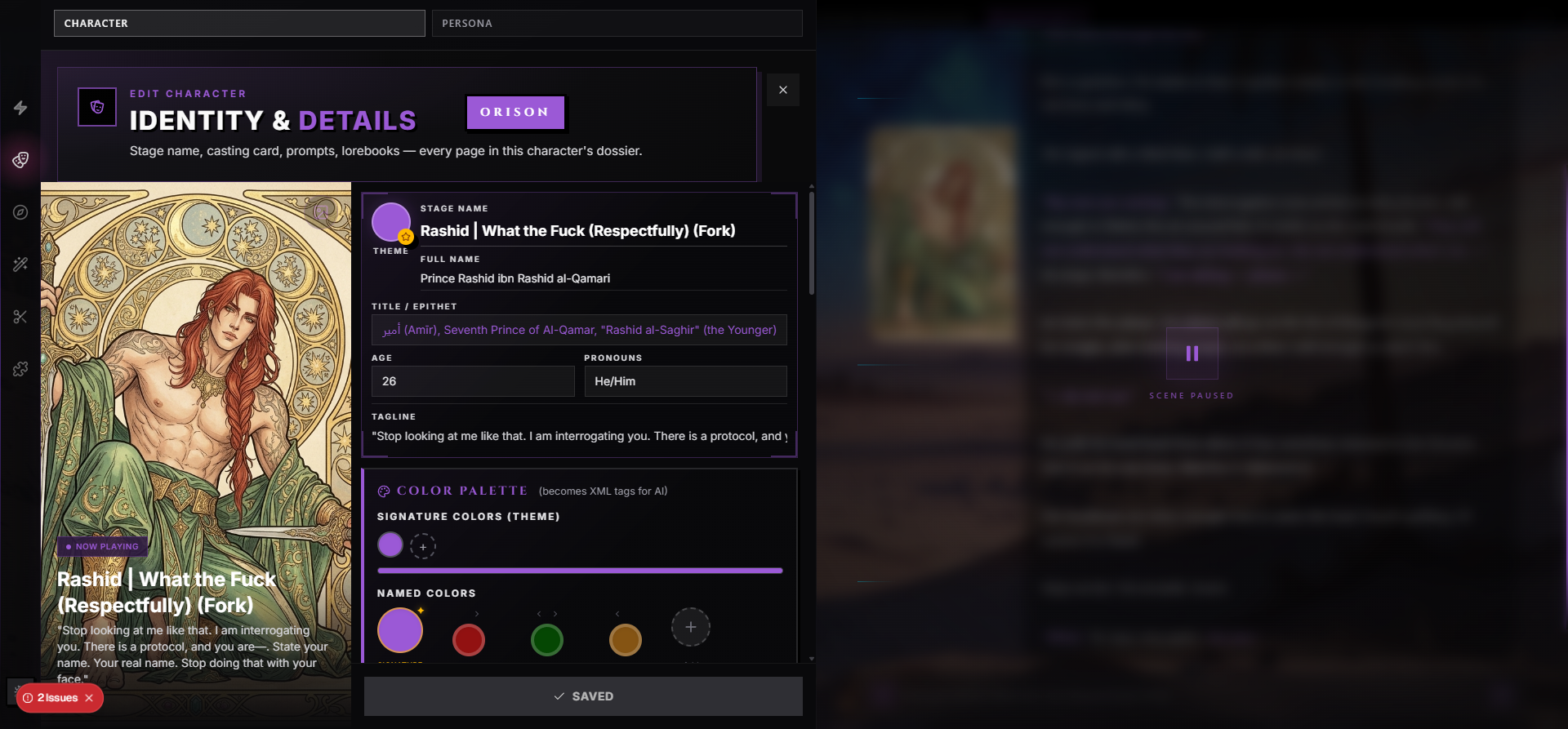
You can also manage alts from the Cast wing while you're in an active chat. The Cast wing's character panel exposes the same alt-arts list as the standalone editor, with a smaller thumbnail strip at the base of the portrait zone for the current alts.
The Cast wing is the right entry point when you want to:
- Quickly swap to a different art for the current chat
- Upload a new alt without navigating away from your scene
- Reorder two alts because one felt better-positioned after seeing them in use
For deep editing — writing alternate first messages, managing many alts at once — opening the standalone editor via Open Full Editor at the bottom of the wing panel is the cleaner path.
Building an Alt-Art
When you add a new alt, you fill in a small form. "Required?" here means what the editor form asks you for, which is stricter than what the underlying schema stores; the override fields listed above are all nullable at the schema level even where the form treats them as expected.
| Field | Required? | Notes |
|---|---|---|
| Image | Yes | Upload from device or paste a hosted URL. JPG, PNG, WEBP accepted. 10 MB limit. Cropping is available after upload. |
| Variant name | Yes | The alt's own label, shown in the thumbnail strip tooltip and in the art-picker header when this alt is active. This is a separate field from the optional Name override above, which replaces the base character's displayed name. |
| Tagline | Optional | A short descriptor — "Formal Wear," "Timeline: Year 3," "Art Style: Painted." Appears below the name in the picker. |
| First message override | Optional | If set, a new chat started while this alt is active will open with this message instead of the base character's first message. |
| Scenario override | Optional | If set, replaces the base character's scenario field for this alt. |
Leave the override fields blank if you want the alt to just be a different look — same personality, same opening, just a different portrait.
Naming Conventions That Help Users
Good alt names do light work:
- "Casual" / "Formal" / "Battle" — outfit names
- "Young (16)" / "Present Day" / "Elder" — timeline markers
- "Modern AU" / "Fantasy AU" — setting names
- "Happy Ending Route" / "Dark Route" — story-state labels
Short and descriptive. The thumbnail strip only has a few characters of space for the label — names under 16 characters display cleanly.
Reordering Alts
The order of the alt list matters. The first slot is a special position: it's the primary art slot. The primary art is what appears on Discovery cards, in share previews, and as the character's default face when no alt has been explicitly picked in a chat.
The remaining slots are numbered alts and appear in the thumbnail strip in the order you've set.
To reorder, use the drag handle (the vertical-dots icon) on the left edge of each alt card in the standalone editor. Drag a card up to promote it toward primary position, drag it down to push it later in the list. The reorder is saved when you save the character (or when autosave fires).
To promote an existing alt to primary, drag it to slot 1 — the current primary drops to slot 2.
How Alts Surface in Chat
The Cast wing is where the art-picker lives during an active chat session.
On Desktop — Satellite Orbiter
On desktop layouts, the Cast wing's character panel displays a Satellite Orbiter — a compact ring of alt-art thumbnails anchored to the edge of the character portrait. Each thumbnail is a small circular image of the alt. Hovering a thumbnail shows the alt's name and tagline as a tooltip. Clicking a thumbnail swaps the active art.
On Mobile — Swipe Row
On mobile, the alt-arts appear as a horizontal swipe row of thumbnails below the character portrait in the Cast wing. Swipe left or right to see all alts. Tap one to select it. The selected alt gets a highlight ring.
Persistence Per Chat
The active alt-art is remembered per chat. If you pick the "Battle Armor" alt in one chat, that chat will show the Battle Armor art every time you open it. A different chat with the same character can show a completely different alt independently.
Alts don't auto-switch — you're always in control of which look is active. If you've never picked an alt for a chat, the character always shows its primary art.
Deletion — Safe Removal
You can delete any alt-art slot at any time. Deletion is non-destructive to ongoing chats:
- Chats that had the deleted alt active automatically fall back to the character's primary art. The chat keeps working; the portrait just reverts to primary.
- The primary art slot cannot be deleted — you can replace its image, but the character always has at least a primary.
- The rest of the alt list renumbers automatically so there are no gaps.
Deleting an alt is permanent for the image slot, but the character card itself is unaffected — none of the prose content, tags, or publishing status changes.
Publishing Alt-Arts
Alt-arts ship with the character. When you publish a new version of a character, the full alt list is captured in the version snapshot — every alt, its image URL, its name, tagline, and any field overrides.
Subscribers who are on auto-update will see the new alt list the next time they open the character. Subscribers who have auto-update off will see an "Update available" badge until they bump.
Alt-Arts and Forks (Rewrites)
When someone forks (Rewrites) your character, the tool that performs the rewrite chooses which alts to bring along — the forker can include all, some, or none of the published alt list. Fork Rules have no alt-art field and can't force a strip; the choice belongs to the forker, not to a restriction the original creator sets.
Whatever alts the forker chose to include, the forker owns their copy entirely — they can add, remove, or replace alts on their version without affecting yours.
Alt-Arts and the Publishing Changelog
When you add, remove, or reorder alts between publishes, the Publish Version modal surfaces each change as a changelog row:
- "Added alt: Summer AU" (added icon)
- "Removed alt: Old Design" (removed icon)
- "Reordered alts" (reordered icon)
You can expand each row to add a per-change note — "Updated the primary to new commissioned art," "Removed the draft sketch now that the final is up."
Alt-Arts and Export / Import
Alt-arts are preserved in RoleCall's native export format (rolecall_character JSON). When you export to V2 or V3 PNG for SillyTavern compatibility, the alts are stored in the RoleCall extensions block and will round-trip cleanly between RoleCall users. Non-RoleCall tools will see only the primary art (they ignore the extensions block harmlessly).
If you import a character that was exported from another RoleCall user, the alt list arrives intact. If you import from SillyTavern or another tool's format, there are no alts to import — the character arrives with only whatever primary art was embedded in the file.
Alt-Arts on PlotLight
When your character is published, visitors on PlotLight can browse and preview your alt list on the character's Discovery detail page. See Alt-Arts on PlotLight for the visitor-side experience — how the thumbnail strip works on the detail page, how alt attribution appears on forks, and how tags on alts interact with Discovery filtering.
Tips & Best Practices
Keep the primary art timeless. The primary is what appears on Discovery cards and in every share preview. Seasonal or story-specific alts are great secondary slots, but your primary should be the look that represents the character most broadly.
Name alts for scannability. Someone browsing the thumbnail strip has half a second per label. Short, distinct names ("Casual," "Armor," "Alt") work better than long descriptions ("Her outfit from the festival arc in Chapter 8").
Match the alt count to what you actually have. One or two high-quality alts are better than ten placeholder sketches. Discovery visitors who click through to check alts will come away impressed by three finished pieces and underwhelmed by eight half-done ones.
Use scenario overrides sparingly. If your alt is just a different outfit, leave the scenario blank. Override the scenario only when the alt represents a meaningfully different starting context — a different timeline, a different relationship stage, a different genre.
Test alts across chat sessions before publishing. Start a test chat, pick each alt in turn, and verify the portrait, the tooltip, and any first-message or scenario overrides. The Cast wing shows exactly what users will see.
Alt inclusion on rewrite is the forker's choice, not yours. If your alts are commissioned original art you don't want redistributed, say so in your Fork Rule's ground rules — there's no mechanism that strips alts automatically. Fork rules don't apply retroactively to existing forks either way.