Generation Controls
Deep dives into every tool on stage
Generation Controls
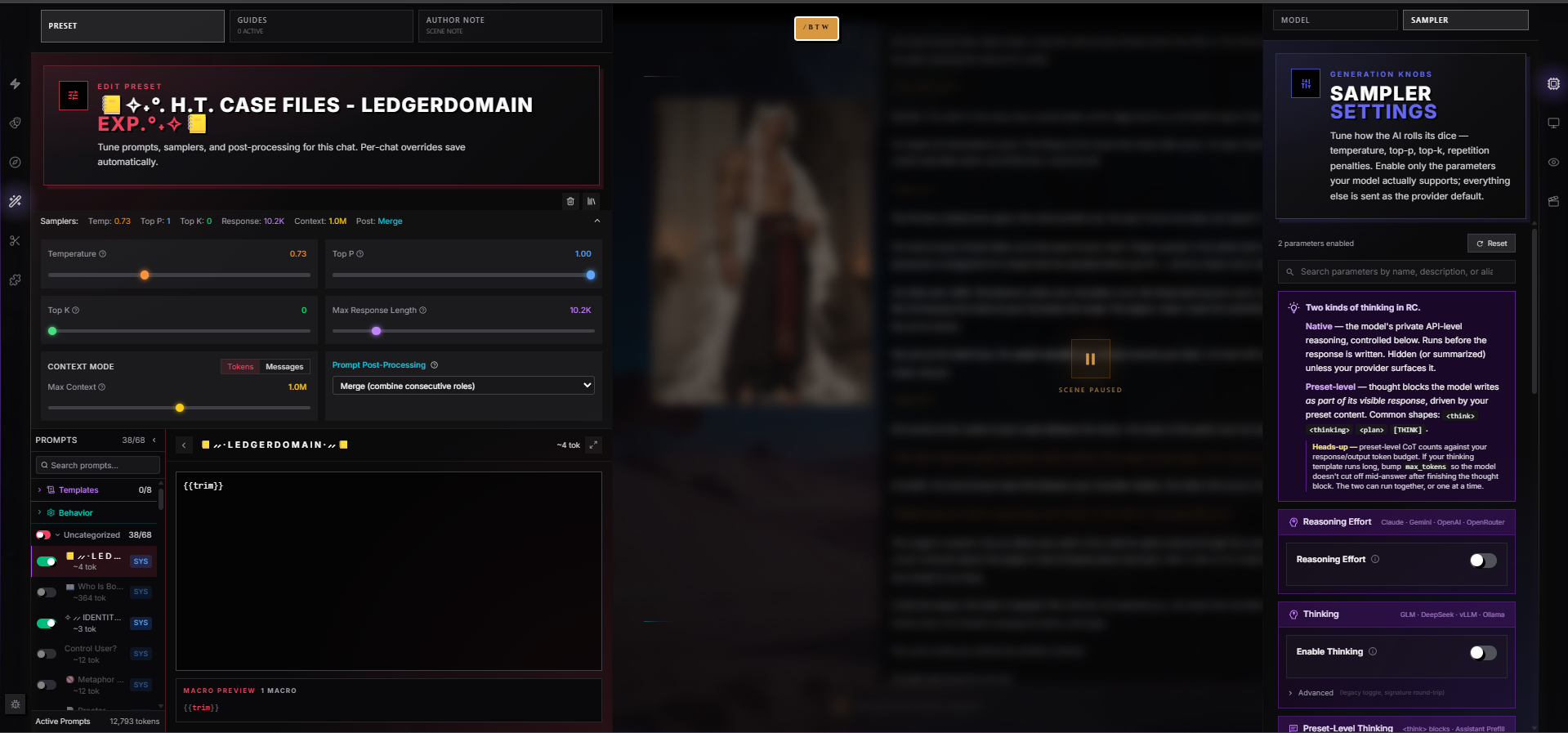
Generation Controls are the dials that decide how the AI writes — independent of what you've told it to write. Two sliders tug it toward "careful" or "wild." A few number boxes decide how much of the conversation it remembers, and how long it can ramble. A single wing in the chat — Quick Play — collects every one of those controls plus model selection, lorebook toggles, Story Director, and image automation in one place.
This page covers two connected surfaces:
- Sampler settings — the generation parameters (temperature, top-p, penalties, response length, context window)
- Quick Play — the in-chat wing that surfaces those samplers plus model, lorebooks, Story Director, and image automation toggles for the current scene
Samplers in RoleCall live inside Presets. There's no separate "sampler profile" type to publish or fork — when you fork a preset, you fork its samplers with it. The Quick Play wing lets you ride on top of the preset's defaults with per-scene overrides that only apply to this one chat. The full preset editor (in your dashboard) exposes every sampler. The Quick Play wing exposes the handful that actually matter for tuning a scene without leaving the conversation.
Image generation — attaching pictures, auto-generating scene illustrations, and the manual image modal — has its own dedicated page. See Image Generation for that surface in full.
Sampler Settings
Samplers shape the AI's choice of each next word. They don't change what the AI was told to do — that's the prompt's job — they change how it picks among the words it could possibly say next.
A low temperature with a tight top-p produces careful, predictable prose. Crank both up and the AI starts taking weirder, riskier choices. Layer in penalties and it stops leaning on the same words and phrases.
You don't need to master every sampler. Most chats run fine on the preset's defaults. The Quick Play wing exposes the handful that actually matter for tuning a scene.
How a Sampler Decision Actually Works
Skim this if you're new — skip it if you've been tuning models for years. Each time the AI picks the next word, every possible word starts with a probability. Samplers run in this rough order:
- Top P, Top K, Min P, Top A all act as filters — they take the full vocabulary and throw away unlikely options.
- Temperature reshapes what's left — flattening probabilities (higher temperature = more random) or sharpening them (lower = more deterministic).
- Frequency Penalty, Presence Penalty, Repetition Penalty push down the probability of words the AI has used recently, so it stops looping on the same phrase.
- The model picks one word from the surviving candidates, weighted by their adjusted probabilities.
This is why stacking too many filters at once starves the model: Top P + Top K + Min P + Top A all in series can leave the AI with one or two viable words at every step, which feels weirdly mechanical. Pick the one filter that addresses your problem and leave the rest at defaults.
Samplers in the Quick Play Wing
These are the controls you can move during a chat without leaving the conversation. They override whatever the active preset sets — only for this chat.
| Sampler | Range | What It Does |
|---|---|---|
| Temperature | 0.0 – 2.0 | Controls randomness. 0.0–0.7 is focused and predictable. 0.8–1.2 is the sweet spot for most chats. Past 1.5 the AI starts taking real risks. |
| Max Tokens | 50 – 64,000 | The longest a single AI reply can be. Lower (256–1024) for snappy back-and-forth, higher (2048–8192) for paragraphs of prose. NemoAI and local-served models cap at 12,000. |
| Context Mode | Tokens / Messages | Choose Tokens (budget by raw token count) or Messages (keep the last N exchanges). |
| Max Context | 1,024 – 1,000,000 | When in Tokens mode: the maximum number of tokens of context (system prompt + character + lore + history) sent on each turn. Older messages get trimmed to fit. Auto-caps at whatever the active model actually supports. |
| Max Messages | 0 – 1,000 | When in Messages mode: the number of prior messages the AI sees. The current user message is always included on top of this count. A live token estimate shows under the slider so you can see what that budget actually costs. |
| Top P | 0.0 – 1.0 | Filters which words the AI considers, by cumulative probability. 0.9–0.95 is typical. Lower values keep the AI on safer vocabulary. |
| Top K | 0 – 500 | Limits the AI to the top N candidate words at each step. 0 disables it. Only some models support this — the slider hides itself when the active model doesn't. |
| Freq. Penalty | -2.0 – 2.0 | Discourages words the AI has already used a lot. Positive values reduce repetition; negative values encourage it. |
| Pres. Penalty | -2.0 – 2.0 | Discourages any word the AI has used at all this chat, regardless of how often. Positive values push the AI toward new topics. |
Each slider shows the live value, and the model picker quietly disables controls the current model doesn't support — when you switch from a model that supports Top K to one that doesn't, the slider vanishes rather than silently doing nothing.
Samplers in the In-Scene Preset Wing
The Preset wing inside a chat shows a condensed sampler bar — the everyday controls, plus a setting that doesn't exist in Quick Play:
| Sampler | Range | What It Does |
|---|---|---|
| Temperature | 0.0 – 2.0 | Same as Quick Play. |
| Top P | 0.0 – 1.0 | Same as Quick Play. |
| Top K | 0 – 100 | Same as Quick Play. |
| Max Response Length | 256 – 64,000 | The preset's max tokens, as a slider. |
| Max Context / Max Messages | up to 2M / 1,000 | Same Tokens/Messages toggle as Quick Play; the slider caps at 2M tokens to match the largest models on the market. |
| Prompt Post-Processing | enum | How the chat history gets normalized before going to the provider. See below for the five modes. |
When you move a slider in either Quick Play or this in-scene Preset bar, a small dot appears next to the slider to mark "this is being overridden for the current chat." Both wings share the same underlying override store — moving the slider in one is the same as moving it in the other.
Samplers in the Preset Editor (Dashboard)
The full preset editor (the page you reach from the dashboard or by clicking Edit Preset) opens a Sampler Settings panel that exposes every sampler RoleCall supports. This is the place to set sensible defaults that ship with your preset.
| Preset Sampler | Range | What It Does |
|---|---|---|
| Temperature | 0.0 – 2.0 | The preset's default temperature. Quick Play can override per chat. |
| Top P | 0.0 – 1.0 | The preset's default top-p. |
| Top K | 0 – 500 | The preset's default top-k. 0 disables it. |
| Top A | 0.0 – 1.0 | A squared variant of Top P. Cuts low-probability words more aggressively. 0 disables it. Most models ignore Top A; primarily useful with local models. |
| Min P | 0.0 – 1.0 | A probability floor. Words below min_p × probability_of_most_likely_word get cut. Lower values (0.01–0.05) keep more variety. Most useful with local models. |
| Frequency Penalty | 0.0 – 2.0 | Preset-level frequency penalty. In the preset editor, this is a one-sided slider — Quick Play exposes the full -2 to 2 range. |
| Presence Penalty | 0.0 – 2.0 | Preset-level presence penalty. Same one-sided range as Frequency Penalty. |
| Repetition Penalty | 1.0 – 2.0 | A generic repetition penalty. 1.0 = none, 1.1–1.3 discourages repeats. Less nuanced than frequency/presence penalty. Most often used with local models. |
| Max Context | 1,000 – 2,000,000 | The preset's default context budget in Tokens mode. |
| Max Messages | 1 – 1,000 | The preset's default Messages-mode cap. |
| Max Tokens | 50 – 64,000 | The preset's default max response length. |
| Context Mode | Tokens / Messages | Which trim strategy the preset defaults to. |
| Prompt Post-Processing | enum | The five modes described below. |
Prompt Post-Processing
Different model providers expect different message structures. Some choke on consecutive system messages. Some want strict user/assistant alternation. RoleCall's Prompt Post-Processing setting normalizes your prompt before it leaves the building.
| Mode | What It Does | When to Use |
|---|---|---|
| None | Send everything as-is, in the exact role order RoleCall built it. | Default. Works for most modern providers. |
| Merge | Combine consecutive same-role messages (two user messages in a row become one). | Models that get confused by "user, user, assistant" patterns. |
| Semi | Merge consecutive same-role messages and convert mid-conversation system messages to user. | Older Claude builds and providers that reject mid-chat system roles. |
| Strict | Force the conversation to start with user and strictly alternate user, assistant, user, assistant… Mid-chat system messages get pulled into the prior user message. | The original Anthropic Claude API contract; some local model servers. |
| Single | Collapse the entire prompt into one user message. | Models that only accept a single-shot completion call instead of a multi-turn conversation. |
If the AI is suddenly producing garbled output, dropping context, or returning provider errors, swap modes one at a time. Most chats run on None; if your provider needs something stricter, the model's documentation usually says so.
Per-Preset Defaults vs. Per-Scene Overrides
Sampler values follow a strict precedence:
- The preset's defaults ship with the preset. When you fork a preset, you inherit them.
- Per-scene overrides in Quick Play (and the in-scene Preset wing) live in this one chat. Move a slider and a small dot appears next to the slider in the Preset wing to signal "this is being overridden for the current chat."
- The model's supported parameters are the final gate. The Quick Play wing reads what each model actually accepts and disables (or hides) sliders the model ignores.
Overrides save automatically. Reset a single slider by matching it back to the preset's value, or clear the override from the Preset wing.
Picking Temperature: Quick Guide
| Use Case | Temperature | Why |
|---|---|---|
| Technical / factual writing | 0.3–0.6 | Predictable, less off-topic |
| Steady character voice | 0.7–0.9 | Consistent but not robotic |
| General roleplay | 0.85–1.1 | The default sweet spot |
| Wild creative scenes | 1.2–1.5 | Unexpected choices |
| Chaos / dream sequences | 1.5–2.0 | Genuinely strange output |
If a model starts making typos or going off the rails, lower temperature before touching anything else. If it feels repetitive, raise temperature and nudge the frequency/presence penalties up by 0.1–0.3 before reaching for more exotic samplers.
Troubleshooting: Which Sampler When
| Symptom | First Thing to Try | Why |
|---|---|---|
| AI keeps using the same phrase ("she chuckled softly", "he tilted his head") | Freq. Penalty → 0.3–0.6 | Penalizes words it's already used a lot. |
| AI keeps returning to the same topic | Pres. Penalty → 0.3–0.6 | Penalizes any word it's touched at all this chat. |
| AI writes too cautiously, dialogue feels stiff | Temperature → up by 0.1–0.2 | Loosens word choice. |
| AI is hallucinating wild details, going off-script | Temperature → down by 0.1–0.2 | Tightens word choice. |
| AI replies are too short | Max Tokens → up | The model is hitting the response cap mid-thought. |
| AI replies are wandering, never landing | Max Tokens → down, or write a clearer prompt | The cap is high enough that the model rambles. |
| Older turns vanishing from the AI's memory | Max Context → up (within model's actual limit) | Context budget is too small. |
| Replies feel disjointed in a long arc | Switch to Messages mode with N=50–100 | Token budget is trimming too aggressively. |
| Output is garbled or returning provider errors | Prompt Post-Processing → try Merge, then Semi, then Strict | The provider needs a different message structure. |
Quick Play — The Fast Setup Wing
The Quick Play wing is the single panel where you can swap models, toggle lorebooks, retune samplers, flip Story Director on, and decide whether the AI illustrates the scene — without opening any other wing.
It's organized as one scrollable column. The header has a Save Loadout button so you can snapshot the entire setup as a reusable loadout you can apply to future chats.
What's in the Wing
The wing renders the following sections in order, top to bottom:
| Section | Purpose |
|---|---|
| Character Card | The character you're chatting with — avatar, name, tagline, the first few trait tags. Read-only summary. |
| Active Preset | The preset driving this chat, with its rough prompt token cost. Read-only summary; edit in the Preset wing. |
| Session Stats | Three numbers: Msgs (message count this chat), Tokens (current context token total), Avg (mean AI response time in seconds). |
| Context Usage Bar | A live gauge of how full the context window is. Turns orange past 80% and red past 95%. |
| Active Lorebooks | Every lorebook attached to this chat, with token count and entry count, plus per-lorebook on/off toggles. |
| Model | The current model with provider, context length, and a Setup Required badge if the model's provider isn't configured. Click to open the model picker. |
| Generation | The sampler sliders described above. |
| Story Director | Compendium, DM Assistant, Narrator Tool Access, Web Search (coming soon), Scene Images, Strip Chat Images. |
The Model Picker
Click the model card to open the picker. Models are grouped by source:
- Available providers for your account and environment, grouped by provider/source.
- RoleCall In-House — the platform's hosted models.
Type in the search box to narrow the list across all groups. Models marked Setup Required belong to a provider/source that is not available for the current account or environment. Models marked Local run on RoleCall's own servers.
Each model row shows its context length (e.g. 200K ctx) so you can pick the right size for the conversation. The slider for Max Context automatically caps at whatever the selected model supports.
The chosen model also gates which sampler sliders show up. If you pick a model that doesn't support Top K, the Top K slider disappears from the Generation section rather than silently doing nothing. Same logic for the penalties — when the active model doesn't accept Freq./Pres. Penalty, those sliders hide.
Reading the Context Usage Bar
The context bar lives high in the Quick Play wing and shows two numbers separated by a slash — current tokens used and the model's context limit. The bar itself is a gradient that fills as you fill the context window:
- Up to 80% — bar uses the wing's accent color. Plenty of room.
- 80–95% — bar turns orange. The model still works fine, but older turns will start getting trimmed on the next message.
- Past 95% — bar turns red with a glow. You're at the edge — every new message will push something out. Either summarize, branch into a new chat, or lower Max Context to force aggressive trimming.
The bar updates live as you type and as the AI replies, so you can watch a long scene fill toward its budget in real time.
Saving Your Setup as a Loadout
The Save Loadout button in the wing header captures everything you've configured for the current scene:
- Preset (and which prompts you've toggled off)
- Persona
- Samplers — your per-scene overrides
- Active lorebooks and their on/off state
- Model + provider selection
- Story Director / DM settings — mode, personality, DM model, Storyboards on, Legacy Trackers on
- Scene Images settings — on/off, frequency, image model
- Post-Production action chain
- Immersion modules — every Storyboard and Legacy Tracker toggle, plus sub-feature toggles
- Stagecraft props
- Regex rules (which ones are on)
- Author Note
- Guides in use
You can then apply that loadout to any future chat. See the Loadouts area in your dashboard for managing saved loadouts.
Story Director Toggles in Quick Play
The Story Director section lets you switch in-scene AI helpers on and off. Each toggle's switch lives in the wing; tapping a switch reveals deeper sub-controls inline.
| Toggle | What It Does |
|---|---|
| Compendium | An AI-managed lorebook with typed entries. The model can read from and write to a structured Compendium that auto-organizes characters, locations, items, and other recurring entities. When on, exposes a Compendium Model picker so retrieval and bookkeeping can use a different available model than the main narrator. |
| DM Assistant | Turns on Story Director. When on, a dedicated planning pass runs before the Narrator writes, updates enabled story state, and injects a filtered directive into the Narrator's prompt. Reveals a deep sub-panel of controls described below. |
| Narrator Tool Access | Lets the final prose-writing Narrator call approved tools during its own generation, after Story Director planning. This is independent of DM Assistant and optional. Reveals a Max Tool Rounds spinner (1–20, default 8). |
| Web Search | Lets the AI pull real-time web results into context. Coming soon — disabled in the current build. When enabled, a per-worker selector lets you allow Narrator, DM, and/or TV to use it. |
| Scene Images | AI illustrates each scene inline as you play. See the Image Generation section below for the sub-controls. |
| Strip Chat Images | Sends text-only requests when a backend rejects vision payloads — an escape hatch for providers or models that error on image input. |
DM Assistant Sub-Controls
When DM Assistant is on, an indented panel exposes:
- DM Personality — pick from the curated DM personalities (Balanced, Cinematic, Rules-Light, etc.).
- Story Director Model — a model picker dedicated to narrative direction and tracker updates. Often a smaller, faster model is fine here.
- Storyboards — five first-class story state cards. Each card shows live/off, its color, and any sub-features as small dots. Enabling a Storyboard wires it into Story Director rounds.
- Quest Board — goals, blockers, deadlines, rewards, consequence pressure.
- Cast — character files, relationships, memories, hidden knowledge, drift.
- Calendar — story date, timelines, deadlines, prophecies, moons, temporal pressure.
- Map — locations, regions, travel state, discoveries, hazards, movement history.
- Renown — public standing, heat, favors banked and owed, oaths, blackmail, influence.
- Legacy Trackers — twelve optional mechanical panels (Combat, Stats, Inventory, Knowledge, Party, Corruption, Bonds, Events, Cycles, Spellbook, Memories, Creature Codex). These predate Storyboards and are kept for users running game-like scenes. Storyboards above are the first-class system.
- Default AI Awareness — number input (
0–99) for how often (in turns) immersion state is injected into the AI prompt.0means "manual only." Per-panel overrides live in each wing panel's settings menu. - Max Tool Rounds — spinner (
1–20, default4). How many tool-call rounds Story Director can use before finalizing its directive. - DM Temperature — slider (
0–2, step0.05, default0.7). Controls randomness in Story Director responses. Independent of the chat's main temperature. - Auto-retry invalid tool responses — toggle. When the AI returns a malformed tool call, automatically retry once. Costs extra tokens but recovers cleanly from minor schema slips.
- Refresh Enabled Boards — runs an AI-powered re-initialization across every enabled Storyboard and Legacy Tracker, one at a time. The button shows progress (
Refreshing Cast (2/5)) so you can see which panel is being rebuilt.
These are settings on the chat. Switching one off doesn't delete the data the system has gathered; it just stops the model from being asked to use it for now.
See Story Director and Compendium for the full feature deep-dives.
Image Generation
Image generation has its own dedicated page. RoleCall handles three image flows — uploading attachments through the paperclip / paste, auto-generated scene illustrations via the Scene Images toggle in Quick Play, and the manual Generate Image modal — all of which share the same in-chat Image Gallery and the same per-user rate limit.
The Quick Play toggles for Scene Images and Strip Chat Images (described above under Story Director) are the in-chat entry points; everything else — vision-model requirements, the manual modal's full field list, the image gallery's filters, error messages, and rate limits — lives on the Image Generation page.
When NOT to Use These Controls
Don't yank Temperature first when a model feels "off." Most of the time, the problem is the preset's prompts, the character description, or the chat history — not the sampler. Read what the AI just said and ask whether your prompt is asking for that.
Don't enable every sampler at once. Min P + Top A + Top K + Top P + Repetition Penalty all stacking together is rarely useful. Each one biases the choice; combining them can starve the model of word choices. Pick the right one for the job.
Don't crank Max Context to 2M on a tiny model. The slider lets you, but a model with a 32K context window will still trim at 32K — the higher number is just ignored. Match Max Context to what your model actually supports.
Don't ship a preset with extreme samplers. When publishing a preset, defaults should be sensible (temperature ~0.9, top_p ~0.95, mild penalties). Let Quick Play be where users push to extremes. A preset that hardcodes temperature 1.7 will surprise people in a bad way.
Tips & Common Patterns
Move sliders in small steps. Temperature, frequency penalty, and presence penalty react sensitively to small changes. Bumping temperature from 0.8 to 0.85 is a real, noticeable difference. Bumping it from 0.8 to 1.5 in one go is hard to read.
Tune one slider at a time. When the AI feels off, change one thing, regenerate, see how it feels. Changing temperature, top-p, and frequency penalty simultaneously makes the cause impossible to identify.
Trust the preset's defaults at first. A well-built preset has been tuned by its creator. If a chat feels wrong, start by asking whether the preset matches the model and the character — not by twisting samplers.
Use Messages mode for episodic scenes. If your chats are short, self-contained scenes, "last 50 messages" is a clean way to bound context. If you're running a long arc with persistent memory, stay on Tokens mode and let the budget trim old turns naturally. The live token estimate under the Max Messages slider tells you exactly what a given cap costs.
Save loadouts liberally. If you tuned a great setup for a noir detective scene and you want to run a new one tomorrow with the same character but different lorebooks, save the current one as a loadout before swapping things out.
Match the picker to your day. Cinematic prose at temperature 1.1 with mid-range frequency penalty for evening writing; tighter settings at temperature 0.7 for grinding through a long arc. The two loadouts are the same {{char}} and {{user}} — they're just two different "moods."
Reset overrides individually. A single overridden slider doesn't lock you out of the rest of the preset's defaults. Match that one slider back to the preset's value (or clear the override from the in-scene Preset wing) and the rest of the preset still applies.
Refresh Enabled Boards after a wild swing. If you've been playing for a while and the Story Director's state feels drifted, Refresh Enabled Boards in the DM Assistant panel rebuilds every active Storyboard and Legacy Tracker from the actual chat history. One at a time, so each board gets the AI's full attention.
See Presets for the full preset editor, Story Director for narrative AI helpers, and Compendium for the AI-managed lorebook.