Image Generation
After the scene: images, edits, exports
Image Generation
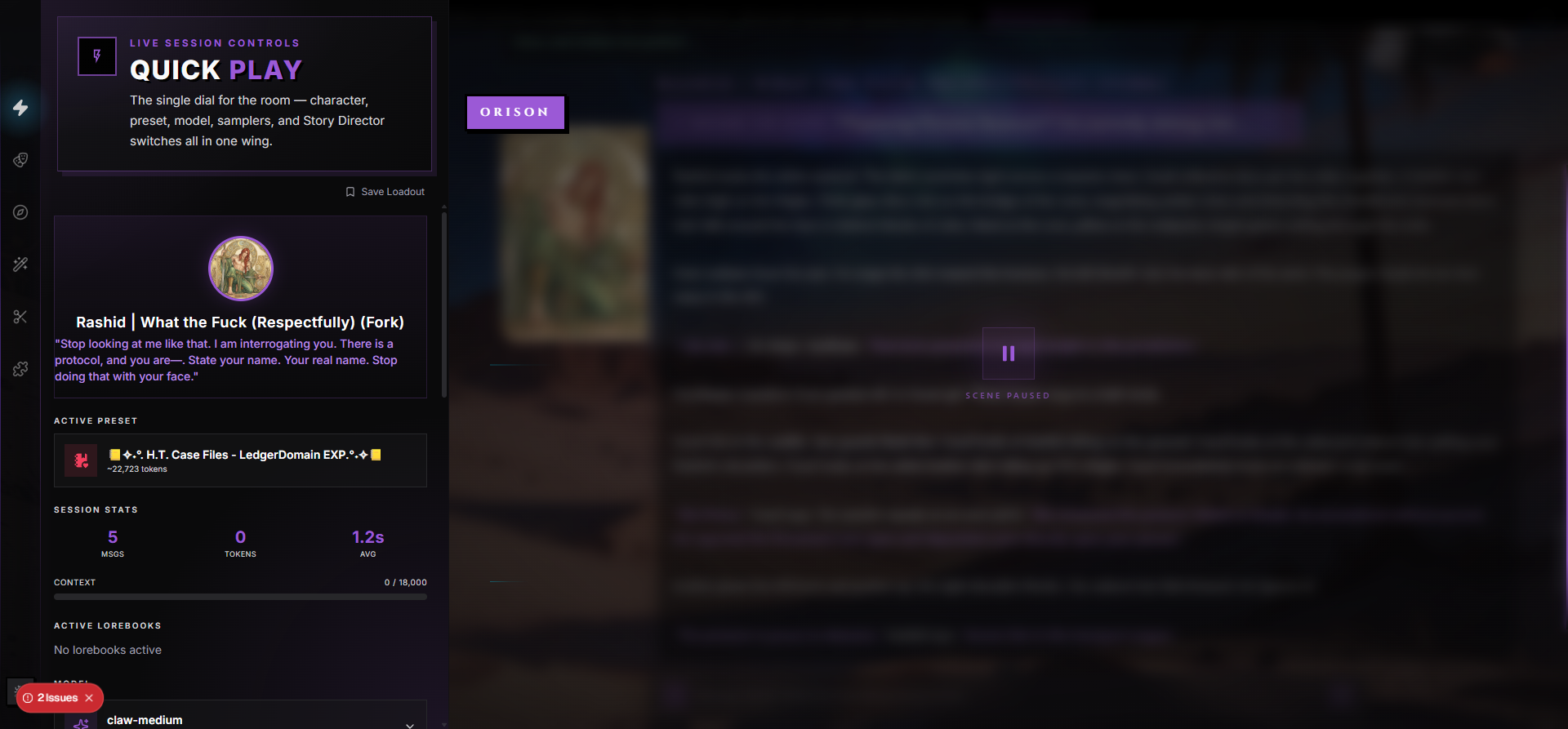
RoleCall handles images in three connected ways. They share the same scene-level gallery but come from completely different surfaces. Knowing which flow does what — and when to use each one — turns image generation from a flashy gimmick into a reliable creative tool.
This page covers every entry point: attaching pictures you already have, asking the AI to paint a scene as you play, and prompting the image generator directly from a modal.
The Three Image Flows
| Flow | What It Does | Where It Lives |
|---|---|---|
| Image attachments | Upload pictures from your device (or paste from the clipboard). The model "sees" them and responds to them. | The paperclip button in the chat input. |
| Auto-generated scene images | The AI takes your most recent chat narration, writes an image prompt from it, and adds a generated picture to the assistant's reply. | The Scene Images toggle inside the Quick Play wing. |
| Manual image generation | A modal where you type a prompt and tune sliders to make any one-off picture — a portrait, a background, a lorebook entry illustration. | Anywhere an image is asked for: character / persona / preset / lorebook / stage editors, plus a scene-level entry point. |
All three flows feed the same Image Gallery wing panel inside a scene. Whether a picture came from your camera roll or from the AI, it ends up in the same place.
All three flows are subject to the same per-user rate limit of 20 image generations per hour.
Attaching Images to Your Messages
The chat input has a paperclip button. Click it to open a file picker, or paste a picture from your clipboard directly into the textarea (Ctrl/Cmd + V).
Attachments work like an inline preview strip above the compose bar: each pending image shows as a small thumbnail. While the file uploads, the thumbnail pulses; once it's ready, you can hover and click the X to remove it before sending.
What's Accepted
| Constraint | Value |
|---|---|
| File types | JPEG, PNG, WebP |
| Max file size | 10 MB per image |
| Max images per message | 4 |
| Max decoded dimensions | ~67 megapixels (8192 × 8192) |
Images are re-encoded server-side before storage — EXIF and tracking metadata are stripped, orientation is baked in, and the file is pushed back through a clean image encoder. Whatever you send won't carry hidden data into the chat.
How to Attach
- Paperclip button — opens your OS file picker. Pick up to 4 images at once.
- Paste — Ctrl/Cmd + V inside the chat input pastes a clipboard image (a screenshot, a copied browser image, etc.) directly into the pending strip. You can use this even when you don't have a file saved to disk.
Drag-and-drop is not supported. Use the paperclip or paste — dropping an image onto the chat window does nothing.
Vision-Capable Models
For the AI to actually see the image, the model you're using has to support vision (sometimes called "multimodal" or "image input"). RoleCall reads each model's published capabilities and labels vision support accordingly.
If you attach an image to a message while a non-vision model is active, an amber warning banner appears above the thumbnails:
This model doesn't support images. Switch to a vision model to send images.
The thumbnails stay on the bar — the image is uploaded and ready to send — but the model will simply ignore the attachment. To use the image, swap to a vision-capable model in the Quick Play wing's model picker.
Which Models Support Vision
Vision support is a per-model property, not a per-provider one. A provider can offer some vision models and some text-only models side by side. Common cases:
| Provider | Typical Vision Models |
|---|---|
| OpenAI | GPT-4o and later, GPT-4 Turbo with vision, GPT-4.1 family |
| Anthropic | Claude 3 family and later (Sonnet, Opus, Haiku — all multimodal) |
| Gemini 1.5 and 2.x family (Pro and Flash variants) | |
| OpenRouter | Any model that aggregator marks vision in its capability set |
| xAI | Grok models with vision support |
| Premiere Theater (in-house) | Anything tagged vision in the Group by Tag view of the model picker |
When in doubt, open the model picker and look for the vision tag, or just attach a test image and watch for the amber banner. The model picker hides the Top K slider on models that don't accept it; the vision banner is the same kind of "the model can't actually do this" signal.
Strip Chat Images (The Escape Hatch)
Some BYOK providers happily advertise vision support but then return a 400 error on the actual request — usually because the model accepts vision in one route and not another, or because the gateway converts the message structure into something the backend doesn't like.
Quick Play → Story Director → Strip Chat Images is the answer. Toggle it on and RoleCall sends text-only requests regardless of what's attached to messages. The pictures stay in the chat history and the gallery; they just don't make the trip to the model.
Use this as a temporary unblocker:
- A vision model your BYOK provider returns errors for → flip on, send the message, flip back off when you switch models.
- A backend that supports vision intermittently → leave on for a session, then off again.
If a model is genuinely text-only, you don't need Strip Chat Images — RoleCall already won't send the attachments. The toggle exists specifically for the "claims to support vision, doesn't actually" case.
Signed-URL Refresh
Uploaded images are stored privately and accessed through signed URLs that expire on an hourly window. When you scroll back to old messages or reopen the gallery, signatures get refreshed automatically — you don't have to reload the page or re-upload anything. Old image links may briefly show a placeholder while new signatures generate.
Auto-Generated Scene Images
Scene Images is the flow that turns RoleCall chats into a moving comic. With it on, every Nth AI reply gets an automatically generated illustration attached directly to that message. Swipe to a different alternative on the message and you'll get a different picture.
Turning It On
The Scene Images toggle lives in the Quick Play wing's Story Director section. Tap the switch to enable; the panel slides open to reveal frequency and model settings.
Frequency
How often the AI illustrates a scene. Three settings:
| Frequency | Cadence | When to Use |
|---|---|---|
| Every | Every assistant message gets a picture. | One-off scenes you want to feel like an animated comic. Burns through the hourly limit fast. |
| Every 3 | Every third assistant message. The default. | The everyday balance — visual cues without a generation every turn. |
| Every 5 | Every fifth assistant message. Most economical. | Long arcs where you want pictures as anchor points, not at every beat. |
Scene Image Model
The Scene Image Model dropdown lists every image-generation model RoleCall makes available to you. Picks happen per-chat, so you can use a fast, cheap model for a noir conversation and a richer one for a fantasy scene.
If no image models are available, the panel says so directly:
No image models are currently available.
In that case, no image flows work — including the manual modal and any portrait generators — until image generation becomes available again for your account.
How the Prompt Gets Built
Scene Image prompts are written for you. You don't see the prompt textbox; the AI reads the recent chat narration, picks out who's present, applies their appearance fields from the character cards, and assembles a prompt for the image generator.
The result depends on three things:
- The most recent chat text. Whoever is being described, whatever they're doing, whatever the environment looks like — pulled directly from the narration.
- Cast appearance anchors. Each character's appearance description (and your persona's appearance, if set) is treated as an identity anchor so faces stay consistent across pictures.
- The active compendium / known cast. If a side character has been described earlier and remembered in the chat's cast registry, their look gets carried into the prompt.
When the image is wrong — a character missing from the scene shows up, an outfit is misread, the location is off — fix the text, not the prompt. Name who's actually present. Describe what they're wearing. Add a sentence about the setting. The image generator follows the narration verbatim.
Inline Image Block in the Message
A generated scene image renders inside the assistant message it belongs to:
- A small picture preview, capped to a reasonable width so it doesn't take over the conversation.
- The seed used, shown below the image, so you can reuse it in the manual modal if you fall in love with a specific look.
- A regenerate button that appears on hover — see below.
Inline Regenerate
Hover over a scene image in a message and a refresh button appears in the lower-right corner. Click it and the picture regenerates using the same prompt — you get a different image for the same beat without disturbing the conversation. Use this when a generated picture is close-but-wrong and you don't want to swipe or rewrite the message.
When NOT to Use Scene Images
- Don't run "Every" on a long campaign. A 100-message chat at "Every" is 100 generations — you'll burn through the hourly rate limit and produce a wall of similar-looking pictures. Use Every 3 or Every 5.
- Don't expect Scene Images to fix a thin description. If your narration says "they go inside," the picture will be a generic interior. Better text in → better pictures out.
- Don't enable on guest sessions or long anonymous chats. Image generation is rate-limited per user; multiple long chats from the same account compound.
The Image Gallery
The Image Gallery is a wing panel inside the scene that collects every image in the conversation into a single browseable grid.
Opening It
Open the Image Gallery wing from the chat's wing rail. The header shows the running count (12 images in this chat).
Filtering
A row of three filter tabs sits at the top of the panel:
| Tab | Shows |
|---|---|
| All | Every image in the chat — pictures you attached and pictures the AI generated. |
| Sent | Just images you attached. |
| Received | Just images the AI generated (inline scene images plus anything generated inside the chat). |
Lightbox
Click any thumbnail to open it full-size in a dark overlay. Click anywhere outside the picture to dismiss. Two buttons sit in the top-right corner:
| Button | What It Does |
|---|---|
| Download | Saves the image to your device. The download targets the same signed URL the lightbox is showing — the file lands in your downloads folder with whatever name your browser assigns. |
| Close (X) | Dismisses the lightbox. So does pressing Esc or clicking the dimmed area outside the picture. |
The lightbox is contained to the chat — it doesn't open a new tab or jump you out of the conversation. Whatever you were typing is still there when you close.
Paging Through Long Chats
Long chats can accumulate hundreds of images. The gallery loads them in pages of 60 for smooth scrolling. When you reach the bottom of the grid, a Load more images button pulls in the next 60. Switching filters resets you back to the first 60 of that filter.
Empty State
If no images have been attached or generated yet, the gallery shows a friendly placeholder:
No images in this chat yet. Attach images to messages to see them here.
The empty state goes away the moment any image lands in the chat.
Signed URLs Refresh on Open
The gallery batches signed-URL requests in groups of 20 so opening a panel full of pictures doesn't fire 200 individual requests. Signatures auto-renew when you re-open the gallery; you don't have to do anything to refresh stale links.
Manual Image Generation Modal
The manual modal is RoleCall's full-control image generator. It opens any time the app needs a one-off picture: a character avatar, a persona portrait, a lorebook entry image, a stage background, or a scene-level generation.
Opening the Modal
The modal has multiple entry points:
| Entry Point | What It Generates For |
|---|---|
| Character editor → Generate | The character's main image. |
| Persona editor → Generate | The persona's avatar. |
| Preset / Lorebook / Stage editor → Generate | A cover or background image for that content. |
| Scene → Generate Image | A standalone image saved into the current chat. |
In every case, the modal opens with the same controls — the only thing that changes is what happens when you click Use This Image (which entity gets the final picture).
Layout
The modal is split into two columns:
- Left column — the controls (prompt, sliders, dropdowns).
- Right column — the preview (where the generated image appears).
A header strip at the top shows the modal title (e.g. "Generate Image"), and a footer at the bottom holds the action buttons.
The Prompt Field
The Prompt textarea is the main input.
| Detail | Value |
|---|---|
| Max length | 2,000 characters |
| Autofocus | Yes — the modal puts the cursor in this box when it opens |
| Live character counter | Shown below the textarea (347 / 2000 characters) |
| Submit shortcut | Ctrl + Enter (Windows/Linux) or Cmd + Enter (Mac) |
Write what you want as a comma-separated list of tags or as a sentence — both work, but image models generally respond better to structured tags:
1girl, silver hair, blue eyes, leather coat, standing in rain, neon city background, cinematic lighting, masterpiece, best quality
Negative Prompt
The Negative Prompt is what the model should avoid including. It's collapsed by default — click the chevron to expand it.
The negative prompt comes pre-filled with sensible defaults:
- Quality avoidance —
lowres, bad anatomy, bad hands, text, error, missing fingers, extra digit, blurry, jpeg artifacts, watermark, signature, username - Safety guards — explicit-content terms and minor-related terms are baked in by default to keep generation focused on safe content.
You can edit the field freely — replace or extend the defaults — but most users leave it alone and write a positive prompt.
Size Presets
Five aspect-ratio presets cover most needs. Pick by clicking one of the tiles.
| Preset | Dimensions | Best For |
|---|---|---|
| Square | 1024 × 1024 | Avatars, icons, profile pictures |
| Portrait | 832 × 1216 | Character close-ups, headshots, vertical mobile-friendly art |
| Landscape | 1216 × 832 | Scene backgrounds, environment art |
| Wide | 1344 × 768 | Cinematic / banner crops, hero images |
| Tall | 768 × 1344 | Full-body character art, very tall vertical compositions |
The selected preset is highlighted with the modal's accent color so you can see at a glance what aspect ratio is loaded.
Model
The Model dropdown lists every image model RoleCall makes available to your account. Only models shown in this dropdown can be selected.
Want to compare the look of currently available models before generating? See the live Image Model Comparison. It uses the same prompt, seed, and settings for every sample, and labels the current RoleCall credit cost beside each model.
The dropdown is empty if image generation is not currently available on RoleCall. In that state, a yellow note reads:
No image models are currently available.
Steps and CFG
Two sliders sit side by side under the model picker.
| Slider | Range | Default | What It Does |
|---|---|---|---|
| Steps | 1–50 | 28 | Number of diffusion steps. More steps = finer detail and longer generation. The default is balanced; bump to 35–45 for tricky compositions. |
| CFG Scale | 1–20 (step 0.5) | 6 | Prompt strength / guidance. Higher = closer to the prompt, more rigid. Lower = more creative, looser interpretation. 4–7 is the everyday range. |
Cranking CFG above 12 usually over-bakes the image and produces fried-looking output. Push Steps up before CFG.
Advanced Settings
A collapsible Advanced Settings section exposes four more controls.
Sampler
The diffusion sampler. Different samplers produce different visual feels and have different speed/quality tradeoffs.
| Sampler | Label | Notes |
|---|---|---|
| k_euler | Euler | Fast, predictable, classic. |
| k_euler_ancestral | Euler Ancestral | The default. Solid all-rounder, slightly more creative than Euler. |
| k_dpmpp_2s_ancestral | DPM++ 2S Ancestral | Detailed, slightly slower than Euler. |
| k_dpmpp_2m | DPM++ 2M | Sharp, deterministic. |
| k_dpmpp_2m_sde | DPM++ 2M SDE | Good detail at lower step counts. |
| k_dpmpp_sde | DPM++ SDE | Painterly feel. |
| k_dpm_2 | DPM 2 | Older but reliable. |
| ddim | DDIM | Smooth, sometimes a little flat. |
If you don't know which to pick, leave it on Euler Ancestral. Sampler choice rarely makes or breaks an image — the prompt does.
Seed (Optional)
Every generation has a numeric seed that determines the starting noise. Same prompt + same seed + same settings = the same image, every time.
- Leave the seed field empty (placeholder reads Random) for a fresh starting point each run.
- Enter an integer to lock the seed.
After a generation, the seed used appears under the preview (Seed: 1234567890). Copy it into the Seed field on the next run to lock the look; tweak the prompt to get a close variation rather than a wildly different image.
Image Count
Number of alternatives to generate in a single run (1–4). The default is 1.
When you generate multiple images, dot indicators appear below the preview. Click a dot to switch between alternatives. Each alternative has its own seed (visible under the preview when selected).
Use Image Count 4 when you're chasing a specific look and want options; use 1 when you're refining a near-miss and want to iterate fast.
Quality Boost
A toggle (on by default) that appends quality-boosting tags to your prompt automatically: masterpiece, best quality, highly detailed, sharp focus.
Turn it off if your prompt is already very specific and the scaffolding is fighting it (rare). Leave it on for everyday use.
Preview Panel
The right column shows the live generation.
- Before generating — a placeholder with an icon and a hint that reads "Enter a prompt and click Generate."
- While generating — a spinning ring with an estimated time (
~12s estimated). The spinner uses the modal's accent color. - After generating — the result image, scaled to fit the preview area.
- On error — a red banner under the preview with the error message.
The seed for the currently-displayed image is shown directly under the preview when generation succeeds.
Footer Buttons
The footer changes depending on whether you've generated anything yet.
Before generation:
| Button | What It Does |
|---|---|
| Cancel | Closes the modal without saving anything. |
| Generate | Starts the run. Disabled if the prompt is empty or no image models are available. |
After generation:
| Button | What It Does |
|---|---|
| Cancel | Closes the modal without picking anything. |
| Regenerate | Runs the same prompt + settings again. The current preview is replaced. Useful for trying a near-miss again. |
| Use This Image | Confirms the currently-selected image into whatever editor opened the modal, then closes. |
Keyboard Shortcuts
| Shortcut | Action |
|---|---|
| Esc | Closes the modal. |
| Ctrl + Enter (Windows/Linux) | Starts generation. |
| Cmd + Enter (Mac) | Starts generation. |
Where Generated Images Live
The destination depends on which surface opened the modal.
| Opened From | Where the Image Goes |
|---|---|
| A scene (Generate Image entry point or inline regenerate) | Stored in the chat's image storage. Appears in the Image Gallery panel under the Received filter. Travels with the chat. |
| Character / persona / lorebook / preset / stage editor | Stored with that piece of content. Forking a character forks the image with it. Exporting a character to PNG embeds the image into the file. |
Generated scene images get a seed shown beneath them so you can reproduce them later. Generated portrait/cover images don't surface a seed — but you can still regenerate the same look by reopening the modal and re-running with the same prompt.
Rate Limits
Image generation is rate-limited per user across all flows. The limit is intentionally generous for everyday use but tight enough to prevent runaway costs.
| Limit | Value |
|---|---|
| Per-user image generations | 20 per hour |
| Window type | Fixed (a 60-minute window that starts on your first generation and resets when it expires, not tied to the top of the clock hour) |
| What counts | Every flavor: manual modal runs, inline scene images, portrait/avatar generation. |
The fixed window means once you hit the cap you wait for the whole window to expire and reset, rather than individual older generations dropping off one at a time.
If you hit the cap, you'll see:
Image generation rate limit exceeded. Please wait before generating more images.
A long scene on Every frequency can chew through 20 generations in under an hour easily. Every 3 is the sustainable cadence for sustained play.
Image Generation Errors
| Message | What It Means | What To Do |
|---|---|---|
| Image generation rate limit exceeded | You've hit 20 generations this hour. | Wait for the window to reset, switch Scene Images to Every 3 or Every 5, or take a break. |
| Image generation service is not configured | Image generation is not currently available on RoleCall. | Try again later or contact support if the option used to be available to you. |
| Image generation service is temporarily unavailable | The image-generation service is unreachable or down. | Try again in a few minutes. If it keeps happening, contact support. |
| Image prompt moderation is temporarily unavailable | The prompt-safety check service can't be reached. | Try again shortly. The moderation step runs before generation; if it fails, generation is blocked to be safe. |
| Image prompt moderation is not configured | The prompt-safety service is unavailable. | Contact support; generation is blocked until moderation is available again. |
| (prompt rejected) | The moderation layer flagged your prompt. | Rewrite the prompt to avoid the flagged content. Don't try to circumvent the filter — it's blocking specific high-risk patterns. |
| No file provided / Invalid file type / File too large | An image attachment failed validation. | Use JPEG / PNG / WebP under 10 MB. Re-export oversized images at a smaller resolution. |
| Image could not be processed | The image attachment failed re-encoding. | The file is corrupt or in an unsupported variant. Re-save it from your editor and try again. |
| Image dimensions are too large | Attachment exceeds ~67 megapixels. | Resize the source image to under 8192 × 8192 and re-upload. |
Mobile Differences
On mobile, image flows work the same but a few things change for the smaller screen:
- The manual modal is taller and stacks the controls and preview vertically instead of side-by-side. All the same fields are present.
- The Image Gallery wing opens as a full-height panel instead of a side rail. The two-column grid stays the same; the lightbox covers the whole screen.
- Attachment thumbnails in the chat input are slightly smaller, but the 4-image cap and paste behavior are unchanged. Some mobile keyboards don't expose Ctrl/Cmd + Enter — use the send button instead.
- Paste from clipboard depends on the mobile OS. iOS and modern Android both support pasting an image into a textarea; older Android keyboards may not.
Drag-and-drop is unsupported on mobile too — there's no concept of dropping a file onto a chat input on touch devices.
Provider and Model Support
Image Generation Models
Image generation runs through RoleCall's hosted image-generation services. The available model list is exposed through the in-scene model picker and the manual modal dropdown. Common models include diffusion families like:
- NAI Diffusion 4.5 (full, curated) — anime-leaning, strong character work
- Flux family (Flux Dev, Flux Schnell, Flux Kontext) — fast, sharp, modern
- SDXL Lightning — extremely fast generation
- HiDream, Chroma, Z-Image Turbo, Qwen Image, Seedream, Pollinations variants — availability varies as RoleCall updates the hosted lineup
What's actually available depends on the current RoleCall image lineup and your account access. End users do not add image-generation servers; pick from the models shown in the dropdown.
Vision Models for Attachments
Vision support is a per-model property published by the upstream provider. Examples that ship with vision capability today:
| Provider | Vision-Capable Models (examples) |
|---|---|
| OpenAI | GPT-4o, GPT-4 Turbo (vision), GPT-4.1 (vision variants) |
| Anthropic | Claude 3 Haiku / Sonnet / Opus, Claude 3.5 Sonnet, Claude 4.x family |
| Gemini 1.5 Pro / Flash, Gemini 2.x variants | |
| OpenRouter | Any model marked vision in its capabilities — this varies model-by-model |
| xAI | Grok 2 / 4 vision variants |
| Premiere Theater (in-house) | Anything tagged vision in the Group-by-Tag view of the picker |
If you switch to a model not on this list (or any model that doesn't publish vision capability), the amber warning banner will appear when you attach an image. Switch back to a vision-capable model or remove the attachment.
When NOT to Use Image Generation
Don't run Scene Images on "Every" for a long arc. Twenty messages = twenty generations. You'll hit the rate limit halfway through a session. Every 3 is the everyday default for a reason.
Don't reach for the manual modal to generate scene visuals. That's what auto-generated Scene Images are for — the manual modal is for one-off content like portraits, backgrounds, and cover images. Using it mid-chat to illustrate a scene works, but the inline flow already does it for you, with cast appearance anchors and chat context baked in.
Don't leave Strip Chat Images permanently on. It exists for backends that misbehave. If your provider is genuinely vision-capable, leave Strip Chat Images off so attachments actually reach the model. Toggling it on permanently makes your chat input feel broken when you go to share an image and nothing happens.
Don't fight the prompt scaffolding. Quality Boost adds reliable quality tags. Turn it off only if your prompt is so specific that the extra tags are fighting it (rare). For most users, leaving it on produces consistently sharper output.
Don't crank CFG to 20. High CFG bakes the image. Past 10–12, most models produce over-saturated, over-detailed, "fried" output. If the picture isn't matching your prompt, write a better prompt or bump steps before twisting CFG.
Don't upload images to a non-vision model expecting the AI to "see" them. The amber warning is the truth — the model will ignore the attachments. Either switch models or remove the attachments.
Don't use image generation to bypass content policy. The moderation layer runs on every prompt. Trying to phrase around it produces denials and adds friction. Stick to what the policy allows and you'll never see a prompt rejected error.
Tips & Common Patterns
Lock in a look with seeds. When the manual modal returns four options and one is almost right, copy the seed shown under the preview, paste it into the Seed field on the next run, and adjust only the prompt. Same seed + slightly different prompt produces a close variation rather than a wildly different image.
Iterate small, not big. Cranking CFG from 6 to 18 in one shot makes the next image unrecognizable. Bump 6 → 7 → 8 in small steps. Same with Steps — go 28 → 35 before you go 28 → 50.
Make the narration do the work for Scene Images. If a picture is missing someone or someone's in the wrong outfit, the fix is in the chat text, not in the image generator. Name who's there. Describe what they're wearing. The AI builds the prompt from your narration.
Use Every 3 for sustained play. The hourly limit gets tight on Every. Every 3 hits the sweet spot of visual cues without burning through the budget.
Attach images to set the scene. A character whose appearance is hard to describe in text? Attach a reference image at the start of the chat — vision-capable models can use it to anchor descriptions for the entire scene.
The Image Gallery is your archive. If you've generated a picture you love, the gallery is where it lives. Long chats accumulate hundreds of images — the filter tabs and pagination keep it usable. Use the Download button in the lightbox to save favorites to your device.
Strip Chat Images is a temporary tool. Flip on when a backend says it supports vision and then errors. Flip off when you switch models. Don't leave it on forever.
Reuse a great prompt across characters. The manual modal doesn't have a prompt library yet, but you can keep your favorite prompt formulas in a personal notes file and paste them in. Combine with a locked seed for "same look, different character."
Inline regenerate before swiping. If a scene image is off but the message text is great, hover the picture and click the refresh button — you'll get a new picture for the same beat without burning a regenerate on the whole message.
Mind the rate limit on shared accounts. The limit is per-user, but if you're using the same account on two devices, both devices share the same hourly bucket.
See Generation Controls for the Quick Play wing and sampler settings, Providers & Keys for connecting vision-capable models, and Scenes for the in-chat wings and image gallery placement.