Presets
Everything you create and cast
Presets
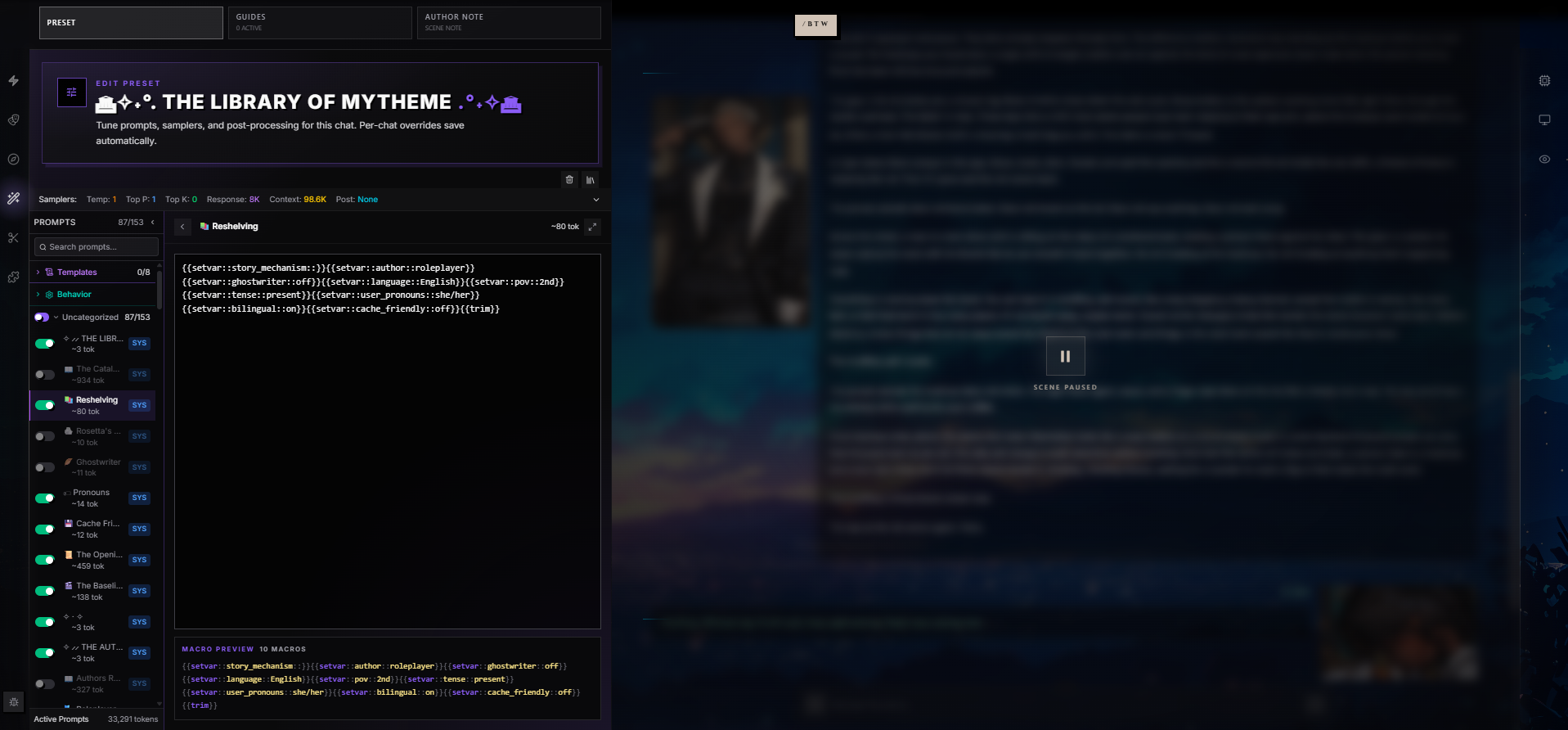
A Preset is a complete recipe that controls how the AI behaves during a chat. It bundles the ordered list of system prompts that shape the AI's voice and rules, the sampler settings that govern creativity and length, the template formats that decide how character info and lore get stitched into the prompt, and the per-chat overrides that let you toss bits aside for a single scene without disturbing the original.
Think of it this way: a Character defines who the AI plays. A Preset defines how the AI plays them — the writing style, the rules, the tone, the dials that get turned every turn.
Every chat session uses exactly one preset. Swapping the preset on the same character is the fastest way to radically change the experience without touching the character card.
What Presets Control
Presets bundle four big systems:
| System | What It Controls |
|---|---|
| Prompt Stack | The ordered list of system, user, and assistant prompts that get assembled into the conversation context. |
| Sampler Settings | Token-level generation behavior — temperature, top-p, penalties, max response length, max context. |
| Templates | The wrappers around character info, lore, and scenarios — how each block is formatted in the prompt. |
| Behavior | Provider-level flags — context mode, message formatting, continue prefill, post-processing. |
The first one — the prompt stack — is what makes the biggest difference. Most preset craft is prompt craft.
Why Presets Are Separate From Characters
Different characters need different presets. A grizzled noir detective benefits from prose-heavy writing rules and a slow pacing prompt; a chaotic anime mascot wants short punchy beats and emoji-tolerant formatting. Putting all of that on the character card would make the card unportable.
By keeping behavior in the preset:
- One character runs against many presets (creator picks defaults, users override).
- One preset runs across many characters (you build a "literary third-person preset" once and pair it with anyone).
- Sharing presets is its own social act, separate from character sharing.
Most published characters list one or two recommended presets on their profile. Use those for your first chat with a new character before experimenting.
Anatomy of a Preset
| Field | Purpose |
|---|---|
| Name | The preset's display name in your library and on Discovery. |
| Description | Short blurb shown on the preset's Discovery card. |
| Icon / Accent Color | The visual identity of the preset — the icon and accent color drive the preset's chrome in the wing and on its Discovery card. |
| Cover Image / Thumbnail | Image shown on the preset's Discovery card and detail page. |
| Prompt Stack | Ordered list of prompts (system / user / assistant) organized into categories. |
| Categories | Folder-like groupings for the prompt list. Can nest one level deep. |
| Samplers | Temperature, top-p, top-k, min-p, top-a, penalties, max tokens, max context, post-processing. |
| Templates | Story string, scenario format, personality format, world-info format. |
| Behavior | Wrap-in-quotes, names behavior, send-if-empty, continue prefill, continue postfix. |
| API Options | Streaming, system-prompt handling, function calling, reasoning effort, web search, image requests. |
| Tags & Model Families | Discovery tags and the model families the preset is tuned for. |
| Loadout flag | Whether saved prompt-toggle configurations on this preset are public and shareable as loadout codes. |
You can edit any of these from the Preset wing during a chat, or from the preset detail page in your library.
Creating a Preset
Three starting points:
- From scratch — Build a prompt stack and dial in samplers yourself. Best when you know exactly what you want.
- Fork (Rewrite) a public preset — Copy someone else's published preset, then customize. Original creator gets attribution. Recommended for newcomers.
- Import from SillyTavern — Upload a SillyTavern preset JSON file directly.
RoleCall supports both the Legacy format (marker-based) and the Nemo Wiki format (===syntax=== categories) that SillyTavern users will recognize. Either imports cleanly.
When you create or fork, the preset lands in your library as a draft — visible only to you until you publish.
Preset Statuses
| Status | Who Can See It | Appears in Discovery |
|---|---|---|
| Draft | Only you | No |
| Private | Only you | No |
| Published | Everyone | Yes |
| Unlisted | Anyone with the link | No |
| Removed | Only you (taken down) | No |
There is no Archived or Pending Review status for presets. A published preset can be moved back to private at any time. Re-publishing a forked preset preserves attribution to the original creator.
The Prompt Stack
The prompt stack is the heart of a preset. It's an ordered list of prompts that get assembled into the context window on every turn.
Categories and Prompts
Prompts live inside categories — think of them as folders. Categories can nest one level deep (subcategories) for complex organizational schemes, but most presets keep it flat. Each prompt has:
| Property | What It Does | Default |
|---|---|---|
| Role | system, user, or assistant — tells the AI how to interpret this prompt. | system |
| Name | Display label in the prompt list. | (required) |
| Identifier | Stable string used to track this prompt across forks and imports. | Auto-generated |
| Content | The actual prompt text — macros allowed. | (required) |
| Enabled | Whether this prompt is active (toggled per-chat without editing the preset). | true |
| System Prompt flag | Marks the prompt as part of the system block (vs. injected mid-chat). | true |
| Marker flag | Whether this prompt is a structural marker (chat history, lore, persona). | false |
| Injection Position | Where in the context the prompt lands — relative (top of context) or in-chat (mid-conversation). | Relative |
| Injection Depth | How many messages back from the current turn to inject. 0 is right before your latest message. | 4 |
| Injection Order | Priority when multiple prompts inject at the same position — lower numbers go first. | 100 |
| Forbid Overrides | When true, end users can't disable this prompt from a chat. | false |
| Category | Which folder the prompt appears under. | None (Uncategorized) |
Injection Positions
Prompts inject at one of two positions:
Relative (top of context). The prompt appears once at the beginning of the conversation, before any chat messages. This is where your main system prompt, character description, and writing guidelines typically go. Order within the relative block is controlled by Injection Order and the prompt's place in the stack.
In-Chat (within messages). The prompt injects between chat messages at a specific depth. Depth 0 means right before your current message. Depth 4 means four turns back. Useful for reminders, author's notes, or instructions that should appear mid-conversation to keep the AI from drifting.
Marker Prompts (Structural Slots)
RoleCall recognizes twelve standard marker identifiers with special behavior. They're not magic text — they're prompt rows whose names tell the worker "replace me with this dynamic content on every build":
| Identifier | Replaced With |
|---|---|
chatHistory | The conversation transcript so far. |
personaDescription | Your active persona's description. |
charDescription | The character card's description field. |
charPersonality | The character card's personality field. |
scenario | The character or chat scenario. |
dialogueExamples | The character's example dialogues. |
worldInfoBefore | Lorebook entries that anchor before the rest of context. |
worldInfoAfter | Lorebook entries that anchor after the rest of context. |
main | The main system prompt content. |
jailbreak | An override prompt typically injected in-chat at depth 0. |
nsfw | NSFW handling instructions. |
enhanceDefinitions | Additional definition/enhancement content. |
Only eight of these — chatHistory, personaDescription, dialogueExamples, charDescription, charPersonality, scenario, worldInfoBefore, and worldInfoAfter — have a dedicated slot template in the prompt editor; main, jailbreak, nsfw, and enhanceDefinitions are recognized identifiers without one.
These markers are the "casting marks" of the prompt — they tell RoleCall where to slot the dynamic pieces. If your preset omits a marker, RoleCall injects sensible defaults so even a minimal preset still produces a functional conversation.
Auto-Injection of Missing Markers
If your preset doesn't explicitly include certain markers, RoleCall auto-injects them at sensible positions:
- Persona lands after the main/jailbreak block.
- Lore (world info) lands between
worldInfoBeforeandworldInfoAfter, or at the best-guess position if those markers don't exist. - Message history is added as an in-chat marker at depth 0.
This means even a one-line "You are {{char}}" preset produces a functional chat. Dig deeper only when you need to.
Adding, Deleting, Reordering, and Bulk-Creating Prompts
In the prompt list on the left side of the preset wing:
- Add a prompt — Click the
+button at the top of a category. Pick the role, name it, write the content. New prompts default to the system role and enabled. - Delete a prompt — Hover the prompt and choose Delete. Default marker prompts cannot be deleted (they're system-required), but you can disable them or move them around.
- Reorder by drag — Drag prompts to change their order within a category, or drag them to a different category. The order in the list reflects the order in the assembled prompt.
- Bulk-create — Import flows and refactoring tools drop several prompts in at once. The bulk path validates each prompt individually and reports any that failed without aborting the whole batch.
- Bulk-delete — Multi-select prompts and remove them at once. Default markers in the selection are skipped automatically.
You can only add, delete, or reorder prompts on a preset you own. To modify someone else's published preset, fork it first — see Forking below.
Per-Chat Prompt Overrides
You don't need a brand-new preset to tweak which prompts are active for one scene. In any chat, you can toggle individual prompts on or off — these overrides are stored per-chat, so the original preset stays clean.
Common patterns:
- Disable the NSFW prompt for a SFW scene.
- Disable a heavy worldbuilding prompt that's redundant when paired with a self-contained character.
- Enable an experimental writing-style prompt for one scene to test it.
- Switch off the jailbreak when running against a model that doesn't need one.
Override Indicators
Per-chat overrides are visible inline:
- A small pulsing dot next to a prompt or sampler value means it's been overridden for this chat.
- The wing shows a "viewing original" toggle — flip it to see the preset's unmodified state without losing your overrides.
- The category collapse arrow always shows the prompt's effective enabled count (active after overrides).
Clearing Overrides
You can clear all overrides from the wing menu to reset the chat back to the preset's defaults. This wipes both prompt toggles and any sampler overrides you've set for the chat.
Group Chats
In a group chat, prompt and sampler overrides save per-character within the group instead of per-chat. Two characters in the same group can run the same preset with different prompts toggled and different temperatures.
Forbid-Overrides Flag
A preset creator can mark a prompt with Forbid Overrides to lock it on for end users. This is useful for safety-critical prompts (e.g., refusal lists) that the creator doesn't want users to silently disable. Forbidden prompts still show in the list, but the toggle is disabled with an explanation.
Sampler Settings
Samplers control the AI's generation behavior — how creative, how repetitive, how verbose, how constrained. The preset's sampler bar exposes the core dials at a glance, and expands into the full row of sliders when you click the chevron.
The Sampler Bar
Always visible above the prompt list:
| Quick Slot | What It Shows |
|---|---|
| Temp | Current temperature value, colored orange. |
| Top P | Current Top P value, colored blue. |
| Top K | Current Top K value, colored green. |
| Response | Current max response length, colored purple. |
| Context | Current max context size, colored yellow. |
| Post | Current Prompt Post-Processing mode, colored cyan. |
Any slot with a pulsing dot has a per-chat override active. Click the bar to expand into the full slider grid.
Core Sampler Sliders
| Parameter | Range | Step | Default | What It Does |
|---|---|---|---|---|
| Temperature | 0 – 2 | 0.01 | 1.0 | Controls randomness. Lower (0.0 – 0.7) = focused, predictable. Higher (0.8 – 2.0) = creative, varied. Most roleplay sits at 0.7 – 1.0. |
| Top P | 0 – 1 | 0.01 | 0.97 | Nucleus sampling. Only considers tokens whose cumulative probability reaches this threshold. 1.0 = consider all. |
| Top K | 0 – 100 | 1 | 64 | Only considers the top K most likely tokens. 0 = disabled. Often paired with Top P. |
| Min P | 0 – 1 | 0.01 | 0 | Filters tokens below this fraction of the top token's probability. Often more effective than Top P for filtering garbage. |
| Top A | 0 – 1 | 0.01 | 0 | Dynamic cutoff scaled by the top token's probability. 0 = disabled. |
| Frequency Penalty | -2 – 2 | 0.01 | 0 | Penalizes tokens by how often they've appeared. Reduces word repetition. |
| Presence Penalty | -2 – 2 | 0.01 | 0 | Penalizes any token that has appeared at all. Encourages topic diversity. |
| Repetition Penalty | 0.5 – 2 | 0.01 | 1 | Classic anti-repetition tool. 1.0 = no penalty. >1.0 punishes repeats; <1.0 encourages them. |
| Max Response Length | 256 – 64,000 | 256 | 8,192 | Maximum length of the AI's response in tokens (roughly 4 characters per token). |
| Max Context | 1,024 – 2,000,000 | 1,024 | 2,000,000 | Maximum context window in tokens — total budget for system prompt, character info, history, and response. Capped at 2M to match the largest current model. |
Each slider has a help tooltip. Click the value to type a precise number instead of dragging.
Context Mode: Tokens or Messages
The Max Context slider has a built-in toggle:
- Tokens mode (default) — Max Context is a token budget. Older messages get trimmed to fit.
- Messages mode — Max Messages is a count of history messages. The AI sees the current user message plus the previous N messages. The slider runs 1 – 1000 with a live token estimate showing roughly how much room that count will eat in the current chat.
Use Tokens mode when you want a strict budget and trust RoleCall to trim. Use Messages mode when you want a fixed conversational depth regardless of how long individual messages get.
Prompt Post-Processing
A dropdown that controls how the assembled prompt is reshaped before being sent to the provider. Different APIs require different message structures, and RoleCall maps the same preset onto each one.
| Mode | What It Does |
|---|---|
| None | Send messages as-is, no merging or restructuring. Default for OpenAI-style APIs. |
| Merge | Combine consecutive same-role messages into one. Fixes Claude's "alternating roles" requirement. |
| Semi | Merge consecutive same-role messages and convert mid-conversation system messages into user messages. |
| Strict | Force user-first, strictly alternating user/assistant order. For APIs that reject anything else. |
| Single | Collapse everything into one user message. For APIs that don't accept a roles list at all. |
If responses come back malformed or rejected, switching this dropdown is usually the fix.
Per-Chat Sampler Overrides
Every sampler on the bar can be overridden per-chat. Drag a slider in one scene and only that scene gets the new value; the preset's default is untouched. Overrides save automatically. The pulsing dot next to a slider's value means an override is active. See Generation Controls for the full sampler reference and the Sampler Profile system that lets you save reusable sampler sets independent of any preset.
Advanced Samplers (Beyond the Preset Bar)
For experimental and provider-specific samplers (Mirostat, DRY, Dynamic Temperature, Smoothing Factor, Typical P, Tail-Free Sampling, and many more), see Generation Controls. Those live in the universal sampler panel and apply on top of the preset's bar values when the active provider supports them.
Provider Adaptation
You don't need to worry about which parameters your AI provider supports. RoleCall automatically adapts sampler settings for the provider you're using — OpenAI/Anthropic-flavored APIs get filtered to their supported subset, llama.cpp and Ollama get format conversion, and so on. You can switch providers without rebuilding your preset.
Templates
Templates wrap structured content (character info, scenarios, world info) when they're injected into the prompt. Most presets ship with sensible defaults — you only need to touch these for advanced roll-your-own setups.
| Template | What It Wraps | Default Hint |
|---|---|---|
| Scenario Format | The character's scenario field. | {{scenario}} |
| Personality Format | The character's personality field. | [{{char}}'s personality: {{personality}}] |
| World Info Format | Each block of lorebook entries. | [Details of the fictional world the RP is set in:\n{0}] |
| Story String / New Chat Prompt | The opening block sent on a brand-new conversation. | (empty by default) |
| Continue Nudge Prompt | Wrapper text used when you click Continue to extend the AI's last reply. | (empty by default) |
| Impersonation Prompt | Wrapper text used when the AI impersonates you to suggest a reply. | (empty by default) |
| Assistant Prefill | A short string prepended to the assistant's response to "lead" it (mostly for Claude). | (empty by default) |
| New Group Chat Prompt | Opening block sent when a group chat starts. | (empty by default) |
| New Example Chat Prompt | Wrapper before each example dialogue block. | [Example Chat] |
Templates support macros. {{char}}, {{user}}, {{description}}, {{personality}}, and {{scenario}} all resolve inside template strings.
Behavior Settings
These are the prompt-assembly flags that aren't really about prompt content. Most users leave them at defaults.
| Setting | Type | Default | What It Does |
|---|---|---|---|
| Wrap In Quotes | Toggle | Off | Wraps your typed messages in quotation marks before sending. Helps some models treat user input as speech instead of narration. |
| Names Behavior | Choice | None | How character/user names are attached to messages. Options: None (no name prefix), Display Name (e.g., Elena:), or System Prefix. |
| Send If Empty | Text | [Continue] | What to send if you hit Send with an empty input box. Letting the AI continue with [Continue] is the most common choice. |
| Continue Prefill | Toggle | On | When you click Continue, prefill the assistant's response with its previous output so it picks up mid-stream instead of restarting. |
| Continue Postfix | Text | " " (one space) | What gets inserted between the prior response and the continuation. A space avoids accidentally gluing words together. |
API Options
Provider-specific flags that ride along with the preset:
| Option | Default | What It Does |
|---|---|---|
| Stream OpenAI | On | Whether OpenAI-flavored responses stream token-by-token vs arrive whole. |
| Claude Use Sysprompt | On | Send the system prompt as a true system message on Claude (vs. inline). |
| Use Makersuite Sysprompt | On | Use Google's system instruction field for Gemini calls. |
| Squash System Messages | On | Combine consecutive system messages into one when the provider only accepts a single one. |
| Function Calling | On | Allow the provider to receive tool/function definitions for this chat. |
| Show Thoughts | On | Display reasoning content from reasoning-capable models (e.g., o1, Claude with thinking). |
| Reasoning Effort | Auto | For reasoning models, how hard the model thinks (low/medium/high/auto). |
| Enable Web Search | On | Allow models with web search to use it for this chat. |
| Request Images | On | Tell image-capable models they're allowed to generate images. |
Template Variables (Macros) Inside Prompts
Prompts in your stack support the full macro system. Macros resolve at runtime, so they always reflect current scene values.
Essentials
{{char}} — Active character name
{{user}} — Active persona name
{{description}} — Character description
{{personality}} — Character personality
{{scenario}} — Character scenario
{{persona}} — User persona description
Dynamic Content
{{time}} — Current time
{{date}} — Current date
{{weather}} — Generated weather (when set)
{{idle_duration}} — Time since {{user}}'s last reply
Pronoun Macros
If the character has pronouns set:
{{they}}, {{them}}, {{their}}, {{theirs}}
Resolves to she/her, he/him, they/them, etc. — see Macros for the full list.
Chat Variables
{{getvar::mood}} — Read a chat variable
{{setvar::trust::75}} — Set a chat variable (resolves to empty string)
{{addvar::trust::5}} — Increment by 5
Conditional & Math
The macro engine also supports {{if::...}}, {{random::A|B|C}}, {{calc::...}}, dice rolls, and many more. The full reference is in the Macros guide.
Common Preset Patterns
A few patterns most published presets follow:
The "Provider-Tuned" Preset
Named for the model family it targets — Claude-style, Mistral-style, Llama-style, Gemini-style, GPT-style. The prompt stack is tuned to the quirks of that family:
- Claude-style presets lean on XML-tagged sections, send the system block as a true system message, and often use Assistant Prefill to bias formatting.
- Mistral-style presets keep the system block short, use the Merge post-processing mode, and avoid multi-system stacking.
- Llama-style presets use specific instruction formatting and rely on Strict post-processing for instruction-tuned variants.
- Gemini-style presets use the Makersuite sysprompt field and rely on Squash System Messages.
If you swap providers, swap presets. Or set the preset's Model Families tag to flag compatibility.
The "Genre" Preset
Built around a writing style — literary prose, fast-paced action, dialogue-heavy slice-of-life, screenplay format. The prompt stack is mostly writing guidelines; characters and worlds are interchangeable.
The "Anti-Slop" Preset
Aggressive about banning AI-isms — em-dash repetition, "shivers down spines," "you couldn't help but notice." The prompt stack includes long banned-phrase lists, and the preset usually pairs with Post-Production for a second pass that scrubs anything that slipped through.
The "Adventure" Preset
Heavy with worldbuilding scaffolding — dice mechanics, status checks, scene framing. Often paired with Story Director and the Compendium.
The "Minimal" Preset
A single prompt that says "You are {{char}} in {{scenario}}. Stay in character." Lets the character card and lorebook do all the work. Good for testing how well a character card stands on its own.
Forking, Republishing, and Syncing
Forking (a.k.a. Rewrite)
Click Fork on someone else's published preset. A draft copy lands in your library with full attribution to the original creator. Customize freely — the attribution persists even if you publish your fork.
When forking, you'll see:
- A rename field — you can call your fork whatever you want.
- The creator's name with a credit notice.
- The creator's fork rules / ground rules, if they set any. These are short text rules the creator wants you to follow (e.g., "don't republish word-for-word," "credit me if you redistribute"). You'll need to tick a checkbox confirming you understand them before the fork goes through.
- An optional similarity ceiling when the creator has set one — your fork can't republish more than that percentage of the original's prompts verbatim.
Republishing
If you own a published preset and you've made edits, click Save as new version (the upload icon in the preset wing). This pushes your changes to the published preset so other users get the update on next load. Forkers can selectively pull your changes via the sync flow.
When you publish a new version, RoleCall opens a publish modal where you can:
- Pick the visibility (Private or Published).
- Write release notes describing what changed.
- See an auto-generated changelog of every prompt added/removed/modified, every setting tweaked, every category renamed.
- Bump the version label (e.g., 1.2 → 1.3).
The Diff / Compare Modal
Before republishing, click Compare (the compare-changes icon in the wing header) to open the diff modal. You'll see exactly what changed between the published version and your working state:
- Prompt added — new prompt and its full content.
- Prompt deleted — which prompt was removed.
- Prompt modified — the content before vs. after, highlighted.
- Prompt renamed — old name → new name.
- Prompt toggled — enabled or disabled.
- Prompt reordered — position changed.
- Setting changed — sampler before → after, e.g., Temperature 0.8 → 1.0.
- Category added / deleted / renamed — folder-level changes.
Each change has an icon and color so you can scan a long diff quickly. This is the same modal forkers see when they check for upstream updates — they can cherry-pick which of your changes to accept rather than auto-merging everything.
Syncing With Upstream
If the original of a preset you forked gets updated, you can check for updates from the preset wing. You'll see the same diff modal, and you choose which prompts and settings to accept. Your local customizations stay intact unless you explicitly opt to overwrite them.
Preset Discovery, Library, and Browsing
The preset wing has two pickers built in.
Your Library
The default picker shows every preset you've created or forked, with search filtering by name. Pick one and it becomes active for the chat immediately. The active preset's prompts and samplers populate the rest of the wing.
You don't have to leave the chat to switch presets — the picker lives right inside the wing.
Discovery (Plotlight)
The Discovery picker shows public presets from every creator. The search box filters across name, description, tags, and creator. Click any preset to preview it; click Fork to copy it into your library as a draft.
This is the fastest way to get a known-good preset for a specific provider or genre: search "Claude," see what comes back, fork the one with the best ratings.
Library Page
For deeper management — bulk delete, tag editing, status changes, comparing your forks against their upstream, viewing version history — open the library page from the main dashboard. The wing picker is for in-scene switching; the library page is for serious organization.
How Many Presets Should You Have
Most users converge on three to five presets and live in them for months:
- A "main" preset that matches their primary AI provider and writing style. Used 80% of the time.
- A genre preset for a specific kind of session — heavy NSFW, gritty noir, slice-of-life cozy.
- A "lite" preset for fast casual play — small prompt stack, fast samplers, cheap model.
- A "DM" preset with Story Director modules tuned and the Compendium configured.
You don't need a separate preset for every character. Most characters work fine on a well-tuned general-purpose preset.
Loadouts (Saved Prompt Configurations)
If your preset has the Loadout flag enabled, you can save the current per-chat prompt-toggle configuration as a named loadout state — a snapshot of which prompts are on and which are off.
Saving a Loadout State
In the prompt list header, click Save Config. Give the loadout a name (e.g., "After Dark," "SFW Slice-of-Life," "Anti-Slop Heavy"). The current set of toggles gets saved as a named state attached to the preset.
Switching Between Loadouts
Open the loadout dropdown on the preset and pick a saved configuration. The toggles snap to that state instantly. This is the fastest way to flip between, say, "After Dark mode" and "Coffee Shop mode" without manually toggling six prompts every time.
Loadout Codes (Shareable)
If your preset is published and the loadout flag is on, your loadout states get shareable codes in the format:
RC:YourUsername/PresetSlug
RC:YourUsername/PresetSlug/LoadoutSlug
The loadout segment is optional. Anyone with the code can load both the preset and the specific toggle configuration in one click — useful for character creators recommending a specific preset plus a specific configuration ("for the spicy run, use RC:nightowl/cozy-rp/spicy"). A code without a loadout slug at the end resolves to the preset's default state.
Loadout codes resolve only for published presets with the loadout flag on. Draft, private, unlisted, and removed presets don't expose loadout codes.
Default Loadout
Every loadout-enabled preset has one default loadout — the configuration that loads when someone applies the preset without a specific loadout code. You can edit which loadout is default from the preset's detail page.
Loadouts vs. Per-Chat Overrides
A per-chat override is a temporary toggle for one scene. A loadout state is a saved, named configuration on the preset itself that anyone (with access) can apply. Use overrides for ad-hoc tweaks; save a loadout when you keep flipping the same set of prompts together.
Loadouts as Part of a Bigger Setup
A preset (with optional loadout) is one piece of a larger chat setup. The other pieces:
- Character — Who the AI plays.
- Persona — Who you play.
- Lorebook(s) — World context, characters, places.
- Sampler Profile — A reusable sampler set independent of any preset.
- Provider + Model — Which AI server and model handle the call.
Characters can list recommended presets, recommended lorebooks, and recommended personas on their profile. Some recommendations can include a specific loadout code so users get the exact setup the creator intended.
Sampler Tips
- Start with a known-good preset and make small adjustments rather than building from zero.
- Temperature 0.7 – 1.0 is the sweet spot for most roleplay — creative but coherent.
- Min P 0.05 – 0.1 is often more effective than Top P for filtering garbage tokens.
- Frequency Penalty 0.1 – 0.3 helps reduce phrase repetition without killing the AI's vocabulary.
- If responses feel flat or safe, raise temperature slightly and lower repetition penalty toward 1.0.
- If responses are incoherent or rambling, lower temperature and tighten Top P / Min P.
- If responses get rejected with "alternating roles" errors on Claude, switch Prompt Post-Processing to Merge or Strict.
- If you keep hitting context limits, switch Context Mode to Messages and cap at 50 — most chats don't need more than the last 50 turns visible to the AI.
Best Practices
Fork before you experiment. If you want to radically rework a preset you've published, fork your own copy and iterate there. Your published preset's users expect consistency.
Document your prompts. Names like "BlockA-2" are useless six months later. Name prompts descriptively — "NSFW Off-Switch," "Action-Beats Hint," "Anti-Em-Dash."
Don't stack five jailbreaks. They fight each other. One well-written override prompt at depth 0 beats a tower of contradictory ones.
Use auto-injection. If you don't explicitly include chatHistory, personaDescription, or world-info markers, RoleCall injects them sensibly. Don't fight it unless you have a reason.
Test against multiple characters. A preset that nails one character might collapse on another. Run your preset against three or four very different characters before publishing.
Use the Compare modal before republishing. It catches "I forgot I disabled that" mistakes that would otherwise ship to your users.
Set Forbid Overrides sparingly. Locking a prompt on prevents users from disabling it. Reserve this for safety-critical content; everything else, let users tune.
Tag honestly. Mark your preset with the model family it targets, the writing style it produces, and any content rating it leans toward. Mislabeled presets get bad reviews fast.
Write release notes. When you republish, the changelog auto-fills, but a sentence or two of release notes ("Bumped temperature default for more variety; added French phrase ban list") helps your forkers decide whether to sync.
When NOT to Build a New Preset
Newcomers often reach for a brand-new preset when a smaller tool would do the job:
- You want to disable one prompt for one scene. Use a per-chat prompt override. The preset stays unchanged.
- You want to bump temperature for one scene. Drag the slider in the wing — it saves as a per-chat sampler override.
- You want to flip between two prompt configurations. Save them as loadouts on the same preset instead of cloning the preset twice.
- You want a different character voice. That's a character-card change, not a preset change. The character's System Prompt and Post-History Instructions fields can override preset prompts without you forking anything.
- You want a different model. Just switch the model in Quick Play or the Provider wing. The preset doesn't care.
- You want a different sampler set entirely. Save a Sampler Profile and apply it to the chat — independent of the preset.
Build a new preset when the whole behavior — system prompts plus samplers plus templates — needs to change as a unit. Otherwise, lean on overrides and loadouts.
Preset Anatomy at a Glance
Quick reference for everything covered above:
Preset
├── Identity
│   ├── Name, description, icon, accent color
│   ├── Cover image / thumbnail
│   ├── Tags, model families
│   └── Status: draft | private | published | unlisted | removed
│
├── Prompt Stack
│   ├── Categories (folders, one level of nesting)
│   │   └── Prompts
│   │       ├── role: system | user | assistant
│   │       ├── name, identifier, content (macros allowed)
│   │       ├── enabled (per-chat overridable)
│   │       ├── injectionPosition: relative | in-chat
│   │       ├── injectionDepth (0 = most recent)
│   │       ├── injectionOrder (lower = earlier)
│   │       ├── forbidOverrides flag
│   │       └── marker flag
│   └── Marker identifiers: chatHistory, personaDescription,
│       charDescription, charPersonality, scenario,
│       dialogueExamples, worldInfoBefore, worldInfoAfter,
│       main, jailbreak, nsfw, enhanceDefinitions
│
├── Samplers
│   ├── Core: temperature, topP, topK, minP, topA
│   ├── Penalties: frequencyPenalty, presencePenalty,
│   │   repetitionPenalty
│   ├── Length: maxTokens, maxContext OR maxMessages
│   ├── contextMode: tokens | messages
│   └── promptPostProcessing: none | merge | semi | strict | single
│
├── Templates
│   ├── scenarioFormat, personalityFormat, wiFormat
│   ├── newChatPrompt, newGroupChatPrompt, newExampleChatPrompt
│   ├── continueNudgePrompt, impersonationPrompt
│   └── assistantPrefill
│
├── Behavior
│   ├── wrapInQuotes
│   ├── namesBehavior
│   ├── sendIfEmpty
│   ├── continuePrefill
│   └── continuePostfix
│
├── API Options
│   ├── streamOpenai, claudeUseSysprompt, useMakersuiteSysprompt
│   ├── squashSystemMessages, functionCalling
│   ├── showThoughts, reasoningEffort
│   └── enableWebSearch, requestImages
│
└── Sharing
    ├── Fork attribution (originalCreatorId, forkedFromId)
    ├── Fork rules / ground rules
    ├── Version history (deltas + release notes)
    └── Loadouts (saved prompt configurations + shareable codes)
Most users only touch the prompt stack and a handful of samplers. Templates, Behavior, and API Options are advanced — leave them at defaults until you have a reason.